TracCloudWhatsNew
From Redrock Wiki

This page highlights some of the recent changes made to the TracCloud platform, and how you can utilize them on your own instance. A list of past changes and a full changelog can be found in the tabs above.
If you have any questions about these changes, feel free to reach out to us on our helpdesk.
2023-07-03 | TracCloud features and changes from June 2023
Here are some of the noteworthy additions and changes in TracCloud for the month of June 2023. Our full changelog can be found here.
- 2023-06-30: "Time Out" has been added to the utilization widget

- 2023-06-28: Students with a raised hand now display more prominently in Q2

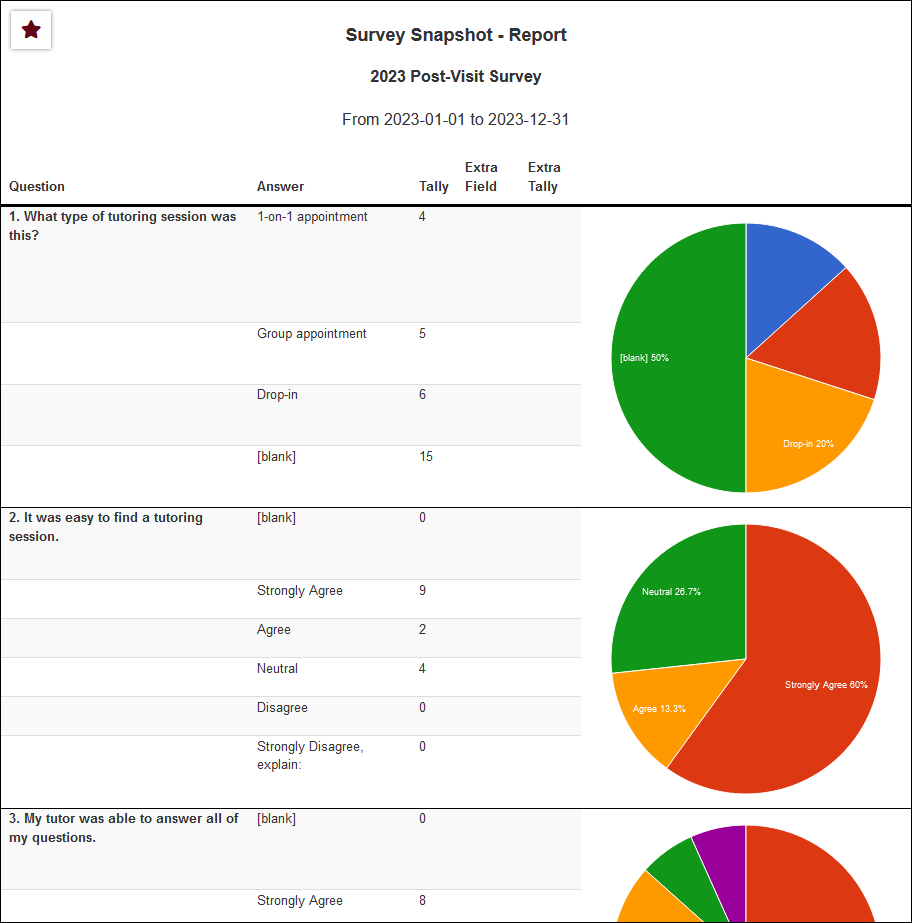
- 2023-06-27: The Survey Snapshot report can now include pie/bar charts
- These can be enabled when choosing your report settings.

- 2023-06-26: A twig tag list is now available in Welcome Messages and SurveyTrac emails
- The SurveyTrac tag list can be found in the top-right corner of the navigation bar when configuring your surveys.


- 2023-06-22: Q2 now has an option to play a sound when a student raises their hand
- This option can be found in Other > Q2 Tables > [Your Q2 Configuration].


- 2023-06-20: New SurveyTrac initiated via option, Email after # of visits
- Rather than sending a survey after the first visit or all visits, this option allows you to send the survey after an arbitrary number of visits.


- 2023-06-14: New options to hide notes from faculty specifically in SAGE
- These options can be enabled by going to Other > SAGE Referral Types > [Your Referral] > Check the applicable boxes from the screenshot below.


- 2023-06-14: Static QR codes for custom kiosks
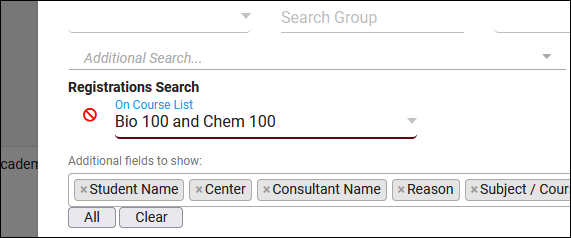
- 2023-06-07: Use Course Lists for additional searches in reports
- This option can be found in almost every report where you can perform a search based on registrations. Note that course lists only contain active sections, this should not be used when running reports on past semesters.

- 2023-06-07: The Success Plans report can now include visit details
- In the report settings, you'll find a new "Show Visit Details" checkbox to include this information in the report results.
- In the report settings, you'll find a new "Show Visit Details" checkbox to include this information in the report results.
- 2023-06-02: New SurveyTrac initiated via option, Email after 1st visit per consultant

This section of your profile preferences contains additional options relating to the Log Listing, KIOSKs, and more. Go to Other ➜ Other Options ➜ Profiles ➜ [Your profile] ➜ Prefs ➜ Log Listing Message, KIOSKS Notices, and Custom KIOSKs.

Messages
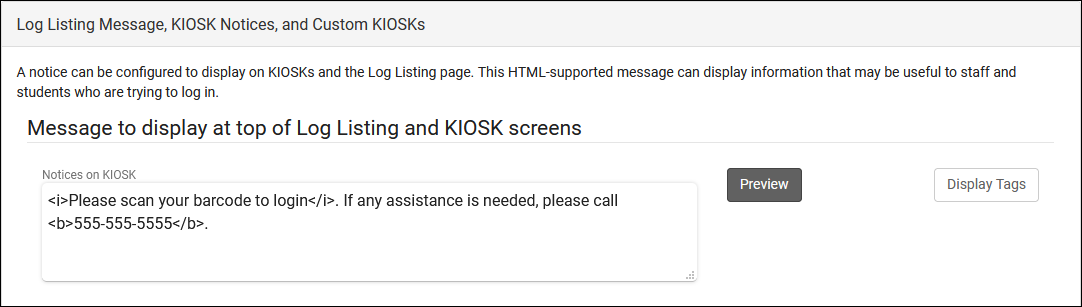
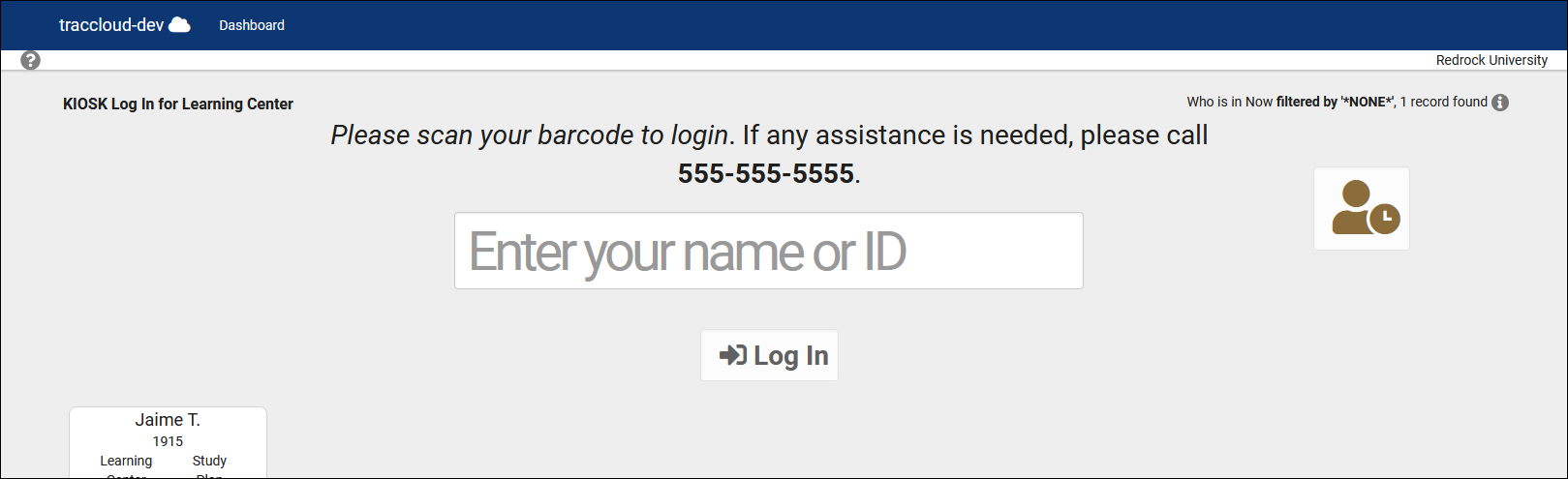
- Notices on KIOSK
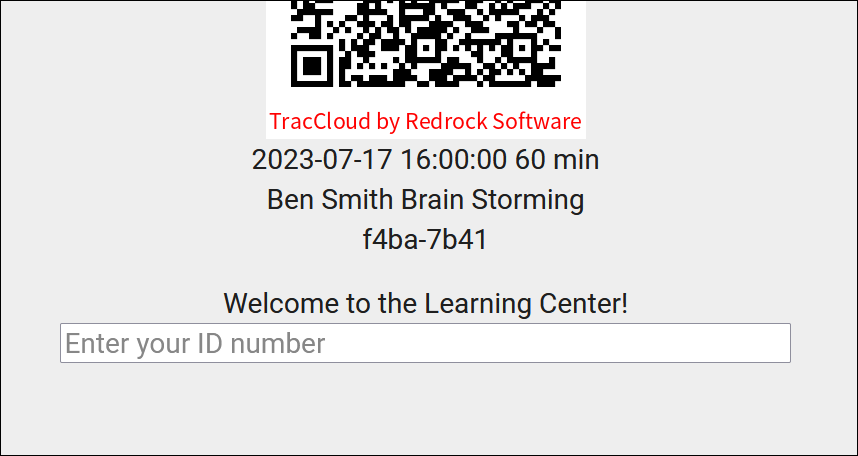
- This message will display on kiosks/log listings above the QR code/ID box. This field supports Twig (center tags only) and HTML. If your center has a limit on the number of students that can be logged in at a time, there are two unique Twig tags that may be of use in this field. {{Center.Settings.MaxStudentsActive}} is the center's visit limit and {{Center.NumStudentsActive}} is the number of students who are currently in the center.


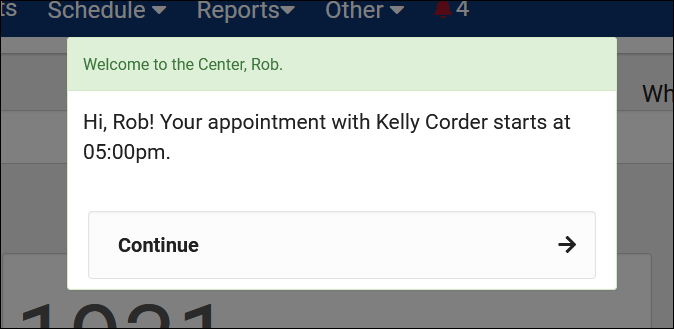
- Message to Display as student logs a visit into/out of a center
- These are custom, Twig and HTML-supported messages that can be displayed during the login and logout process on the kiosk/log listing. This allows you to display information to the student such as details of their upcoming appointment or contact info for the consultant.


Auto Terminate
- Terminate all still logged in
- This feature can be used to automatically conclude ongoing visits, so that if a student is not logged out, their visits don't continue indefinitely. If enabled, any ongoing visits by Time for Nightly Termination will be concluded and set to the duration set below.
- Auto set these visits time to (minutes)
- If an ongoing visit is terminated, this is the duration it will be set to in minutes. If this is set to 0 minutes, a terminated visit will be deleted instead.
- Open visit terminations applies to Work Visits
- If checked, the above logic also applies to consultant work visits as well.
- Auto terminate visits longer than (minutes)
- This is an additional process that can also correct visits that are too long, even if they were concluded. If this is a feature you wish to use, the the value should be set to your maximum possible visit duration to prevent accurate visits from being automatically modified. Leave this and the option below blank to disable this component of auto termination.
- Auto set visits time to (minutes)
- This is the duration visits will be changed to in the above scenario. If this is set to 0 minutes, a terminated visit will be deleted instead.
- Time for Nightly Termination
- This is the specific time the auto termination process runs each day. This should be set to a later time in the day, such as 11pm, to prevent actual in-progress visits from being logged out in the middle of a session.
- Send Email Notification to Student/Center Admin
- Toggling these options will send an email to the student or center admin letting them know that the student wasn’t logged out. If Center Admin is chosen, additional email addresses can be CC'd in the box below. "Center Admin" refers to the email address entered in [Your profile] ➜ Prefs ➜ Emails ➜ Profile Email Address.
- Delete visits waiting (not started)
- If a waiting visit hasn't begun by the auto termination time, you can choose if it's terminated normally (unchecked) or deleted (checked).
- Terminations apply to Work Visits
- If you would like to also terminate work visits using the duration-limit approach, you can check this box and define a different threshold and adjusted time.
- Termination deletion/modification email
- These allow you to override the default email that sends to students when their visit is terminated. You can modify the deletion and the modification email independently of each other. Leaving these blank is safe, TracCloud will use a default template in that case.
Other Log In/Out Preferences
- KIOSK Enter ID label and Batch KIOSK Enter ID label (IDs only)
- Changes the text shown in the kiosk/log listing and Batch Visit QR Code "Enter ID" boxes. This is typically changed to align with school branding (e.g., "Redrock ID") or to give more detailed instructions.

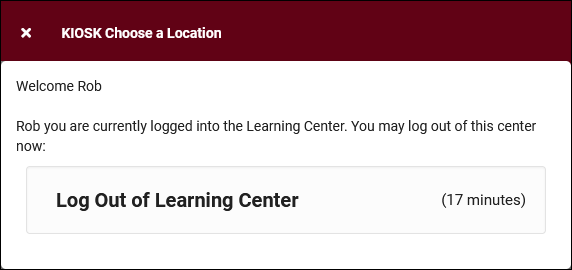
- Log out of this profile when student logs in to another profile
- If enabled, when a student logs into Center 1, then logs into Center 2, their visit in Center 1 will be automatically concluded.
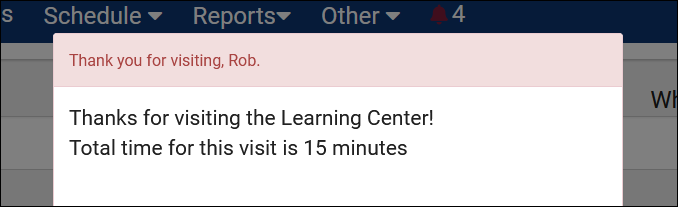
- Show total visit minutes when logging out
- This will show the visit duration in the relevant center during logout.

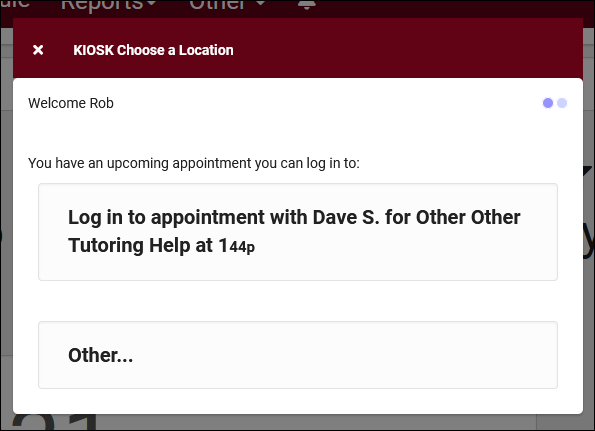
- Show Other Choice when logging in to single center even with appointment
- If enabled, students will be allowed to log into the center for a purpose other than their appointment (e.g., a quick drop-in visit), even if the login is close to the appointment time. Otherwise, TracCloud will assume they are logging in for their appointment and will not allow the student to login for another purpose. The window of time where this applies is based on the Within x minutes options in your missed appointment email settings.

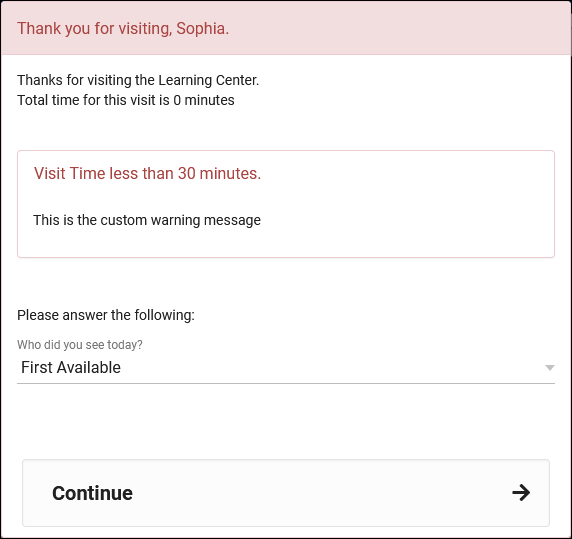
- Warn user if visit time is less than (minutes)
- If a duration is entered and a visit under that limit is being concluded by a staff member, they will be shown the warning message from Warning message to display. This message also supports Twig for displaying student data. To give the staff member the ability to cancel the logout as this stage (keeping the student logged in), Allow user to cancel logout should be checked.

- Obscure student ID (***) on login
- If enabled, IDs entered on the log listing will be hidden while typing (showing • characters, like a password field).
- Auto lock visits older than (days)
- This preference allows you to prevent visit records from being modified after a specified period of time. This restriction applies to all users except SysAdmins.
Custom Kiosks
Custom kiosks can be configured for specific visit scenarios. For example, if you need to track attendance for a specific center and reason combination, you can use a custom kiosk to ensure students are logging in with those fields preselected. You can also predetermine the location, consultant, section, meeting type (Online/In-Person), and even IP address zone.
These custom kiosks can be accessed from the same menu as your standard center kiosks. They will appear in the bottom half of the list, with a preceding icon. The only visual difference within the kiosk is that any fields preselected in the custom kiosk settings won't show up as an option to select during login since they've already been chosen. In addition to the expected kiosk functionality, custom kiosks also allow you to create static QR codes that can be reused with a rotating confirmation code.


- Allow Only Custom KIOSKs for Logging
- This disables the regular center kiosks that you would see by default, only allowing you to open custom kiosks.
- Static QR Codes expire
- If you're utilizing static QR codes, you can choose how frequently the codes expires. Daily or weekly.
- Previous Codes Overlap Time
- This adds a buffer allowing expired QR codes to be used for this amount of time after a new code is generated.
- Round Signin to Nearest
- This will automatically round logins to the nearest 15, 30, or 60 minutes. The purpose of this is to emulate batch visits, where the time would be static.
Within each custom kiosk, you will find the Static QR Code button. Clicking this opens the following form.

- Activate Static QR Code
- Enable or disable this QR code.
- Confirmation Code
- This is the current confirmation code for this QR code. Students will need to enter this value after scanning. This value will expire based on your above preferences. If you're creating a QR code for the first time, this code (and expiration date) will need to be set manually. Going forward, it will be updated daily or weekly automatically. If a consultant is linked to the custom kiosk, they will automatically receive new confirmation codes in an email.
- Expiration Date
- The expiration date of the corresponding code. This code will not be automatically updated until this date is reached (or if the code will expire within the next date period), a manual expiration date can be set further into the future than 1 day/week if needed.
- After a student scans the QR code, they will be prompted to enter the confirmation code followed by their ID. The login process is the same as a normal kiosk from this point onward.

Time Check
- Time check Available
- Time Check will allow students (and staff on behalf of students) to view how many visit hours they have accumulated within a given time frame. This feature is typically utilized in athletic centers, where students may have a number of required hours per week or semester. If checked, this will enable the Time Check option for this profile. This adds the Time Check button to the kiosk and log listing pages, which staff or students can utilize.
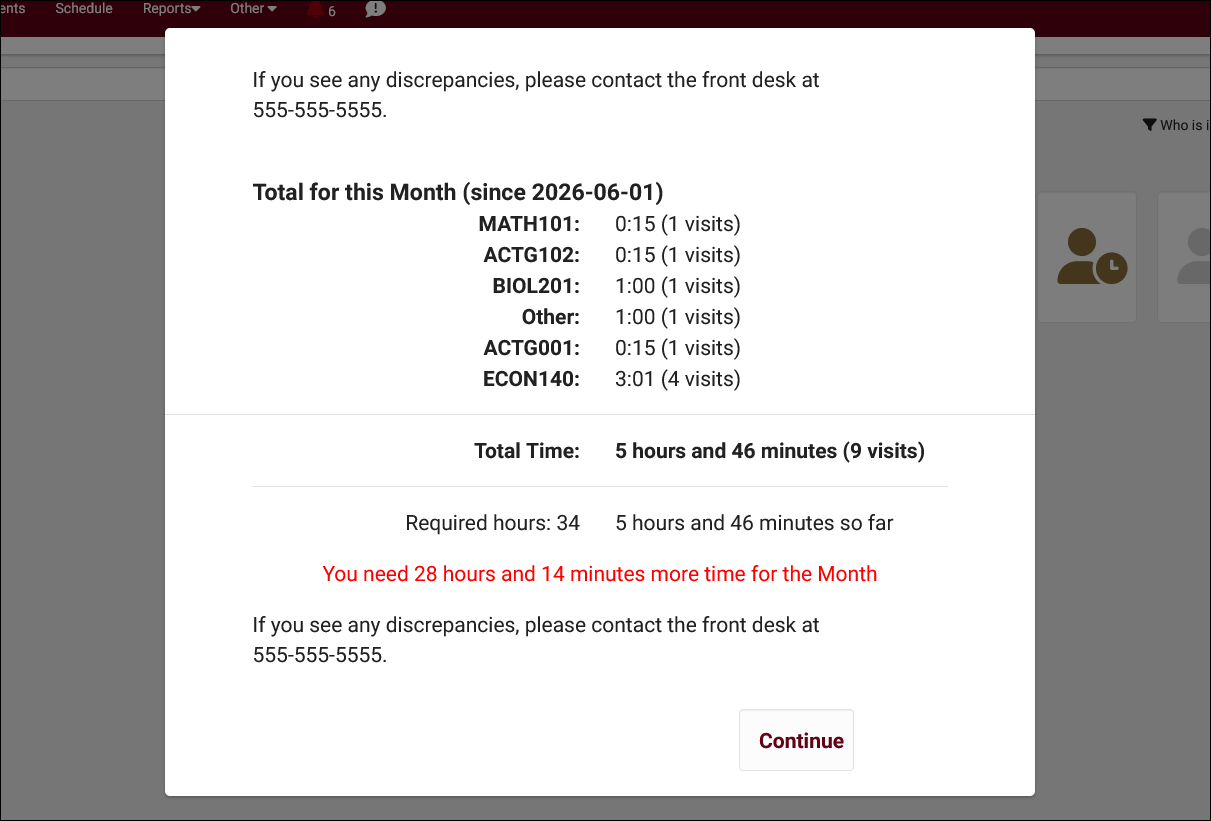

- Show Semester totals
- This will display the student's total time based on the current term's date range.
- Show Week Totals
- This will display the student's total time based on a week date range. If checked, an additional drop-down menu will appear to the right titled Week Starts On. This option will allow you to adjust the day of week that the utility will calculate the hours for (e.g., Sunday will count visits from Sun-Sat).
- Show Required Time Per
- There are three options available.
- None – Will not display required hours or difference
- Weekly – Will show required hours and difference based on a one-week time frame.
- Semester - Will show required hours and difference based on the active term's date range.
- Required Time Field
- To display and use required hours, you will need to set the custom field from student records that contains that value. Required hours can be entered manually or imported.
- Required Time in
- Select the format of your required hours field, hours or minutes.
- Show On Login, LogOut, and Student Dashboard
- These checkboxes determine where the Time Check utility will appear for students.
- Compute totals for all profiles
- By default, Time Check will only compute the total time in centers related to this profile. If this option is checked, that search will be expanded to all profiles' centers.
- Timecheck Message Footer
- This message is shown at the top and bottom of the Time Check window. This field supports Twig.
Additional Features
The SurveyTrac module within TracCloud provides a versatile system for creating, distributing, and managing surveys directed at students, staff, or faculty. Surveys can be automatically triggered by various criteria, such as after a visit, a specified number of visits, new student record creation, or through manual initiation. Surveys can also be linked to particular reasons, subjects, or centers, allowing for highly customized feedback collection. The module supports anonymous surveys, allows survey link expiration, and offers options to automatically resend unanswered surveys to ensure higher response rates.
SurveyTrac features extensive reporting capabilities that include Survey Snapshots, Survey Responses, and Response Rate Comparison. These reports can be exported in various formats (HTML or CSV) and are customizable with additional fields, filtering options, and automated delivery settings. SurveyTrac also supports email and SMS notifications, providing a streamlined approach to survey management and feedback collection. The system's flexibility makes it ideal for various use cases, from general feedback collection to targeted academic progress assessments. Surveys and other tools in TracCloud can be used to increase student retention.

SurveyTrac Configuration
To create a new survey, head over to your SurveyTrac menu (within the “Other” menu in your Navigation Bar), click the hamburger icon, then select “New Survey.” This will bring you to a survey entry form where you can start configuring basic options relating to your survey. Additional options will become available after saving.


- Created By
- The staff member who created this survey.
- Profile
- The profile that this survey is assigned to.
- Active
- Enables or disables this survey.
- Survey Name
- The name of the survey. This will also appear within emails sent to students and staff.
- Survey Period From & To
- The active period of the survey. Used for Initiated Via options that specify "during survey period," such as "Email after 1st visit during survey period."
- Initiated Via
- This setting determines the send criteria for this survey, with the following options available.
- Display during visit entry: This displays within the “Surveys” tab of a visit record, allowing you to fill out and submit the survey from the visit record itself. This survey type only appears when questions are directed to staff.
- Email after visit: This will be sent to the student/staff after a visit takes place. Specifically after Kiosk logout, Log Listing logout, Quick & Batch Visit creation, and appointments being marked as attended (if a visit doesn't already exist).
- Email after 1st visit during survey period: Same as above, but only after the student’s first visit during the survey period specified. Subsequent visits will not initiate this survey.
- Email after # of visits during survey period: Similar to above, but you can choose when the survey sends based on the number of visits. E.g., send a student a survey after their 3rd visit in the center.
- Email after 1st visit per subject during survey period: Same as "1st visit during survey period," but on a per-subject basis. E.g., the student will receive a survey for their first (and only first) visit for MAT100, then another survey for their first visit for CHEM100, and so on.
- Email after 1st visit per consultant during survey period: Same as above, but on a per-consultant basis. E.g., the student will receive a survey for their first (and only first) visit with Dave Smith, then another survey for their first visit for Jane Doe, and so on.
- Email after new student record: This is emailed to the student immediately after their account is created. This only applies when manually creating student accounts, imported students will not receive this survey.
- Email after 1st booked appointment during survey period: This survey is emailed to the student immediately after they book their first appointment in the date range specified.
- Show at entry: This displays during the login process on a Kiosk or Log Listing. These responses will not appear in the visit record itself, as opposed to Display during visit entry.
- Show at entry before 1st visit during survey period: Same as above, but only after the student’s first visit during the survey period specified.
- Show at exit: This displays during the logout process on a Kiosk or Log Listing. Similar to Show at entry, these responses are not visible in visit records.
- Show at exit after 1st visit during survey period: Same as above, but only after the student’s first visit during the survey period specified
- Show at exit for first # of visits during survey period Similar to the above, but repeating for multiple visits. E.g., the first 3 visits in the survey period.
- Display as link on Main Menu: For each day that a user logs in, a new survey is created and will display as a link in the "Surveys/Documents" widget on their dashboard.
- Do not auto send: This survey can be manually sent on the Student/Staff/Faculty Listing as a batch, from individual Student/Staff/Faculty profiles under the "Actions" menu, during Batch Visit creation, from group rosters on the schedule, or from the SurveyTrac listing (including sending anonymous surveys to a list of email addresses).
- Static survey URL: This will provide a static URL and QR code that you can send to anyone. If your survey is not anonymous, users will be prompted to login when they visit the URL. If the survey is anonymous, users will not be prompted to login and anyone with the link can submit an answer.
- Link on edit student: Similar to Do not auto send, but more limited in where it appears as an option to send. This survey is only possible to send from the student listing as a batch or to individual student profiles manually, or from the SurveyTrac listing.
- Link on edit visit: This displays in a "Send Survey" prompt in each visit record under the "Surveys" tab. This allows you to initiate the visit survey email manually, as opposed to the non-email Display during visit entry option.
- Display on document posting: Similar to Link on edit student, except this "Survey" is under a new prompt in the actions menu labelled "Survey Document" and can only be sent to students individually.
- Display as Student Entry Form: Similar to Link on edit student, except this "survey" is under a new prompt in the actions menu labelled "Complete Survey Form" and can only be sent to students individually.
- Work Visits Only
- If checked, the survey will be sent to consultants after a work visit. This option only appears if the survey is directed to consultants/tutors and Initiated Via is set to Email after # of visits, Email after 1st visit, or Email after visit.
- 1-on-1 / Group and In-Person / Online / Phone / Asynchronous
- Choose the meeting type and modality criteria of the visits you wish to send this survey for.
- Do not send email, just show on dashboard
- This setting will only appear for surveys that are emailed to students. If this is checked, the email will not be sent, but it will still appear on the dashboard for students to access and fill out.
- Survey Link expires after # days
- Optionally have surveys expire if an answer has not been received within the specified number of days.
- Auto resend after # days & After initial auto resend, resend every # days (emailed surveys only)
- These options can be used to automatically resend unanswered surveys after a specific number of days. The first field determines when the survey will first be resent, and the second can be used to resend it again after every [number] days.
- Recipient Email Settings (emailed surveys only)
- Options relating to the emailed survey formatting. From email address and contact name, the subject line, and the body itself. Three unique Twig tags are available for use in this field:
- {{Survey.Link}} - This provides a hyperlink to the survey.
- {{Survey.URL}} - This provides a URL to the survey (if you want to write your own hyperlink with HTML).
- {{Survey.Name}} - This provides the name of the survey.
- Link to Centers
- Determines which centers this survey is assigned to.
- Instructions and Survey Head Text
- These messages will appear at the very top of the survey entry window. Head Text appears in bold at the top, typically a title for the survey. Instructions appears smaller just beneath Head Text, typically a description for the survey or basic instructions. Both fields support Twig to display information about the student, their visit, etc.
- Confirmation Message
- The confirmation message will display at the bottom of the survey after submitting responses.

- Allow modification
- This setting allows students/staff to re-open and edit their responses after the initial submission.
- Anonymous Survey
- Will not display student names in responses. Once an Anonymous Survey has responses, it is permanently anonymous.
- Questions directed to…
- These settings determine who this survey will be sent to. For example, if this is an “Email after visit” survey, you can control if the survey gets sent to the Student, the Consultant, the Faculty member, or even all three. For students, you can optionally choose to direct questions to a specific student list.
- Prevent responses from being submitted after survey period is over
- By default, surveys can still be answered after the survey period has ended as long as the survey was sent prior to the end date. This option changes that, preventing responses from being submitted after the survey end date has passed.
- Display unmet conditional questions as disabled / grayed-out
- Rather than hiding conditional questions when they aren't relevant, this option will display them as grayed-out/unavailable.
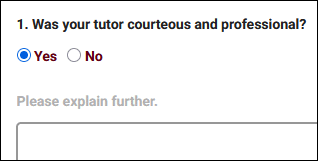

- Use Custom Display numbers for numbering the questions
- If checked, you will be able to use arbitrary text to 'number' your questions (e.g., A, B, C instead of 1, 2, 3).
- Do not display question numbers on the survey
- If checked, question numbers will be hidden on the recipient view.
- Do not record a blank response
- If a survey is shown during login or logout and there are no required questions, a student can continue their login/logout without answering any questions. In this case, a blank response will be recorded. Checking this box will not record a response in that scenario.
- Make this survey a quiz
- See Grade Groups and Assignments for more information.
- Send Rate
- Allows you to define a percentage chance of a survey being sent to a student. 100% will always send the survey when the 'Initiated Via' criteria is met.
- Notify results to emails
- Email addresses entered here will be notified when a survey has been completed. These emails will contain the questions and answers provided by the student/staff.
- Notify Results Email
- This is an additional email that can be sent as soon as a response is submitted, typically to a staff member to review responses as they're received. You can choose which email addresses receive the responses, the From address, as well as the subject line and body of the email. The recipient field supports Twig. The special {{Response.Link}} tag can be used to provide a hyperlink to the survey response in TracCloud.
- Link Survey to Reasons/Subjects
- If you only want this survey to be sent out for visits/appointments of a specific reason or subject, you can list out the entries here. For example, “General Help,Exam Prep”. The icon can be used to search for and select specific options.
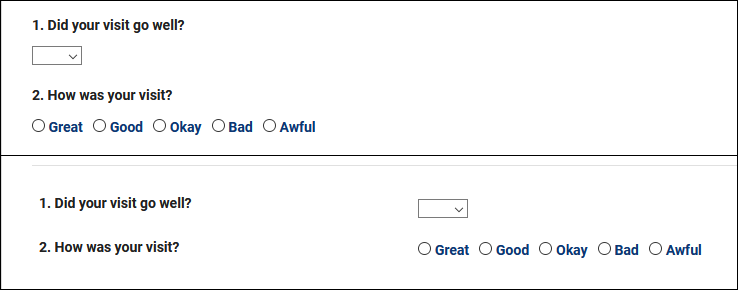
- Answers Position
- Position of answer fields, either below or to the right of the question, as seen below.

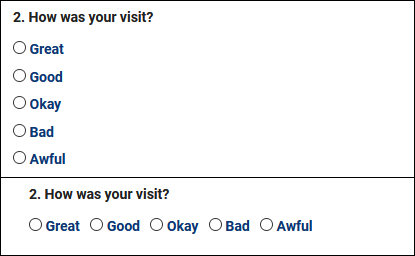
- Radio Button Style & Multi Checkbox Style
- Determines how Radio and Multi-Checkbox Choice style questions display. Tall vs Wide, as seen below.

The Questions tab is where we can configure the questions we’re asking within this survey. The Preview tab allows us to immediately take a look at our survey formatting to make sure everything is appearing as intended.

To begin creating a new question, go to the Hamburger menu ➜ New Question, or click the + icon on the right-hand side.

- Question #
- This determines the order that questions will appear in. 0/Blank will hide the question. This field supports Twig.
- Question Type
- There are various Question Types available for use, depending on the format of your question. You can use the Preview tab to review what your survey currently looks like, which is used in the screenshot below to show the different question types available.


- Required
- Determines whether or not the question requires an answer before being submitted.
- Question UID
- Unique identifier for each question, used for conditions (detailed further below).
- Size (Essay and Fill In only)
- This determines the size of the text field based on number of characters. For Fill In questions, this determines the width. Start with 25 and adjust from there. For Essay, this determines the height. Start with 3 and adjust as needed.
- Minimum, Maximum, Step, Default (Range Slider only)
- These options determine how the Range Slider will function in your survey.
- Minimum is the lower value on the left. Negative numbers are allowed.
- Maximum is the higher value on the right.
- Step is the increment that the slider can be moved, typically 1. For example, if this is set to "2", the slider can be moved to 2, 4, 6, and so on.
- Default is the default numeric position of the slider when the survey is first loaded.
- Question
- Write out your question here. There are also some optional text formatting tools available if you’d like to display the question in a specific way, including the ability to use standard HTML by selecting Tools ➜ Source Code.
- Choices
- Depending on the Question Type chosen, you may need to list out the available answers. If this box is available, include your answer choices on unique lines, as seen in the screenshot earlier in this article.
- Maximum # choices allowed (Multi-Check only)
- Set the maximum number of choices that can be checked at once in the response. For example, if this option is set to 3, the recipient could check 1, 2, or 3 boxes, but not 4 or more.
- Condition
- Set a condition so that this question only appears if a different question was answered in a particular way. Uses the UID of other questions. For example, if the condition was set to "ABC1:Great", this question would only appear if the answer to ABC1 was "Great." Multiple potential answers can be separated by a | character (ABC1:Great|Good) and you can set conditions for multiple fields on separate lines.
- It's also possible to set the condition to something like "ABC1:Great|Good|DEF2:Yes." A question with this condition would appear if ABC1 was Great or Good, or if DEF2 was answered "Yes."
This tab will display a list of all surveys sent to your users. You can click on the individual responses for review, or resend surveys from this tab by clicking the icon. Surveys can also be resent as a batch by clicking the icon and choosing the date range you wish to resend them for. Clicking the icon for a survey excludes it from being resent. will delete the response.

For information on purchasing the SurveyTrac Module, reach out to [email protected]
For SurveyTrac functionality questions, reach out to [email protected]
See Also:
Report: Survey Responses - Provides a summary of responses with totals for each of the possible responses for your questions.
Report: Survey Snapshot - Provides a list of the responses from each student, including additional information about the student or visit details.
Report: Survey Response Rate Comparison - Provides the number of surveys sent, responses received, and average response time.
Report: Unanswered Staff/Faculty Surveys - Provides the total number of surveys not answers by staff or faculty.
If you've created a new availability for one of your Consultants and it's not showing up as expected when performing a search for appointment times, there are a few possible causes. This portion of the wiki outlines these possibilities, ordered from most to least likely based on what we at Redrock have experienced working with campuses directly.

1. Center and Consultant Course Lists
The most common cause when an availability isn't appearing in search results is misconfigured Course Lists. Both your Consultant and your Center need to be assigned to the subject you're searching for (unless your Center or Reason is set to ignore Consultant Specialties). Make sure you Process Specialties (Step 2) after applying any changes.
Consultant Course List: Other ➜ Listings ➜ Staff ➜ [Your staff] ➜ Course List of Specialties
Center Course List: Other ➜ Other Options ➜ Profiles ➜ [Your profile] ➜ Centers ➜ Course List for this Center
A complete list of Course Lists can also be found by simply going to: Other ➜ Listings ➜ Course Lists.

2. Process Specialties
This is always recommended after applying changes to Course Lists, but it may also be the case that the specific section you searched for was imported after you created the Course List for your Center/Consultant, and a Course List refresh alone may resolve this issue. We can setup an automated process to Process Specialties daily if this occurs often, reach out to us using the 'Support' tab above for more information.

3. Reason Assignments
Similar to ensuring that your courses are assigned to the correct Consultant and Center, the same applies for Reasons. This step only applies if you're using Reason as a search criteria.
For Consultants, go to Other ➜ Listings ➜ Staff ➜ [Your staff] ➜ Reason Specialties
For Centers, go to Other ➜ Other Options ➜ Profiles ➜ [Your profile] ➜ Centers ➜ [Your center] ➜ Active Reasons

4. Availability Subject/Reason
If your availability is assigned to the wrong subject or reason, this can cause it to be unintentionally filtered out of results. Make sure the value entered here is correct, especially if you're using wildcards. If these are blank (i.e., available for all specialties), you can skip this troubleshooting step.
Schedule ➜ [Consultant] ➜ Availability.

5. Profile Time Restrictions
If your availability is 60 minutes long, but your profile only allows for a maximum of 50-minute appointments, this can unexpectedly filter out availabilities if you haven't updated your profile preferences to match this new limit. The relevant options to check here are Schedule no sooner than and no later than, ensure that you're searching within an allowed range. As well as Minimum and Maximum Appointment Duration, make sure your availability is within the limits defined by your profile.
Other ➜ Other Options ➜ Profiles ➜ [Your profile] ➜ Prefs ➜ Scheduling ➜ Time Restrictions.

More Scheduling Prefs Information
6. Reason/Subject Required for Search
In the event that you aren't searching for both Reason and Subject, and the previous steps haven't resolved your issue, it's worth double-checking to make sure your Profile hasn't been mistakenly set to require a Subject/Reason to show availabilities. Make sure the highlighted settings match the search you're performing on the dashboard.
Other ➜ Other Options ➜ Profiles ➜ [Your profile] ➜ Prefs ➜ Scheduling ➜ Special Fields.

More Scheduling Prefs Information
7. Skills and Accommodations
If your campus utilizes the Skills/Accommodations feature, with 'Excluded when not chosen' enabled, make sure your consultant/availability is assigned to that Skill/Accommodation.
Consultants: Other ➜ Listings ➜ Staff ➜ [Staff account] ➜ Special Needs/Skills/Accommodations
Availabilities: Schedule ➜ [Availability] ➜ Special Needs ➜ Special Needs/Skills/Accommodations

2023-04-25 | Catching up on the past few weeks of updates
You may have noticed a delay since the last "What's New" article, but that's not because new features haven't been getting added, it's the exact opposite in fact! We're working on updating a large portion of the TracCloud wiki to reflect the new options and capabilities of the system, as well as to provide more in-depth guides where needed. That's still in progress, but this article is to catch up on some of the features that we haven't had the chance to highlight yet. (Asynchronous availabilities are coming soon as well!)
- 2023-04-18: "Consultant" is now an editable field in the Students Visits Cleanup Data report.
- 2023-04-14: "Send Link via Email" on Student Confirm Bio settings now shows a QR code for the student to quickly scan on the kiosk
- 2023-04-12: New report, Student Search Availabilities
- View information about what subjects and reasons students are searching for, and whether or not they booked an appointment. More information.
- View information about what subjects and reasons students are searching for, and whether or not they booked an appointment. More information.
- 2023-04-07: An "Advanced Prefs" menu has been added in Profile Prefs to better separate some of the less used and not typically recommended options.
- 2023-04-06: You can now search the student listing based on whether or not students have confirmed their bio
- Use "Students.CustomData/BIOConfirmed=1" to find students who have confirmed their bio, and "Students.CustomData/BIOConfirmed=#1" to find students who haven't.
- Use "Students.CustomData/BIOConfirmed=1" to find students who have confirmed their bio, and "Students.CustomData/BIOConfirmed=#1" to find students who haven't.
- 2023-04-06: "Visit" steps in Success Plans can now be configured with a minimum duration.
- 2023-04-06: Student birthdate has been added as a field to select in Student Confirm Bio.
- 2023-04-06: Faculty email address added as an available field to the Visits by ?? and Visits by Faculty and Subject Reports.
- 2023-04-02: New Referrals Listing menu.
- A new listing menu has been added for SAGE referrals. This can be added to your permission group by going to Other > Other Options > Groups > [The group you want to modify] > Admin/Modules > Table Access, then add Referrals to that list and save.
- A new listing menu has been added for SAGE referrals. This can be added to your permission group by going to Other > Other Options > Groups > [The group you want to modify] > Admin/Modules > Table Access, then add Referrals to that list and save.
- 2023-03-24: Custom views have been added to the Appointments Listing
- 2023-03-24: New report, Consultant Max Hours and Non-Duplicated Appointment Time
- Review how many non-duplicated hours your consultants were booked for, along with their max hours (if applicable).
- Review how many non-duplicated hours your consultants were booked for, along with their max hours (if applicable).
- 2023-03-21: Date range searches in Visits/Appointments SFTP Export
- In the Number of Days to Export field, you can now enter a value such as "14...5" to export the last 14 days of data up to the last 5 days. Some campuses may require more time to clean up recent records before including them in the export, which was the purpose of this addition.
- In the Number of Days to Export field, you can now enter a value such as "14...5" to export the last 14 days of data up to the last 5 days. Some campuses may require more time to clean up recent records before including them in the export, which was the purpose of this addition.
- 2023-03-21: "Remember Student" option in Batch Entry
- Depending on when you're reading this, the wiki link above might not have an updated screenshot, but you'll see the new "Remember Student" option right next to "Remember Notes" on the Batch Entry tab. This allows you to repeatedly create visits for the same student account. E.g., a generic student account for prospective students.
- Depending on when you're reading this, the wiki link above might not have an updated screenshot, but you'll see the new "Remember Student" option right next to "Remember Notes" on the Batch Entry tab. This allows you to repeatedly create visits for the same student account. E.g., a generic student account for prospective students.
- 2023-03-21: SAML Duel Tenant Support
- If your campus requires this, reach out to our helpdesk using the support links at the top of your screen and we'd be happy to help you set it up.
If you've created a new availability for one of your Consultants and it's not showing up as expected when performing a search for appointment times, there are a few possible causes. This portion of the wiki outlines these possibilities, ordered from most to least likely based on what we at Redrock have experienced working with campuses directly.
1. Center and Consultant Course Lists
The most common cause when an availability isn't appearing in search results is misconfigured Course Lists. Both your Consultant and your Center need to be assigned to the subject you're searching for (unless your Center or Reason is set to ignore Consultant Specialties). Make sure you Process Specialties (Step 2) after applying any changes.
Consultant Course List: Other ➜ Listings ➜ Staff ➜ [Your staff] ➜ Course List of Specialties
Center Course List: Other ➜ Other Options ➜ Profiles ➜ [Your profile] ➜ Centers ➜ Course List for this Center
A complete list of Course Lists can also be found by simply going to: Other ➜ Listings ➜ Course Lists.
2. Process Specialties
This is always recommended after applying changes to Course Lists, but it may also be the case that the specific section you searched for was imported after you created the Course List for your Center/Consultant, and a Course List refresh alone may resolve this issue. We can setup an automated process to Process Specialties daily if this occurs often, reach out to us using the 'Support' tab above for more information.
3. Reason Assignments
Similar to ensuring that your courses are assigned to the correct Consultant and Center, the same applies for Reasons. This step only applies if you're using Reason as a search criteria.
For Consultants, go to Other ➜ Listings ➜ Staff ➜ [Your staff] ➜ Reason Specialties
For Centers, go to Other ➜ Other Options ➜ Profiles ➜ [Your profile] ➜ Centers ➜ [Your center] ➜ Active Reasons
4. Availability Subject/Reason
If your availability is assigned to the wrong subject or reason, this can cause it to be unintentionally filtered out of results. Make sure the value entered here is correct, especially if you're using wildcards. If these are blank (i.e., available for all specialties), you can skip this troubleshooting step.
Schedule ➜ [Consultant] ➜ Availability.
5. Profile Time Restrictions
If your availability is 60 minutes long, but your profile only allows for a maximum of 50-minute appointments, this can unexpectedly filter out availabilities if you haven't updated your profile preferences to match this new limit. The relevant options to check here are Schedule no sooner than and no later than, ensure that you're searching within an allowed range. As well as Minimum and Maximum Appointment Duration, make sure your availability is within the limits defined by your profile.
Other ➜ Other Options ➜ Profiles ➜ [Your profile] ➜ Prefs ➜ Scheduling ➜ Time Restrictions.
More Scheduling Prefs Information
6. Reason/Subject Required for Search
In the event that you aren't searching for both Reason and Subject, and the previous steps haven't resolved your issue, it's worth double-checking to make sure your Profile hasn't been mistakenly set to require a Subject/Reason to show availabilities. Make sure the highlighted settings match the search you're performing on the dashboard.
Other ➜ Other Options ➜ Profiles ➜ [Your profile] ➜ Prefs ➜ Scheduling ➜ Special Fields.
More Scheduling Prefs Information
7. Skills and Accommodations
If your campus utilizes the Skills/Accommodations feature, with 'Excluded when not chosen' enabled, make sure your consultant/availability is assigned to that Skill/Accommodation.
Consultants: Other ➜ Listings ➜ Staff ➜ [Staff account] ➜ Special Needs/Skills/Accommodations
Availabilities: Schedule ➜ [Availability] ➜ Special Needs ➜ Special Needs/Skills/Accommodations
An Appointment represents the reservation of a time slot (availability) between a student and a consultant. The student intends to show up at your center at X date and time, for Y subject, Z reason, etc. If the student attends this appointment, a visit record will be created. If they do not attend, no visit will be created and the status will be recorded as cancelled or missed. Appointments can additionally contain custom fields that both students and staff can fill out, as well as documents that may to be shared between the two parties.

The Appointments Listing can be viewed by going to Other ➜ Listings ➜ Appointments. Access to this listing can be provided by adding Appointments to the table access of a permission group under Admin / Modules. This listing contains all appointment records that you have permission to view, including the ability to make batch changes, create custom views, or simply search for and view individual appointments. The icon shows if the registration that the appointment was booked for is still active.
Each column of information displayed has a clickable header that will sort the listing accordingly. Clicking once sorts ascending, a second click will sort descending.

Using the search bar on this screen, you can perform quick searches to find specific appointment records. Right-clicking in the search bar (shown below) will provide a list of available appointment fields to search, click any of these to auto-fill the search bar.

Example Searches:
- Find an appointment by a single value, such as student ID. Specifying 'Students.ID=' actually isn't required for ID or Name searches, but it works well as an example.
- Students.ID=1931
- Students.ID=1931
- Search multiple fields at once, separate your searches by a space.
- Students.ID=1931 Appointments.Online=1
- Students.ID=1931 Appointments.Online=1
- When performing multiple searches where at least one field contains a space, make sure to surround the contents you're searching for with quotation marks.
- Students.ID=1931 Reasons.Reason="Paper Writing"
- Students.ID=1931 Reasons.Reason="Paper Writing"
- Date searches such as this are required to be formatted as YYYY-MM-DD
- Appointments.StartDT=2023-04-27
- Appointments.StartDT=2023-04-27
- You can also search by a date range with ... (quote protected)
- Appointments.StartDT="2023-04-20...2023-04-30"
- Appointments.StartDT="2023-04-20...2023-04-30"
Hamburger Menu
Every listing page in TracCloud features a hamburger menu with utilities to search for or interact with your list of records. Some of these options are specific to to certain listings and record types, others are shared. The following list includes definitions for the hamburger menu options available on this listing and how they can be utilized.

- All Appointments, Today, Recent Appointments, etc
- These options allow you to quickly search for a specific date range for your appointment records. Recent Appointments is the default, showing the past 6 months of data.
- Search
- This utility will open a pop-up window unique to each Listing it's present on, allowing you to search your records by a number of different fields.
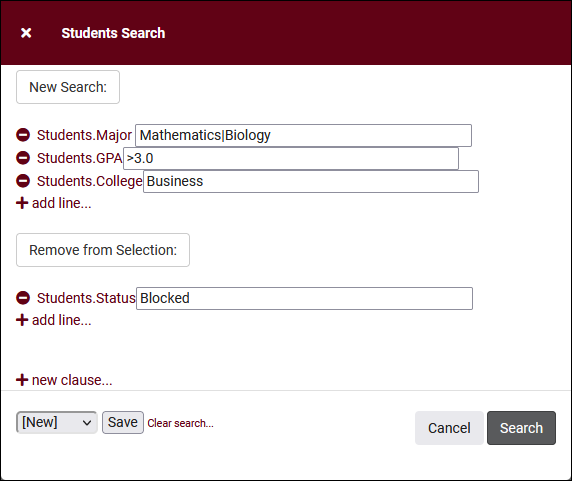
- Power Search
- This option provides a simple but powerful search utility to find the records you need. String together multiple searches, adding or removing results for each. Use Search Symbols to include ranges of data, and Save Searches for later use if needed. The search term 'blankornull' can be used to find all records with a value of nothing ("") or null ().

- Saved Searches
- See Saved Searches for more information.
- Show these <records>
- This utility takes your selection of records, finds the related records, and takes you to that listing with the resulting records. For example, on the Registration listing, you can "Show these Students" to display the student records for the registrations that you were viewing.
- Find/Merge Duplicates
- These utilities can be used to cleanup duplicate records in your Trac System. We highly recommend reaching out to Redrock Support directly for assistance in cleaning up this data.
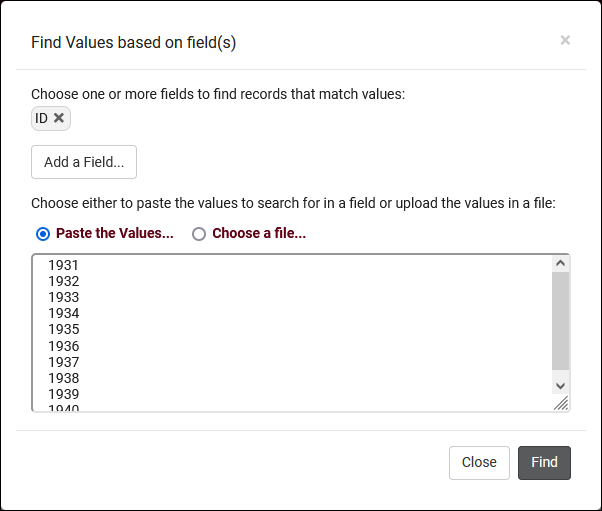
- Find by Values
- This utility can be used to search one field for multiple values. If you have a spreadsheet containing a list of student IDs, this is an easy way to pull up the same list of students in TracCloud by copying the ID column into this search field.

- Change Field Values
- This utility allows you to make modifications in to your records in bulk. Similar to the Merge Duplicates utility, we highly recommend coordinating with Redrock Support directly on this setting.
- Selected...
- The Selection Tool offers several options to filter and manage your records. More information on this feature can be found in its own dedicated article here.
- Views
- See Views for more information.
- Create Chart
- Based on the data currently being viewed a chart can be generated to visually illustrate the relationships in the data.
- Allows you to print the contents of the current listing, by extension this also allows you to export the current list as a PDF file.
See Also
- Custom Fields - Custom fields can be placed in appointment records.
Your scheduling preferences allow you to modify appointment booking rules, controlling exactly when a student can book appointments, how many appointments they can book, and much more. These preferences will apply to all centers within the profile. Your schedule preferences can be found in Other ➜ Other Options ➜ Profiles ➜ [Your Profile] ➜ Prefs ➜ Scheduling.

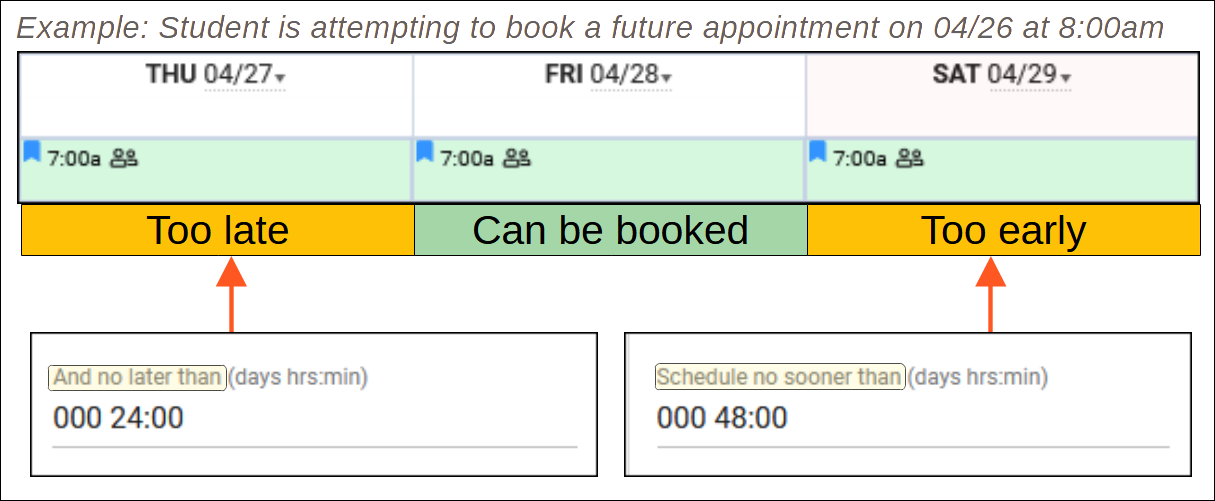
- Schedule no sooner than...And no later than
- This preference controls how early or late a student can book an appointment. The example below visualizes how this preference works, but the time range would typically be larger for a production system (e.g., no later than 12 hours, no sooner than 14 days).

- No Cancellation within
- Determines how late the student can cancel an appointment. If a student attempts to cancel within this time limit, they will be informed that the appointment will be counted as a missed appointment instead. Internally, the status will be recorded as "Cancel - Missed" (by default).
- Determines how late the student can cancel an appointment. If a student attempts to cancel within this time limit, they will be informed that the appointment will be counted as a missed appointment instead. Internally, the status will be recorded as "Cancel - Missed" (by default).
- Minimum and Maximum Appointment Duration
- This preference controls the minimum/maximum possible appointment time. If you exclusively offer 30 or 60 minute availabilities, this should be set to match. If an availability is created with time slots outside of the limit specified here, it will not appear in search results to students.
- This preference controls the minimum/maximum possible appointment time. If you exclusively offer 30 or 60 minute availabilities, this should be set to match. If an availability is created with time slots outside of the limit specified here, it will not appear in search results to students.
- Default appointment duration
- The default duration of an appointment. Typically used in an open-schedule environment, where consultants are available for many hours at a time, this will be the default duration when a student goes to book an appointment.
- The default duration of an appointment. Typically used in an open-schedule environment, where consultants are available for many hours at a time, this will be the default duration when a student goes to book an appointment.
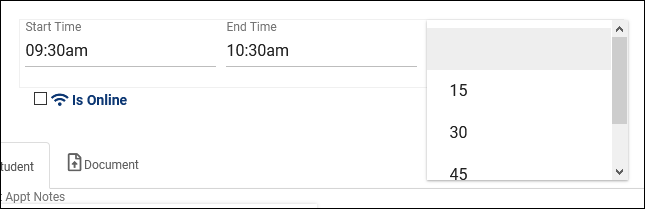
- Appointment start in increments of
- Increments of time that booked appointments can start at. For example, if this preference is set to 15 minutes, appointments could be booked at 9:15, 9:30, 9:45, and so on. This is not commonly used outside of open-schedule environments.
- Increments of time that booked appointments can start at. For example, if this preference is set to 15 minutes, appointments could be booked at 9:15, 9:30, 9:45, and so on. This is not commonly used outside of open-schedule environments.
- Appointment duration in increments of
- Increments of time that an appointment can be booked for. For example, if this is set to 10 minutes, appointments can be booked for 20 minutes, 30 minutes, 40, and so on. This is not commonly used outside of open-schedule environments.
- Increments of time that an appointment can be booked for. For example, if this is set to 10 minutes, appointments can be booked for 20 minutes, 30 minutes, 40, and so on. This is not commonly used outside of open-schedule environments.
- Restrict duration to intervals
- The durations specified here will be used by default in your availabilities. Availabilities can be created with custom multi-slot times which can override this preference.


- Prevent students from booking consecutive appointments same student (any consultant)
- This prevents students from booking consecutive appointments in TracCloud. For example, a student could book a 10am to 11am appointment, but couldn't book an 11am to 12pm. An appointment counts as consecutive if the start time is within 61 minutes of the end time of the prior appointment. Consecutive also means with same consultant can be used to block consecutive bookings with the same consultant specifically, which would allow a student to book a 10am to 11am with Dave and an 11am to 12pm with Jane. The default consecutive limit is 2 (no back-to-back appointments), but this can be modified if needed. For example, a limit of "3" would allow a student to book a 1pm to 2pm, and 2pm to 3pm, but not a 3pm to 4pm. Warn staff when they attempt to book consecutive appointments can also be enabled so that staff members are shown a warning when booking consecutive appointments on behalf of students.
- This prevents students from booking consecutive appointments in TracCloud. For example, a student could book a 10am to 11am appointment, but couldn't book an 11am to 12pm. An appointment counts as consecutive if the start time is within 61 minutes of the end time of the prior appointment. Consecutive also means with same consultant can be used to block consecutive bookings with the same consultant specifically, which would allow a student to book a 10am to 11am with Dave and an 11am to 12pm with Jane. The default consecutive limit is 2 (no back-to-back appointments), but this can be modified if needed. For example, a limit of "3" would allow a student to book a 1pm to 2pm, and 2pm to 3pm, but not a 3pm to 4pm. Warn staff when they attempt to book consecutive appointments can also be enabled so that staff members are shown a warning when booking consecutive appointments on behalf of students.
- Allow entry into online appointment session
- These preferences control how soon/late a student can join a remote tutoring session by restricting when the Join button is available. If you’d like the student to be able to join 5 minutes prior to the start time through to the end, you would need to set “No sooner than” to 00:05 and set “No later than” to a value such as “1:00” (assuming you’re holding 1-hour appointments). No later than before end of appt counts back from the end time of the appointment rather than the start, and is an alternate option to No later than after start of appt.
- These preferences control how soon/late a student can join a remote tutoring session by restricting when the Join button is available. If you’d like the student to be able to join 5 minutes prior to the start time through to the end, you would need to set “No sooner than” to 00:05 and set “No later than” to a value such as “1:00” (assuming you’re holding 1-hour appointments). No later than before end of appt counts back from the end time of the appointment rather than the start, and is an alternate option to No later than after start of appt.
- QR Codes expire after
- This applies to Batch Visit QR Codes and Ad-hoc Drop-in QR codes. If this is left blank, these codes can be used up to the end time of the visit. By setting this to a higher value, you can allow students to retroactively create visits for themselves after the visit has already taken place (e.g., in a recording). This preference counts from the start time of the session.
- This applies to Batch Visit QR Codes and Ad-hoc Drop-in QR codes. If this is left blank, these codes can be used up to the end time of the visit. By setting this to a higher value, you can allow students to retroactively create visits for themselves after the visit has already taken place (e.g., in a recording). This preference counts from the start time of the session.
- QR Codes active no sooner than
- Similar to above, but in regards to how early a QR code can be used instead. By default (blank), QR codes can be used once they're created even if that visit would be days in the future.
- Similar to above, but in regards to how early a QR code can be used instead. By default (blank), QR codes can be used once they're created even if that visit would be days in the future.
- Block student from booking appointments between # and #
- This preference allows you to prevent students from booking appointments during a specific time of day. This is more commonly used if Schedule no later than is set to a low value, such as a few hours, allowing students to book close to the start time of the appointment. For example, if you want to prevent a student from booking a morning appointment in the middle of the night so that your tutors have more notice for their upcoming schedule, this is the preference you'll want to change. Default is blank, which does not apply any restrictions based on time of day.

Each group of settings—Reasons, Locations, Sections, Fund—can be precisely adjusted to control where they show up and whether or not they’re required.
Enter in avail determines whether or not the field shows up within the availability entry window.
Enter in appointment determines whether or not the field shows up within the appointment entry window.
Required for Search means that in order for appointments in this profile to appear in search results, this field must not be empty.
Required for Save marks the field as required, so it must be filled out prior to booking the appointment. This applies more-so to Staff, as the above option already requires a student to have this field selected before they have the chance to book.
- Appointment Fund Choices
- Allows you to customize the funds available to choose from on Availability and Appointment entry. More information on funds and payroll tracking in general can be found here.

- Allow students to cancel appointments
- Provides students the option to cancel appointments (as long as they’re outside the time range specified in the first menu.)
- Provides students the option to cancel appointments (as long as they’re outside the time range specified in the first menu.)
- Display consultant alias on availability search
- This will display the consultant’s alias (specified in their staff profile) rather than their full name when students are searching for availabilities. An alias can also be automatically generated based on your System Preferences if preferred (e.g., First Name Last Initial).
- This will display the consultant’s alias (specified in their staff profile) rather than their full name when students are searching for availabilities. An alias can also be automatically generated based on your System Preferences if preferred (e.g., First Name Last Initial).
- Display consultant email/phone on appointment entry
- Displays the specified consultant fields within appointment display, the following twig tags will or won't contain data based on these preferences.
{{Consultant.PhoneToStudent}}
{{Consultant.EmailToStudent}}
- Allow group availability meeting type to be determined by first scheduled appointment
- If this is enabled, the first student booking an optional online/in-person multi-person availability decides if the session will be online or in-person for other students going forward. If this is disabled, each student booking the same time slot can choose online/in-person independently of each other.
- If this is enabled, the first student booking an optional online/in-person multi-person availability decides if the session will be online or in-person for other students going forward. If this is disabled, each student booking the same time slot can choose online/in-person independently of each other.
- Allow group availability to use special skill locking
- If enabled, staff will be able to define skills/accommodations in group availabilities that when booked, will lock the availability to the first chosen skill. The typical use case for this is for languages. For example, if you offered the skills "English," "Spanish," "French," and "Extra Time" and the first student books with the "Spanish" skill, you may want to limit all subsequent appointments to Spanish while allowing students to freely choose (or not choose) "Extra Time." To do this, you would simply list out the language skills in the "Group Slot Skill Locks" field in your availability.

- With the above in place, Student A may schedule for Spanish (which locks the group to Spanish since they were first), Student B may schedule for Spanish and Extra Time, but Student C will not see this availability in search results if they search for English.
- With the above in place, Student A may schedule for Spanish (which locks the group to Spanish since they were first), Student B may schedule for Spanish and Extra Time, but Student C will not see this availability in search results if they search for English.
- Allow student to upload documents to the appointment
- Controls whether or not students can upload documents to the appointment record.
- Controls whether or not students can upload documents to the appointment record.
- Allow staff to upload documents to the appointment
- Controls whether or not staff can upload documents to the appointment record.
- Controls whether or not staff can upload documents to the appointment record.

- Block students from booking recurring appointments
- Prevents students from booking recurring appointments for themselves. Staff can still book recurring availabilities on behalf of students if needed.
- Prevents students from booking recurring appointments for themselves. Staff can still book recurring availabilities on behalf of students if needed.
- Prevent Staff from Overriding and allowing students to book recurring
- Even if the above option is set to 'Yes,' staff can manually allow students to book recurring on a per availability basis. Setting this option to yes will block this as well.
- Even if the above option is set to 'Yes,' staff can manually allow students to book recurring on a per availability basis. Setting this option to yes will block this as well.
- Default value for availability max students
- Determines the default "Max Students" value when creating availabilities. This value can still be overridden when managing your schedule. 0 = drop-in, 1 = one-on-one, 2+ = group.
- Determines the default "Max Students" value when creating availabilities. This value can still be overridden when managing your schedule. 0 = drop-in, 1 = one-on-one, 2+ = group.
- Warning message to display when appointment modality is changed
- When a staff member changes the modality (in-person/online/asynchronous) of an existing appointment, a warning message will appear to confirm that they want to make that change. This text field allows you to add an additional custom message to that warning.
- When a staff member changes the modality (in-person/online/asynchronous) of an existing appointment, a warning message will appear to confirm that they want to make that change. This text field allows you to add an additional custom message to that warning.
- Allow availabilities to be asynchronous
- Enables asynchronous availability/appointment functionality. More information.
- Enables asynchronous availability/appointment functionality. More information.
- Allow message to be composed after conclusion
- This determines whether or not students are allowed to re-open concluded asynchronous appointments to continue sending messages.
- This determines whether or not students are allowed to re-open concluded asynchronous appointments to continue sending messages.
- Asynchronous appointment automatic message
- The text entered here will be automatically sent as a message at the start time of the asynchronous appointment.
- The text entered here will be automatically sent as a message at the start time of the asynchronous appointment.
- Create a visit when an asynchronous appointment is marked as concluded
- If checked, a visit will automatically be created for the student when the asynchronous appointment is marked as 'Concluded.'
- If checked, a visit will automatically be created for the student when the asynchronous appointment is marked as 'Concluded.'
- Also send message to recipient as SMS
- Optionally notify the asynchronous participants of new messages over SMS text. Requires TextAlerts. Enabling this option can result in a significant increase in emails sent from TracCloud, you may need to review your hourly/daily mail server send limit with your IT to ensure this will not be an issue.
- Optionally notify the asynchronous participants of new messages over SMS text. Requires TextAlerts. Enabling this option can result in a significant increase in emails sent from TracCloud, you may need to review your hourly/daily mail server send limit with your IT to ensure this will not be an issue.
- Also send message to recipient as email
- Optionally notify the asynchronous participants of new messages over email. Enabling this option can result in a significant increase in emails sent from TracCloud, you may need to review your hourly/daily mail server send limit with your IT to ensure this will not be an issue.
- If you additionally or alternatively wish to notify the participants of new document uploads, document upload notifications can be managed separately in system preferences.
- If you additionally or alternatively wish to notify the participants of new document uploads, document upload notifications can be managed separately in system preferences.
- When a mentorship communication is sent: Also send message to recipient as SMS/Email
- Functionally similar to the above options, but for peer mentorship communications instead.

- Appointment Status Choices
- These are the statuses that appointments can be set to. Typically, this would be set to something similar to the above example, with an Attended, Missed, and Canceled status, however, you can modify the choices if needed. Statuses containing the phrase “Cancel” will always cancel the appointment, making it available for other users to book (provided they’re still within the “schedule no later than” time limit.)
- These are the statuses that appointments can be set to. Typically, this would be set to something similar to the above example, with an Attended, Missed, and Canceled status, however, you can modify the choices if needed. Statuses containing the phrase “Cancel” will always cancel the appointment, making it available for other users to book (provided they’re still within the “schedule no later than” time limit.)
- Status for missed
- This is the status that TracCloud views as “Missed.” This should typically match the status set in your Missed Appointment Emails "Change missed appointment to Status:" preference.
- This is the status that TracCloud views as “Missed.” This should typically match the status set in your Missed Appointment Emails "Change missed appointment to Status:" preference.
- Calc Missed Appointments Since
- A student’s total number of missed appointments can be utilized in emails via the Twig tag below. This date determines how far back TracCloud searches for missed appointments. If this preference is blank, the global System Preferences date is used instead. Automatically Use Term Start can be used if you'd like to use the start date of your semester instead.
{{CalcMissedAppointments(Student.Sequence, Center.ProfileID)}}
- Additional text message for late cancellation prompt / warning
- This is an optional additional message that displays to students when they are cancelling an appointment outside of your time restriction. This appears in addition to the standard "This will be marked as missed" notice.

These preferences allow you to restrict students from booking excessive appointments, or prevent booking/logins altogether. “Max Appointment Rules” allow you to create restrictions that will dynamically block students from booking appointments if their appointment threshold his met, while “Block Students to this Profile” allows you to block access to logging in for visits or booking appointments based whether or not the student is on a specific list.
Max Appointment Rules

- Allow a maximum of X [hours/appointments] with:
- Choose how many appointments/total hours a student can book within the restrictions assigned below.
- Choose how many appointments/total hours a student can book within the restrictions assigned below.
- ID Number (#1234ABCD)
- Unique identifier for this rule, used for twig logic in failure message.
- Unique identifier for this rule, used for twig logic in failure message.
- Same: [Consultant / Reason / Center / Profile / Subject / Section / Location]
- This allows you to narrow down the restriction to specific fields. Maybe you don’t want a student booking excessively with a specific consultant, or booking too many appointments for a specific reason, this is where you would apply these rules.
- This allows you to narrow down the restriction to specific fields. Maybe you don’t want a student booking excessively with a specific consultant, or booking too many appointments for a specific reason, this is where you would apply these rules.
- add a search clause…
- These clauses allow you to be more specific in where this rule applies. For example, you could add a search clause for Appointment Status and set it to "*Missed*" to apply max appointment rules to missed appointments, where a student wouldn't be able to book additional appointments once the limit is reached. You can also select specific Reasons, Centers, Subjects, or Statuses where the rule should apply, to not affect unrelated appointments. The | symbol can be used for "or" and # can be used for "not" in these search clauses.
- These clauses allow you to be more specific in where this rule applies. For example, you could add a search clause for Appointment Status and set it to "*Missed*" to apply max appointment rules to missed appointments, where a student wouldn't be able to book additional appointments once the limit is reached. You can also select specific Reasons, Centers, Subjects, or Statuses where the rule should apply, to not affect unrelated appointments. The | symbol can be used for "or" and # can be used for "not" in these search clauses.
- in X [Minutes / Hours / Days / Weeks / Months / Terms / Years]
- The time period for this rule. For example, you may want to restrict students from booking more than 3 appointments per week, or 10 appointments per month. This preference is where you’ll make that decision.
- If “X week” is used, you can choose the start day of the week to count from. If “X month” is used, this will be the first to last day of the month. If you would prefer any 7 or 30-day window, you will need to use something like “7 Days” rather than “1 Week”. The maximum value for "Minutes" is 180. If a longer range is desired, hours or days should be used instead.
- This rule is active for appointment dates in the time period
- The date range that this rule is effective for. Maybe your current semester, or a monthly period.
- The date range that this rule is effective for. Maybe your current semester, or a monthly period.
- This rule applies to
- All students individually applies to only the student booking the appointment. John Doe (a student) can’t book more than 3 appointments with the same consultant per week.
- Students as a collective applies to every student. Jane Smith (a tutor) can’t be booked more than 3 appointments per day (by students).
- For student
- Allows you to only apply this rule to a certain |list of students (or students not on a specific list).
- Allows you to only apply this rule to a certain |list of students (or students not on a specific list).
- And also applies to
- Which appointment types should this apply do? E.g., only in-person 1-on-1 appointments. If left blank, this rule is applied to all appointment types.
- Which appointment types should this apply do? E.g., only in-person 1-on-1 appointments. If left blank, this rule is applied to all appointment types.
- Students that fail this rule may be optionally added to a list
- This option requires that Same: and In X time period are both disabled. When the student attempts to book an appointment and is blocked by this rule, they will be added to the student list that you select.
- This option requires that Same: and In X time period are both disabled. When the student attempts to book an appointment and is blocked by this rule, they will be added to the student list that you select.
- Use Seats (all avails for all consultants)
- This option can be used in combination with "Students as a collective" for tracking "seats" rather than "appointments."
- For example, if you created a rule such as "Maximum of 2 appointments in 1 hour for students as a collective," that means in the schedule below, appointments can continue to be booked with Dave Smith or Jane Doe, but an appointment cannot be booked with John Smith. I.e., an appointment is a time with a consultant, regardless of how many students are meeting with that consultant at that time.
- Alternatively, if you created the rule "Maximum of 10 appointments in 1 hour for students as a collective + use seats," then no further appointments can be booked. 10 total seats have been taken, across all of the available slots.
Consultant Time Slots Booked Dave Smith 1:00pm 5/10 Jane Doe 1:00pm 5/10 John Smith 1:00pm 0/10
- Fail Message to Student
- This text field can be used to override the automatically generated description that would otherwise be shown to students. If you want to hide the text of the rule that students are limited by, enter your custom description here.
- This text field can be used to override the automatically generated description that would otherwise be shown to students. If you want to hide the text of the rule that students are limited by, enter your custom description here.
- Rule Failure Message
- This is an optional custom message that can appear to students if they reach the limit of this rule.
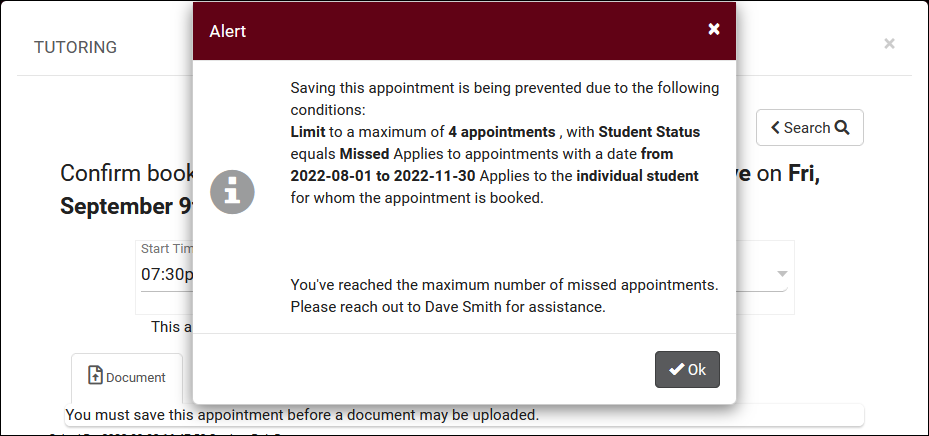

- Twig can also be used in this field to display student or consultant information. You can also modify the contents of the message based on which rule was broken. For example:
{% for failRule in failRules %}
{% if failRule.id == "1Y0GYPWS" %}
Sorry, you can only have one upcoming appointment at a time. Please try again later.
{% elseif failRule.id == "HKIEAATS" %}
You can only book 4 appointments per week.
If you think an exception needs to be made, reach out to us at [email protected].
{% endif %}
{% endfor %}
- Twig can also be used in this field to display student or consultant information. You can also modify the contents of the message based on which rule was broken. For example:
In addition to standard maximum appointment rules, you can also utilize these rules to set maximum tutoring/advising hours for your consultants.
In the consultant profile, set 'Max Hours' to your desired limit, e.g., "10".

In your Maximum Appointment Rules, use the phrase "MaxHours" in the "Allow a maximum of [____]" field. When an appointment is booked, TracCloud will check the relevant consultant's maximum hours for use with this rule. If the newly scheduled appointment would be over the maximum number of hours set, it will be blocked.

Block Students to this Profile
- Prevent Scheduling is where you will select a list of students that you want to prevent from booking appointments.
- Message to Display to a Blocked Student is the message displayed when a student on that list tries to book an appointment.

- Prevent Login prevents the student from being logged in on the Log Listing or a Kiosk.
- Message to Display to a Blocked Student is the message displayed when the student tries to login on a Kiosk or a staff member tries to log them in on the Log Listing.

Search Availability badges can be used to add information and indicators to availability slots. Each badge can appear for certain conditions, based on center, availability section/reason, location, skills/accommodations, etc.

Click "New Availability Badge" to begin. This will open a form where you can enter the details for your badge.

Manually Linked
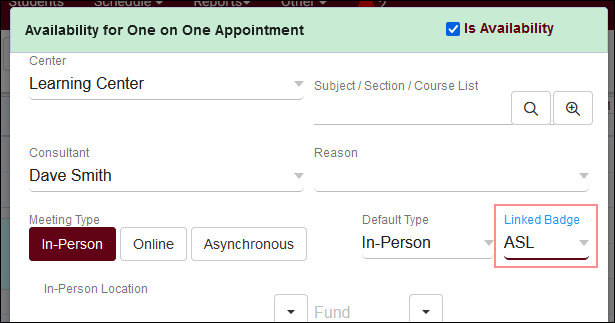
- Rather than the badge automatically appearing based on certain conditions, these badges appear in a menu to be manually selected on the availability itself.

Name
- Name of the Badge. This will not be displayed for students
- Name of the Badge. This will not be displayed for students
Availability Type
- Drop In, 1-on-1, or Group availability
- Drop In, 1-on-1, or Group availability
Consultant
- Assign a specific Staff
- Assign a specific Staff
Reason
- Assign a specific Reason
- Assign a specific Reason
Center
- Assign a specific Center
- Assign a specific Center
Section
- Assign a specific Subject
- Assign a specific Subject
Special Needs
- Select if applicable (more information)
- Select if applicable (more information)
Online
- Availability Type; In Person, Online, Online Optional, or Phone
- Availability Type; In Person, Online, Online Optional, or Phone
Location
- Location of the availability
- Location of the availability
Once you've decided where the badge is needed and have made your selections from the options above, you can now determine which icon, colors, and info work best for the badge created.
Color:
- Choose your preferred color for the badge. Consider contrast when setting this color, availability backgrounds are as follows.
- 1-on-1: #d3f8deGroup: #F5F5B4Drop-in: #d0ffffAsync: #d8c7ff
Icon:
- Choose from the list of available icons or alternatively click the button to use a custom icon from Font Awesome. In that case, you would copy the class values from the icon you want to use.
- Paste them into TracCloud.
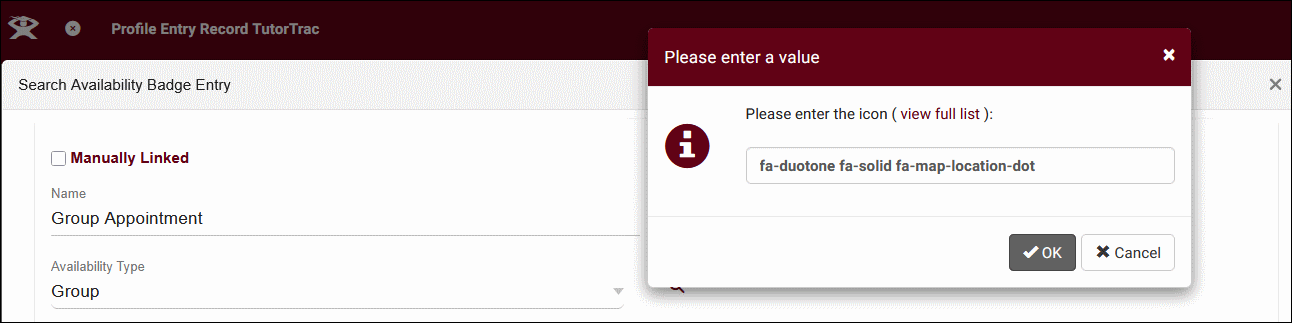
- Then click 'OK.'



Info Text:
- Enter text that will display when students & staff hover over the icon
- Enter text that will display when students & staff hover over the icon
In the example screenshot above, this badge will only appear on availabilities of staff who have been assigned the “ASL” accommodation and are available in the Learning Center. Once saved, your badge will appear in the profile preferences if you need to edit/delete it later.

Any fields left blank will not be considered for where this badge appears, you can be as specific or non-specific as needed. You can also create as many badges as you'd like, more than 1 tag can appear for the same availability. When students search for an availability, the badges will display to the right of the screen as shown below.

Appointment links allow you to create preset search availability widgets that can be easily shared to students with a QR code or a link from the dashboard. These links are assigned to an existing search availability widget, and you can add additional filters such as what subjects or reasons can be selected, which center or consultant will appear in the results, as well as the meeting modality and type.

Click New Search Appointment Link to begin.

- Inactive
- If checked, this link will not be accessible to those who scan the QR code.
- If checked, this link will not be accessible to those who scan the QR code.
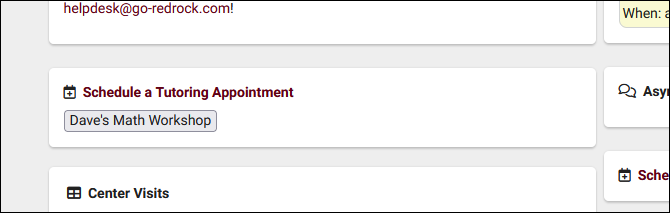
- Show on Student Dashboard
- Enabling this will add a button to the linked search availability widget to access this appointment link. This is only visible to students, the name of the button will be the Link Name unless overridden.

- Show on Student Mentor Widget
- If enabled, a button will be added to the student mentorship widget to open this search appointment link. The search results will only include the mentor that the mentee is assigned to. If multiple search appointment links have this option enabled, only the first will be used.
- If enabled, a button will be added to the student mentorship widget to open this search appointment link. The search results will only include the mentor that the mentee is assigned to. If multiple search appointment links have this option enabled, only the first will be used.
- Allow Dynamic Center/Consultant Codes
- If a specific center and/or consultant are not selected, you will be able to make those fields dynamic. If checked, a new option called "Show Dynamic Codes" will appear. When clicked, you will be able to select a center/consultant and generate a unique QR code link with those records chosen rather than needing to create a completely new appointment link record.
- If a specific center and/or consultant are not selected, you will be able to make those fields dynamic. If checked, a new option called "Show Dynamic Codes" will appear. When clicked, you will be able to select a center/consultant and generate a unique QR code link with those records chosen rather than needing to create a completely new appointment link record.
- QR Code
- This QR code will direct users to this search availability link. Hover your mouse over it to enlarge the code, click on it to visit the appointment link.
- This QR code will direct users to this search availability link. Hover your mouse over it to enlarge the code, click on it to visit the appointment link.
- Link Name
- The name of this link. This will appear to students if Show on Student Dashboard is enabled. HTML is supported if you want to change the color of the button text or add icons. For example,
<i class="fa-solid fa-user-group"></i> <span style="color:green; font-weight:bold">Math Workshop</span>would result inMath Workshop. An icon list can be found at fontawesome.com.
- The name of this link. This will appear to students if Show on Student Dashboard is enabled. HTML is supported if you want to change the color of the button text or add icons. For example,
- Override Name with optional Twig (optional)
- Choose custom text for the search availability link button, including Twig support.
- Choose custom text for the search availability link button, including Twig support.
- Subtitle Additions (optional twig)
- Add a custom description to the search availability link widget to provide additional instructions to students. Twig (center and consultant tags) and HTML are supported.
- Add a custom description to the search availability link widget to provide additional instructions to students. Twig (center and consultant tags) and HTML are supported.
- Created
- Used to keep track of different appointment links. Doesn't affect link functionality.
- Used to keep track of different appointment links. Doesn't affect link functionality.
- Expires
- The expiration date of the link (optional).
- The expiration date of the link (optional).
- Section Link
- Which subject/section must be selected when searching availabilities using this link. "Subject" allows for wildcard entries, such as "MAT*" for all math courses. "Section" can be used to make a specific selection with a search box. "Course List" can be used to include a variety of different sections based on your existing course lists.
- Which subject/section must be selected when searching availabilities using this link. "Subject" allows for wildcard entries, such as "MAT*" for all math courses. "Section" can be used to make a specific selection with a search box. "Course List" can be used to include a variety of different sections based on your existing course lists.
- Reason Link
- Similar to the above option, but for reason choices instead. "Reason Name" allows for wildcard and "or" entries, while "Reason" allows you to select a specific reason with a search box.
- Similar to the above option, but for reason choices instead. "Reason Name" allows for wildcard and "or" entries, while "Reason" allows you to select a specific reason with a search box.
- Specific Center
- Used to filter search results to only a specific center.
- Used to filter search results to only a specific center.
- Specific Consultant
- Used to filter search results to only a specific consultant.
- Used to filter search results to only a specific consultant.
- Modalities to Include
- The modalities and meeting types that can be shown in search results. All are selected by default.
- The modalities and meeting types that can be shown in search results. All are selected by default.
Availability Dynamic QR Codes
Another component of appointment links is the ability to create dynamic links directly from availabilities. These links will be automatically assigned to the center and consultant of the availability they were created from. To give staff the ability to generate these appointment links, go to Other ➜ Other Options ➜ Groups ➜ [The group you want to update] ➜ Scheduling, then check Allow user to generate a dynamic search appointment QR Code based on an existing search appointment link. Additionally, you can check Only allow links for self to prevent consultants in this group from creating availability links for other consultant's schedules.

Once this access is provided, this will appear in a new tab in availabilities named "Dynamic QR Code." Choose the link to utilize for this search, and save or click on the QR code to access the search availability menu. Keep in mind that the consultant's section and reason specialties still apply when using these QR codes, so you'll want to ensure that the link used has those sections/reasons available so that this availability can be found in search results.
