TracCloud: Permission Groups: Difference between revisions
From Redrock Wiki
No edit summary |
No edit summary |
||
| Line 5: | Line 5: | ||
<div class="pageTitle">Groups</div> | <div class="pageTitle">Groups</div> | ||
Permission groups determine | Permission groups determine the amount of access your staff have to various elements of TracCloud. Each group represents a set of permissions or a role. Do you want this group to access the [[TracCloud:_Schedule_Management|schedule]]? Which [[TracCloudGuideProfileCenters|centers]]? Can they create students? Can they manage [[TracCloudGuideBasicsResources|resources]]? These options and many more are available to modify in your permission groups to ensure your staff have the permissions they need and nothing more. | ||
From a profile perspective (Other ➜ Other Options ➜ Profiles ➜ [Your profile] ➜ Groups), this tab displays the groups assigned to selected profile. Groups can also be managed from their own dedicated listing by going to Other ➜ Other Options ➜ Groups. | |||
[[File:Oinwouig3ng2482y5.png|800px]]<br><br> | |||
You can create a new permission group or add an existing group to the profile by clicking the hamburger menu {{#fas:bars}}. ''New group'' will prompt you to choose a name and which profile it's assigned to. After saving, you will be brought to the settings menu where you can configure the access of this group. | |||
[[File:3t2yu3546j4j634.png|400px]]<br><br> | [[File:3t2yu3546j4j634.png|400px]]<br><br> | ||
Within each permission group, you will find multiple tabs | Within each permission group, you will find multiple tabs containing different types of preferences. Details on each of these tabs and the preferences within can be found below. | ||
[[File:5617519.png|800px]] | [[File:5617519.png|800px]] | ||
| Line 23: | Line 23: | ||
<div class='collapsible'>Center Access</div><div class="mw-collapsible mw-collapsed"> | <div class='collapsible'>Center Access</div><div class="mw-collapsible mw-collapsed"> | ||
<br><br> | <br><br> | ||
<div class='scrollImage'> | |||
[[File:4777554.png|800px]] | [[File:4777554.png|800px]] | ||
<br><br> | </div><br><br> | ||
* | |||
* '''Color/Icon Code''' | |||
: Some of these options have multiple permissions based on the icon selected for each field. Click on the icon to cycle through the available options. The key for what each icon represents is within the preference name. For example, <span style="color:green">Scheduling: View Sched and Edit All</span> or <span style="color:#3f3ffc">View Sched</span>… in the screenshot below. | |||
: [[File:6766l3875lk57.png|500px]] | |||
* <b>Scheduling</b> | * <b>Scheduling</b> | ||
: These are the center schedules that staff assigned to this group can view/manage. | |||
{| class="wikitable" | : {| class="wikitable" | ||
|+ Schedule Access Options | |+ Schedule Access Options | ||
|- | |- | ||
| Line 47: | Line 50: | ||
| <span style="color:red">{{#fas:calendar-plus}} View Sched - Edit Appt</span>|| {{#fas:circle}} Yes || {{#fas:circle}} Yes || {{#far:circle}} No || {{#fas:circle}} Yes | | <span style="color:red">{{#fas:calendar-plus}} View Sched - Edit Appt</span>|| {{#fas:circle}} Yes || {{#fas:circle}} Yes || {{#far:circle}} No || {{#fas:circle}} Yes | ||
|} | |} | ||
* | * '''Only access own schedule''' | ||
: Restrict consultants in this group to only be able to access their personal calendar (for the centers they're assigned to). This also restricts which appointments they can view on the [[TracCloudGuideListingsAppts|Appointments Listing]] (if allowed in table access). | |||
* '''Prevent create new appointments''' | |||
: Prevents users in this group from creating new appointments, independent of the center view/edit choice above. | |||
* | * '''Viewing, Logging, Reporting Visits''' | ||
: | : This determines which centers the users in this group can view or record visits in. The <span style="color:red">View Visit - Hide Notes</span> option can be used to restrict this group from viewing or editing the notes field in that center's visits. The student permission group cannot be given access to visit notes. | ||
* < | * '''Show the Center Status Tab on Main Menu''' | ||
: The <i>Center Status</i> widget appears on the staff main menu and provides a brief summary of visit and appointment totals as well as how many students are waiting in each center. Checking this box provides access to this widget. | |||
: [[File:G423h35j34j553.png|400px]] | |||
* | * '''Lists''' | ||
: | : Choose which [[TracCloudGuideGlobalLists|student lists]] this group can view or edit. Just like the center options, you can change the icon to determine their level of access to each list (only search or search and edit). | ||
* | * '''Task Types''' | ||
: | : Choose which [[TracCloudGuideGlobalTasks|task types]] this group can manage. | ||
* | * '''Notification Types''' | ||
: | : Choose which [[TracCloudGuideGlobalNotifications|notification types]] this group can manage. | ||
* | * '''Document Types''' | ||
: | : Choose which [[TracCloudGuideGlobalDocs|document types]] this group can view or manage. 'Edit' access must be provided if this group will be <i>uploading</i> documents. | ||
* | * '''Allow dashboard document upload''' | ||
: | : If enabled, staff in this group can upload documents to their account via a widget on the dashboard. | ||
</div> | </div> | ||
<hr> | <hr> | ||
| Line 81: | Line 84: | ||
<div class='collapsible'>User List</div><div class="mw-collapsible mw-collapsed"> | <div class='collapsible'>User List</div><div class="mw-collapsible mw-collapsed"> | ||
<br><br> | <br><br> | ||
This tab contains all staff accounts that have been assigned to this group. At a glance, you can see their name, email, and phone, but you can also click their row to start [[TracCloud:_Staff_and_Consultants|editing their account]]. By selecting accounts with the checkboxes on the right, you can batch delete staff (not recommended) or move them to another group. | |||
[[File:Hj46j4j4464634hg3.png|800px]] | [[File:Hj46j4j4464634hg3.png|800px]] | ||
</div> | </div> | ||
<hr> | <hr> | ||
<!-------------------------------------- Scheduling --------------------------------------> | <!-------------------------------------- Scheduling --------------------------------------> | ||
<div class='collapsible'>Scheduling</div><div class="mw-collapsible mw-collapsed"> | <div class='collapsible'>Scheduling</div><div class="mw-collapsible mw-collapsed"> | ||
<br><br> | <br><br> | ||
[[File:7927738.png|800px]]<br><br> | |||
* | * '''Show Consultant Location on Day Schedule''' | ||
: | : This will display consultant locations beneath their name on the day view of the staff schedule. | ||
: [[File:4u365j46k4jh4gf334.png|400px]] | |||
* < | * '''Show which student contact field on Schedule''' | ||
: This will displays the student's email or phone number in the top-left corner of appointments. The <i>Preferred</i> option can be used to show whichever field the student would prefer to be contacted by, which would need to be asked to the student via [[TracCloud:_Confirm_Bio|confirm bio]]. | |||
: [[File:35j46k4j6h54h433.png|400px]] | |||
* | * '''Allow user to override any scheduling rules''' | ||
: If checked, staff in this group will be able to bypass [[TracCloudGuideProfilePrefsSchedule#Max_Appointment_Rules_and_Blocks|scheduling restrictions]] to book appointments for students beyond what your rules may otherwise allow. A warning will still display notifying the staff member which max appointment rule is being broken before booking. | |||
* | * '''Allow user to pick repeating schedule dates''' | ||
: If checked, users in this group can modify the included dates when booking a recurring appointment for a student. | |||
: [[File:7172443.png|350px]] [[File:5959270.png|450px]] | |||
* | * '''If this is a consultant, do not cause one on one availabilities to be converted to drop in on search results''' | ||
: If the [[TracCloudGuideGlobalSearchAvail|corresponding global preference]] to convert unbooked 1-on-1s to drop-ins is enabled, this checkbox makes the consultants in this group an exception. These consultants will no longer have their availabilities converted to drop-ins; their availabilities will simply disappear from the available time slots when the [[TracCloudGuideProfilePrefsSchedule|<i>schedule no later than</i>]] threshold is reached. | |||
* | * '''Allow user to generate a dynamic search appointment QR Code based on an existing search appointment link''' | ||
: If enabled, users in this group will be allowed to create dynamic QR codes for custom appointment links. More information on this feature can be found in [[TracCloudGuideProfilePrefsSchedule|scheduling preferences]]. '''Only allow links for self''' prevents consultants in this group from creating availability links for other consultant schedules. | |||
* | * '''Only allow saving changes to own availabilities''' | ||
: If checked, even if consultants in this group have edit access to an entire center, they will only be able to save changes to their own availabilities. | |||
* | * '''Only allow saving changes to own appointments''' | ||
: Same as above, but in relation to appointment records instead. | |||
</div> | </div> | ||
| Line 134: | Line 129: | ||
<div class='collapsible'>Student / Visit</div><div class="mw-collapsible mw-collapsed"> | <div class='collapsible'>Student / Visit</div><div class="mw-collapsible mw-collapsed"> | ||
<br><br> | <br><br> | ||
[[File:1761507.png|800px]]<br><br> | |||
===Student Access Preferences=== | |||
* '''View/Edit Student using form [Standard/Brief]''' | |||
: This option affects what fields are visible in the General ➜ Info tab of student profiles. ''Standard'' allows these staff view student profiles with access to every field (based on [[TracCloudGuideGlobalStudentFields|global preferences]] and the options below). ''Brief'' limits access to only a handful of fields, as seen in the comparison below. | |||
: [[File:43j46k578l667.png|600px]] | |||
* | * '''Allow user (non admins) to create student records''' | ||
: By default, only staff given the Profile Admin [[TracCloud:_Staff_User_Level|user level]] or higher are allowed to manually create student records. This option can be enabled to grant that permission to regular staff. | |||
* | * '''Allow user to delete student records''' [Standard Only] | ||
: This determines if staff members in this group can delete student profiles. It is recommended to leave this unchecked for most groups. | |||
* | * '''Allow user to create prospective student requests''' | ||
: Allows users in this group to create prospective student records from the students listing. [[TracCloudProspectStudents|Requires additional configuration.]] | |||
* | * '''Prevent mass emailing from Student Listing''' | ||
: This prevents these users from sending batch emails to multiple students at once. | |||
* | * '''Prevent Action Send Email to Single Student''' | ||
: This prevents users from sending emails to individual students. | |||
* | * '''Hide [field] of student''' | ||
: These options allow you to toggle certain fields on or off depending on what these users should have access to, such as IDs and phone numbers. Some of these are only available if the ''View/Edit Student using form'' option is set to ''Brief''. | |||
* | * '''Show Student Flag Information (Flag Text)''' | ||
: This enables access to the [[TracCloud:_Student_Entry_Choices|Flag Information]] field in student records as well as the corresponding colored flags on the [[TracCloud:_Students_Listing|Student Listing]]. | |||
* | * '''Hide [tab] of student''' | ||
: These options allow you to disable the additional tabs in student profiles. The Campus tab contains some preset fields that have been enabled in [[TracCloudGuideGlobalStudentFields|Student Entry Choices]], while the Other Info tab and all custom tabs exclusively contain [[TracCloudGuideGlobalCustom|custom fields]]. | |||
* | * '''Limit Student listings to the chosen list''' | ||
: This allows you to restrict the students viewable by staff in this group to only those on a specific [[TracCloudGuideGlobalLists|list]]. If a list is chosen, an addition option will be made available: '''Additionally Limit student listing only linked consultant'''. If that option is checked, then the consultants in this profile will further only be able to view students linked to them via [[TracCloud:_General_Profile_Options|Linked Staff to Student.]] | |||
[[File:233865.png|800px]]<br><br> | [[File:233865.png|800px]]<br><br> | ||
* | * '''Allow user to view student/consultant visit satisfaction''' | ||
: If visit satisfaction questions are enabled in your [[TracCloudGuideProfilePrefsLogInOut|Log In/out preferences]], these options allow you to control which groups can access the responses that are recorded. ''View and Edit'' allows this group to change the satisfaction rating for visits, while ''View'' only allows them to see the answer. ''No Access'' hides these fields entirely in visit records. The visit satisfaction question will still appear during logout if ''View/No Access'' is selected; these options only affect concluded visit records. | |||
* '''Allow user to send notes to coach/advisor''' | |||
: Provides these staff the ability to initiate the [[TracCloudGuideProfilePrefsEmails|visit notes]] email from visit records and enables automatic sending of the notes email if it's configured to do so in your [[TracCloudGuideProfilePrefsEmails|profile preferences]]. | |||
* | * '''Prevent log in/out from KIOSK and Log Listing''' | ||
: | : If checked, these staff will not be able to log students in or out on [[TracCloudGuideBasicsVisits|kiosk or log listing]] pages. | ||
* | * '''Hide Custom KIOSK unless user is linked consultant (or none)''' | ||
: If checked, consultants in this group will be prevented from opening [[TracCloud:_Log_Listing_Message,_KIOSK_Notices,_and_Custom_KIOSKs|custom kiosks]] linked to other consultants. | |||
* | * '''Allow user to save changes to visit records (and which visits)''' | ||
: | : This controls whether or not these staff can save changes to visit records. If enabled, you can specify if they can save changes to their own visits or all visits. | ||
* | * '''Allow user to delete visit records (and which visits)''' | ||
: This determines if staff in this group can delete visit records. If enabled, you can specify if they can delete their own visits or all visits. | |||
* | * '''Prevent user from accessing Batch Visits''' | ||
: | : If checked, staff in this group will be unable to record visits with the [[TracCloudGuideBasicsVisits|Batch Visits]] utility. | ||
* | * '''User may view which visits''' | ||
: | : This determines if these staff can view all visits, only their own, or none. | ||
* | * '''User may view which work visits''' | ||
: | : Same as the student version of this option, but for [[TracCloudGuideBasicsPayroll#6._Work_Visits_(If_Pay_Basis_is_Work_Time)|work visits]] instead. | ||
* | * '''Show the Utilization Tab on Main Menu''' | ||
: | : Enables the [[TracCloud:_Dashboard|Utilization widget]], allowing quick access to recent visits from the dashboard. Consultant accounts will also have the ability to quickly filter to only their own visits. All visit access permissions still apply; this does not provide additional privileges, only an alternative way to access these records. | ||
* | * '''Show the Status Charts on Main Menu''' | ||
: Enables access to [[TracCloudGuideGlobalDashCharts|Status Charts]] on the dashboard. | |||
* | * '''Show the Watch Lists on Main Menu''' | ||
: Enables access to [[TracCloudGuideGlobalLists#Creating_Watch_Lists|watch lists]] on the dashboard. This only displays the lists that this group has access to. | |||
* | * '''Show the Tasks & Create Task on Main Menu''' | ||
: | : Enables access to the [[TracCloudGuideGlobalTasks|task]] widget on the dashboard. | ||
</div> | </div> | ||
<hr> | <hr> | ||
Revision as of 21:58, 17 June 2026
Permission groups determine the amount of access your staff have to various elements of TracCloud. Each group represents a set of permissions or a role. Do you want this group to access the schedule? Which centers? Can they create students? Can they manage resources? These options and many more are available to modify in your permission groups to ensure your staff have the permissions they need and nothing more.
From a profile perspective (Other ➜ Other Options ➜ Profiles ➜ [Your profile] ➜ Groups), this tab displays the groups assigned to selected profile. Groups can also be managed from their own dedicated listing by going to Other ➜ Other Options ➜ Groups.

You can create a new permission group or add an existing group to the profile by clicking the hamburger menu . New group will prompt you to choose a name and which profile it's assigned to. After saving, you will be brought to the settings menu where you can configure the access of this group.

Within each permission group, you will find multiple tabs containing different types of preferences. Details on each of these tabs and the preferences within can be found below.


- Color/Icon Code
- Some of these options have multiple permissions based on the icon selected for each field. Click on the icon to cycle through the available options. The key for what each icon represents is within the preference name. For example, Scheduling: View Sched and Edit All or View Sched… in the screenshot below.


- Scheduling
- These are the center schedules that staff assigned to this group can view/manage.
Schedule Access Options View Staff Schedule Edit Appts on Staff Schedule Edit Avails on Staff Schedule Book Avail on Dashboard View Sched and Edit All Yes Yes Yes Yes View Sched - Edit Avail Yes No Yes No Search Availability Only No No No Yes View Sched - No Edits Yes No No No View Sched - Edit Appt Yes Yes No Yes
- Only access own schedule
- Restrict consultants in this group to only be able to access their personal calendar (for the centers they're assigned to). This also restricts which appointments they can view on the Appointments Listing (if allowed in table access).
- Prevent create new appointments
- Prevents users in this group from creating new appointments, independent of the center view/edit choice above.
- Viewing, Logging, Reporting Visits
- This determines which centers the users in this group can view or record visits in. The View Visit - Hide Notes option can be used to restrict this group from viewing or editing the notes field in that center's visits. The student permission group cannot be given access to visit notes.
- Show the Center Status Tab on Main Menu
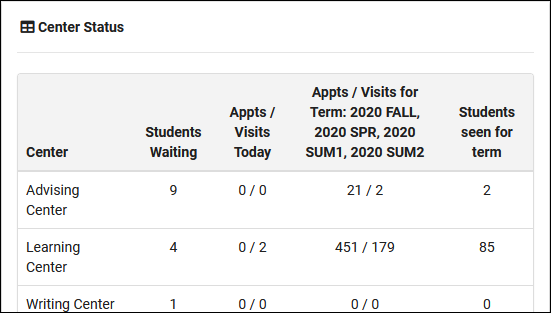
- The Center Status widget appears on the staff main menu and provides a brief summary of visit and appointment totals as well as how many students are waiting in each center. Checking this box provides access to this widget.

- Lists
- Choose which student lists this group can view or edit. Just like the center options, you can change the icon to determine their level of access to each list (only search or search and edit).
- Task Types
- Choose which task types this group can manage.
- Notification Types
- Choose which notification types this group can manage.
- Document Types
- Choose which document types this group can view or manage. 'Edit' access must be provided if this group will be uploading documents.
- Allow dashboard document upload
- If enabled, staff in this group can upload documents to their account via a widget on the dashboard.
This tab contains all staff accounts that have been assigned to this group. At a glance, you can see their name, email, and phone, but you can also click their row to start editing their account. By selecting accounts with the checkboxes on the right, you can batch delete staff (not recommended) or move them to another group.


- Show Consultant Location on Day Schedule
- This will display consultant locations beneath their name on the day view of the staff schedule.


- Show which student contact field on Schedule
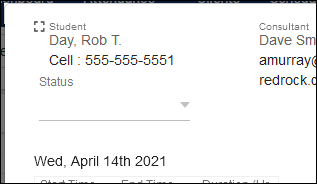
- This will displays the student's email or phone number in the top-left corner of appointments. The Preferred option can be used to show whichever field the student would prefer to be contacted by, which would need to be asked to the student via confirm bio.

- Allow user to override any scheduling rules
- If checked, staff in this group will be able to bypass scheduling restrictions to book appointments for students beyond what your rules may otherwise allow. A warning will still display notifying the staff member which max appointment rule is being broken before booking.
- Allow user to pick repeating schedule dates
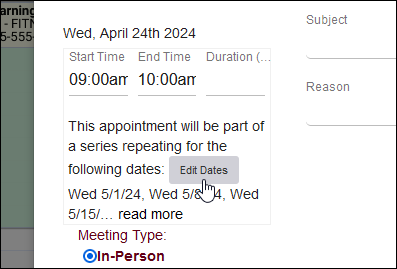
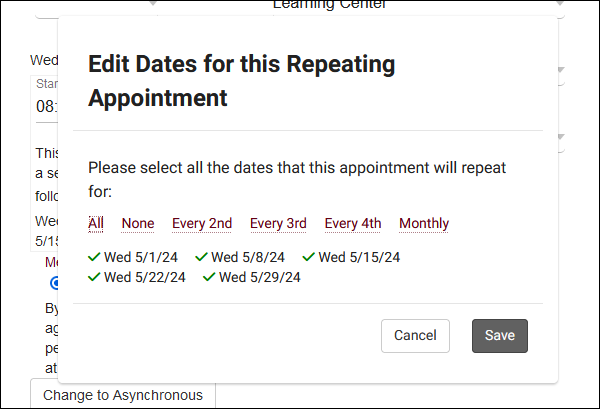
- If checked, users in this group can modify the included dates when booking a recurring appointment for a student.


- If this is a consultant, do not cause one on one availabilities to be converted to drop in on search results
- If the corresponding global preference to convert unbooked 1-on-1s to drop-ins is enabled, this checkbox makes the consultants in this group an exception. These consultants will no longer have their availabilities converted to drop-ins; their availabilities will simply disappear from the available time slots when the schedule no later than threshold is reached.
- Allow user to generate a dynamic search appointment QR Code based on an existing search appointment link
- If enabled, users in this group will be allowed to create dynamic QR codes for custom appointment links. More information on this feature can be found in scheduling preferences. Only allow links for self prevents consultants in this group from creating availability links for other consultant schedules.
- Only allow saving changes to own availabilities
- If checked, even if consultants in this group have edit access to an entire center, they will only be able to save changes to their own availabilities.
- Only allow saving changes to own appointments
- Same as above, but in relation to appointment records instead.

Student Access Preferences
- View/Edit Student using form [Standard/Brief]
- This option affects what fields are visible in the General ➜ Info tab of student profiles. Standard allows these staff view student profiles with access to every field (based on global preferences and the options below). Brief limits access to only a handful of fields, as seen in the comparison below.
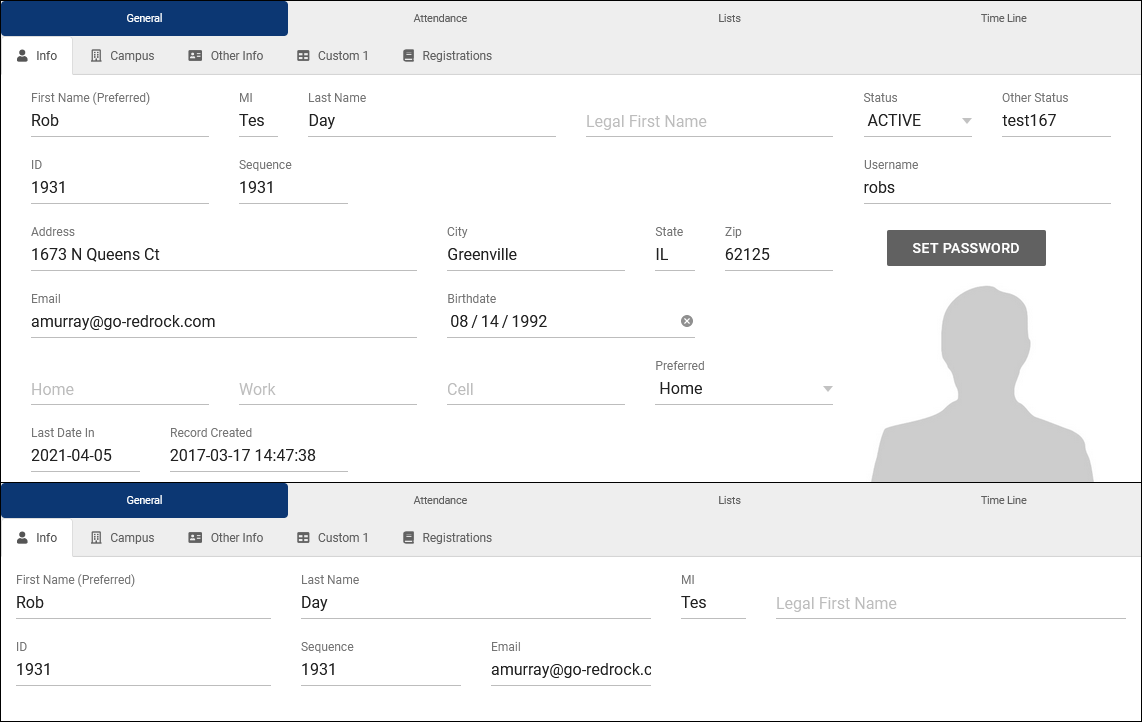

- Allow user (non admins) to create student records
- By default, only staff given the Profile Admin user level or higher are allowed to manually create student records. This option can be enabled to grant that permission to regular staff.
- Allow user to delete student records [Standard Only]
- This determines if staff members in this group can delete student profiles. It is recommended to leave this unchecked for most groups.
- Allow user to create prospective student requests
- Allows users in this group to create prospective student records from the students listing. Requires additional configuration.
- Prevent mass emailing from Student Listing
- This prevents these users from sending batch emails to multiple students at once.
- Prevent Action Send Email to Single Student
- This prevents users from sending emails to individual students.
- Hide [field] of student
- These options allow you to toggle certain fields on or off depending on what these users should have access to, such as IDs and phone numbers. Some of these are only available if the View/Edit Student using form option is set to Brief.
- Show Student Flag Information (Flag Text)
- This enables access to the Flag Information field in student records as well as the corresponding colored flags on the Student Listing.
- Hide [tab] of student
- These options allow you to disable the additional tabs in student profiles. The Campus tab contains some preset fields that have been enabled in Student Entry Choices, while the Other Info tab and all custom tabs exclusively contain custom fields.
- Limit Student listings to the chosen list
- This allows you to restrict the students viewable by staff in this group to only those on a specific list. If a list is chosen, an addition option will be made available: Additionally Limit student listing only linked consultant. If that option is checked, then the consultants in this profile will further only be able to view students linked to them via Linked Staff to Student.

- Allow user to view student/consultant visit satisfaction
- If visit satisfaction questions are enabled in your Log In/out preferences, these options allow you to control which groups can access the responses that are recorded. View and Edit allows this group to change the satisfaction rating for visits, while View only allows them to see the answer. No Access hides these fields entirely in visit records. The visit satisfaction question will still appear during logout if View/No Access is selected; these options only affect concluded visit records.
- Allow user to send notes to coach/advisor
- Provides these staff the ability to initiate the visit notes email from visit records and enables automatic sending of the notes email if it's configured to do so in your profile preferences.
- Prevent log in/out from KIOSK and Log Listing
- If checked, these staff will not be able to log students in or out on kiosk or log listing pages.
- Hide Custom KIOSK unless user is linked consultant (or none)
- If checked, consultants in this group will be prevented from opening custom kiosks linked to other consultants.
- Allow user to save changes to visit records (and which visits)
- This controls whether or not these staff can save changes to visit records. If enabled, you can specify if they can save changes to their own visits or all visits.
- Allow user to delete visit records (and which visits)
- This determines if staff in this group can delete visit records. If enabled, you can specify if they can delete their own visits or all visits.
- Prevent user from accessing Batch Visits
- If checked, staff in this group will be unable to record visits with the Batch Visits utility.
- User may view which visits
- This determines if these staff can view all visits, only their own, or none.
- User may view which work visits
- Same as the student version of this option, but for work visits instead.
- Show the Utilization Tab on Main Menu
- Enables the Utilization widget, allowing quick access to recent visits from the dashboard. Consultant accounts will also have the ability to quickly filter to only their own visits. All visit access permissions still apply; this does not provide additional privileges, only an alternative way to access these records.
- Show the Status Charts on Main Menu
- Enables access to Status Charts on the dashboard.
- Show the Watch Lists on Main Menu
- Enables access to watch lists on the dashboard. This only displays the lists that this group has access to.
- Show the Tasks & Create Task on Main Menu
- Enables access to the task widget on the dashboard.

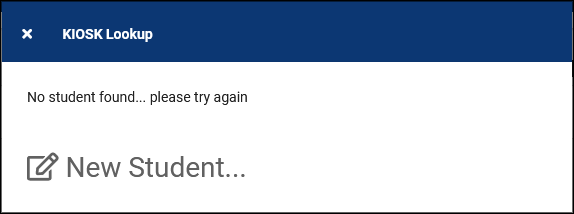
- Allow user to create student when not found in Log in Lookup
- If a student record isn’t found based on the ID entered on the Log Listing, staff members can be given the ability to immediately create a new account for the student they’re logging in. This is generally not recommended as it can lead to duplicate students being created if someone was entering the wrong identifier in the first place.

- Show KIOSK for Generic All Profiles option
- This adds an additional Kiosk option for these users that allows students to login to any Profile's center from the same Kiosk.
- This adds an additional Kiosk option for these users that allows students to login to any Profile's center from the same Kiosk.
- Lock all KIOSKs and Log Listings to IP Zone for this Group
- This option allows you to restrict kiosk/log listing access based on IP address. You can define IP address zones or simply an "On Campus" IP address in system preferences. The default value of blank will not restrict access based on IP.
- This option allows you to restrict kiosk/log listing access based on IP address. You can define IP address zones or simply an "On Campus" IP address in system preferences. The default value of blank will not restrict access based on IP.
- Allow user to log resources in and out
- This allows these staff members to log resources in/out via a “Log Resource” button within the “Other” tab in the navigation bar.
- This allows these staff members to log resources in/out via a “Log Resource” button within the “Other” tab in the navigation bar.
- Allow user to view what resource the student has logged out
- This allows staff members in this profile view resources that students have logged out.
- This allows staff members in this profile view resources that students have logged out.
- Allow consultant to login for work at their main menu
- Provides consultant accounts the ability to login for work visits from the dashboard. This will appear as a clock icon in the navigation bar where they can initiate or conclude their work visit without going through the log listing or a kiosk.
- Provides consultant accounts the ability to login for work visits from the dashboard. This will appear as a clock icon in the navigation bar where they can initiate or conclude their work visit without going through the log listing or a kiosk.
- Hide 'Is Work' for Quick Visits / Visit Entry
- If enabled, these users will not be allowed to create quick work visits. Work visits must be recorded by logging in and logging out.
- If enabled, these users will not be allowed to create quick work visits. Work visits must be recorded by logging in and logging out.
- Allow consultant to login for work on KIOSK where the user logged in is themself
- By default, staff members are not allowed to login for work visits on kiosks that they initiate. If this option is enabled, that restriction is lifted, allowing them to login for work on their own kiosks/log listings.
- By default, staff members are not allowed to login for work visits on kiosks that they initiate. If this option is enabled, that restriction is lifted, allowing them to login for work on their own kiosks/log listings.
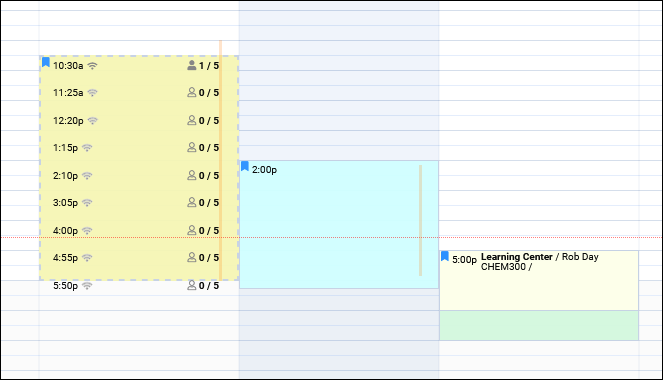
- Allow staff to view work visits on schedule
- If enabled, users in this group can view work time on the staff schedule, visualized as a red line overlaying the schedule. This can be restricted to only their own work visits, or all.

- Log In to Work: On/Off Campus Restriction
- Both of these options allow you to restrict whether or not this user can start a work visit from their dashboard depending on their IP address. After you designate an on campus IP address in your system preferences, you can set these preferences to one of 4 values:
- No Restriction - No additional restrictions regardless of IP.
- Only with Appointments - Can only login for work during an appointment or drop-in availability time, with the allowed login window being determined by No sooner than x minutes before appointment starts and No later than x minutes after appointment starts.
- Only with Appointments and Availabilities - Same as above, but also including availabilities in general. This is typically used if consultants are available for drop-in if their availabilities are not booked.
- Only with Appointments same modality ('Off Campus' only) - Same as above, but only if the appointment or drop-in availability is online.
- Appointments/Availability same Modality ('Off Campus' only) - Same to above, additionally including any availabilities even if unbooked.
- Not Allowed - Block work visit login entirely for that IP zone.
- Both of these options allow you to restrict whether or not this user can start a work visit from their dashboard depending on their IP address. After you designate an on campus IP address in your system preferences, you can set these preferences to one of 4 values:

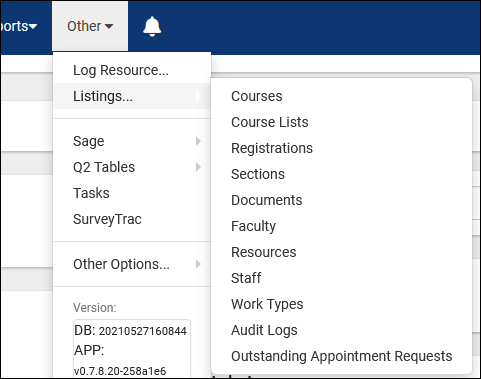
- Table Access
- This primarily determines which Listings these staff members can access. For example, you could entirely prevent a group from accessing the student listing, course listing, etc. Each table can be set to a different access level:
- View Listing and Edit provides full access to this listing, along with editing permissions.
- View Listing (No Edit) means that these staff can view the Listing page and the records within it, but can't save any changes.
- Edit (No Listing) allows staff to edit records, but not browse the Listing page. A common example here would be Course Lists, where Consultants may be able to edit their own Course List, but you don't want them browsing to or editing others.
- View Entry (No Listing) will prevent users from accessing the Listing or applying changes to individual records, but they are allowed to view individual records if provided a link.

- Custom Views
- Custom listing views can be shared to groups, allowing staff in this group to select these alternate views when needed.
- Normal View will be available to switch to from that listing, but will not be the default.
- Default View - will be the default when these staff members open the listing, but they can still switch to other views (or standard).
- Only this View will be the only view this group can see for the related listing, they will not be allowed to switch to other views.
- Limit users to certain custom fields
- By default, staff can access all custom fields for the records they have access to. E.g., if they have access to view and edit appointments, they can view and edit appointment custom fields. By checking this box, you can pick and choose which custom fields they can access and individually provide view or view and edit permissions.
- By default, staff can access all custom fields for the records they have access to. E.g., if they have access to view and edit appointments, they can view and edit appointment custom fields. By checking this box, you can pick and choose which custom fields they can access and individually provide view or view and edit permissions.
- Custom Searches
- Custom Saved Searches can be saved and shared to groups.
- Custom Saved Searches can be saved and shared to groups.
- Allow user to access reports
- This enables or disables access to reports. Some reports are restricted to certain User Levels independent of group, click here for more information. Choose the specific reports that users in this group can generate using the menu below.
- This enables or disables access to reports. Some reports are restricted to certain User Levels independent of group, click here for more information. Choose the specific reports that users in this group can generate using the menu below.
- Allow user to access payroll reports
- This enables or disables access to payroll reports specifically. The above option also needs to be enabled for a staff member to view these reports. These reports are also only available to users designated as "Profile Admin" or higher.
- This enables or disables access to payroll reports specifically. The above option also needs to be enabled for a staff member to view these reports. These reports are also only available to users designated as "Profile Admin" or higher.
Module Options

- [ SurveyTrac ] SurveyTrac Access
- Controls which surveys these accounts have access to.
- Controls which surveys these accounts have access to.
- [ SAGE ] Allow user to view referrals on Dashboard
- Adds a Referrals tab on the Dashboard providing quick access to referrals assigned to themselves, including information such as the Type, Date created, Date Followed-up, and Date Processed.
- Adds a Referrals tab on the Dashboard providing quick access to referrals assigned to themselves, including information such as the Type, Date created, Date Followed-up, and Date Processed.
- [ SAGE ] User may view which referrals
- This option allows you to choose whether staff members can view all referrals or exclusively referrals they personally created.
- This option allows you to choose whether staff members can view all referrals or exclusively referrals they personally created.
- [ SAGE ] User may DELETE which referrals
- Choose which referrals staff in this group can delete. All, their own, or none.
- Choose which referrals staff in this group can delete. All, their own, or none.
- [ SAGE ] Referral Type Access
- This determines which referrals these staff members can access. View and Edit allows this group to create, search for, and view referrals of this type. View (No Edit) allows this group to search for and view referrals but not create or modify. View & Edit (No Listing) allows this group to create referrals of this type, but not search for or view them.
- This determines which referrals these staff members can access. View and Edit allows this group to create, search for, and view referrals of this type. View (No Edit) allows this group to search for and view referrals but not create or modify. View & Edit (No Listing) allows this group to create referrals of this type, but not search for or view them.
- [ Q2 ] Q2 Module Group Access
- This determines which Q2 Configs these staff members can access.
- This determines which Q2 Configs these staff members can access.
- [ Text Alerts ] Allow user to view and edit the student field ‘Receive Text Alerts’
- This option gives staff in this group the ability to enable or disable text alerts for students from the student’s profile.
- This option gives staff in this group the ability to enable or disable text alerts for students from the student’s profile.
- [ Text Alerts ] Allow user to send SMS messages to students
- This option provides staff the ability to send students messages directly, either from the Log Listing or the Student’s Profile under the “Actions” tab.
- This option provides staff the ability to send students messages directly, either from the Log Listing or the Student’s Profile under the “Actions” tab.
- [ Text Alerts ] Allow user to send SMS messages to staff
- Just like students, staff can also be sent SMS messages from their profile via the “Actions” tab. This option determines whether or not this option is available for staff in this group.
- Just like students, staff can also be sent SMS messages from their profile via the “Actions” tab. This option determines whether or not this option is available for staff in this group.

- [Prevent user from] Viewing Scheduler widget
- If checked, these users will not be able to access search availability widgets.
- If checked, these users will not be able to access search availability widgets.
- [Prevent user from] Deleting Any Appointment
- If checked, these users will be unable to delete appointments on the staff schedule.
- If checked, these users will be unable to delete appointments on the staff schedule.
- [Prevent user from] Creating Online/Phone/Asynchronous Availabilities
- By checking any of these boxes, users in this group will no longer be allowed to create availabilities of that modality. In-person is always allowed.
- By checking any of these boxes, users in this group will no longer be allowed to create availabilities of that modality. In-person is always allowed.
- [Prevent user from] Using Asynchronous Messages
- If checked, consultants in this group will no longer have the 'Messages' tab on their asynchronous appointments. Students will also not be able to access the messages tab of their appointment if their consultant is in a group with this box checked.
- If checked, consultants in this group will no longer have the 'Messages' tab on their asynchronous appointments. Students will also not be able to access the messages tab of their appointment if their consultant is in a group with this box checked.
- [Prevent user from] Viewing Attendance menu
- If checked, these users will not be able to access the "Attendance" menu in the navigation bar, including utilities such as kiosks, log listings, batch visits, etc.
- If checked, these users will not be able to access the "Attendance" menu in the navigation bar, including utilities such as kiosks, log listings, batch visits, etc.
- [Prevent user from] Creating Staff Records
- If checked, these staff members will not be able to create additional staff accounts.
- If checked, these staff members will not be able to create additional staff accounts.
- [Prevent user from] Editing Staff/Student Passwords
- If checked, these users will not be allowed to set new passwords for students/staff.
- If checked, these users will not be allowed to set new passwords for students/staff.
- Prevent User Viewing Grades
- If checked, these users will be unable to view the grade field in registration records.
- If checked, these users will be unable to view the grade field in registration records.
- [Disable] Notifications
- By default, staff will receive notifications about visits, appointments, tasks, outstanding appointment requests, and more in a bell icon in their navigation bar. This box can be checked to disable this feature for staff in this group.


- [Disable] Student Timeline Emails Option/Extra Details/Appt Searches
- If this group has access to student records, the student timeline can display email history, extra details (canceled/missed appointments, exact login/out times), and appointment searches. These options can be checked to block access to those details.
- If this group has access to student records, the student timeline can display email history, extra details (canceled/missed appointments, exact login/out times), and appointment searches. These options can be checked to block access to those details.
- Override Required Field Validation (SysAdmin only)
- If checked, SysAdmins will be allowed to save records without filling out required fields (standard or custom fields). This option can only be enabled in the SysAdmin group.
Add existing group
If you already have a group assigned to another profile (or no profile at all) that you want to provide profile access to, you can use the "Add existing group" utility. This allows us to provide staff members assigned to that group the ability to schedule and manage visits in centers outside of their own profile.
To accomplish this, click the hamburger icon again, and choose “Add Existing Group.” Next, select the group you want to add, which adds it to the list of groups. When clicking on this group (that still primarily exists in another profile), we’re given a restricted set of options, as it’s only displaying options relevant to this secondary profile.


- Group Name
- Changing the name here will also change its name in the primary profile.
- Changing the name here will also change its name in the primary profile.
- Profile
- This shows the primary profile this group is assigned.
- This shows the primary profile this group is assigned.
- Scheduling and Visits access
- This is exactly the same as assigning center permissions in standard groups. This controls which centers staff members can view/edit visits and schedules in.