TracCloud: Confirm Bio: Difference between revisions
From Redrock Wiki
No edit summary |
No edit summary |
||
| Line 5: | Line 5: | ||
<div class="pageTitle">Confirm Bio</div> | <div class="pageTitle">Confirm Bio</div> | ||
Confirm Bio allows students and staff to update their own information, either by following a URL sent to their email address after a KIOSK login, or within a prompt displayed in their browser after signing in. The information they’re allowed to view/edit is up to you. You can also prevent students from starting a visit until their bio has been confirmed, or even add staff bio as an element of search availability. | Confirm Bio allows students and staff to update their own information, either by following a URL sent to their email address after a KIOSK login, or within a prompt displayed in their browser after signing in. The information they’re allowed to view/edit is up to you. You can also prevent students from starting a visit until their bio has been confirmed, or even add staff bio as an element of search availability. | ||
Each student and staff member has a checkbox in their profile that represents whether or not they have completed the confirm bio prompt. This checkbox can be reset manually or automatically to ensure that users have the most up to date information in their profile, even if the information differs from what is found in your import file. Students and staff can also manually edit their bio at any time via a widget on their dashboard. | Each student and staff member has a checkbox in their profile that represents whether or not they have completed the confirm bio prompt. This checkbox can be reset manually or automatically to ensure that users have the most up to date information in their profile, even if the information differs from what is found in your import file. Students and staff can also manually edit their bio at any time via a widget on their dashboard. | ||
==Student Confirm Bio Settings== | ==Student Confirm Bio Settings== | ||
[[File:9149903.png|800px]]< | <div class='scrollImage'> | ||
[[File:9149903.png|800px]] | |||
</div> | |||
* | * '''Confirm Staff Bio Activation''' | ||
: Toggles this functionality on or off. | |||
* | * '''Reset Student Confirmations on date''' and '''Next Date Time for Reset''' | ||
: Provides the option to reset confirmations on a specific date, prompting students to confirm their bio once again. The confirm bio reset process happens at 1am. You can also prompt the student to confirm their bio regardless of the last time they confirmed by having them navigate to the following URL (replace the domain and campus code with your own instance): https://traccloud.go-redrock.com/demo/trac/entryinc.php?tbl=main&form=dashboard&orl=&srl=&confirmBIO=true | |||
* | * '''Reset Student Confirmations after days</b> and <b>Reset after ___ days''' | ||
: Provides the option to automatically reset confirmations after a certain number of days. | |||
* | * '''Confirm Bio Instructions''' | ||
: This message appears at the top of the Confirm Bio prompt, typically instructions for the information required or terms to agree to. | |||
* '''Chosen Fields to Display to Student''' | |||
: These are the editable fields within the Confirm Bio prompt. Each field can be assigned a status: | |||
: <span style="color:green">Editable</span> - This field can be edited by students, but if this field is imported, the import will override the contents of this field. | |||
: <span style="color:#3f3ffc">Editable - Prevent Override</span> - Allows editing like above, but the import process will not override the data saved here. Once the bio confirmed checkbox has been checked, no further changes will be made to this field by the import process. | |||
: <span style="color:grey">View Only</span> - The student can view the current contents of this field within Confirm Bio, but the field cannot be modified. | |||
* | * '''Allow Upload Photo''' | ||
: | : This gives students the ability to upload their own photo to their student account, rather than [[TracCloud:_Student_Photos|batch or automated alternatives]]. | ||
* | * '''Ask Student to Type Initials when confirming''' | ||
: | : Students will be prompted to enter their initials before continuing, as a form of e-signature. | ||
* | * '''Ask Confirmation on KIOSK Login''' | ||
:: | : If the student's bio hasn't been confirmed, their [[TracCloudGuideBasicsVisits|Kiosk logins]] can be interrupted with one of the following options. If an email choice is selected, additional settings will be made available (email subject and body). On the kiosk prompts, a QR code will also be available that students can scan instead of checking their email. | ||
: '''Don't Ask on KIOSK''' disables this functionality; kiosk logins will be unaffected by Confirm Bio status. | |||
: '''Show Confirmation Form''' will display the Confirm Bio form on the screen, prompting the student to fill this out before continuing. | |||
: '''Send Link via Email - Allow Sign In''' will cause the Confirm Bio form to be emailed to student, but the student will still be allowed to login. | |||
: '''Send Link via Email - Required before Sign In''' will cause the Confirm Bio form to be emailed to the student, and will require it to be filled out prior to visit login. | |||
* | * '''Title of Edit BIO button''' | ||
: | : Allows you to change the label name of the Confirm Bio button on the student dashboard. | ||
: [[File:4646008.png|600px]] | |||
: [[File:2918542.png|450px]] | |||
* '''Title of Confirmation Button''' | |||
: This determines the name of the submit button. E.g., "Save," "I agree," "Submit," etc. | |||
* | * '''Title of Close Button''' | ||
: You can optionally enter custom text for a button to close the confirm bio form without saving. If left blank, this will be a simple 'x' button. | |||
==Staff Confirm Bio Settings== | ==Staff Confirm Bio Settings== | ||
| Line 110: | Line 107: | ||
[[File:4371439.png|800px]]<br><br> | [[File:4371439.png|800px]]<br><br> | ||
* | * '''Chosen Fields to Auto Update Staff Data''' | ||
: In the event that your consultant is linked to a student account (based on the two records having the same username), you can automatically pull a few data points from their student profile into the consultant profile to save time and to ensure they're up to date based on your SIS import. Phone, Name, Email, etc. Manual changes to student accounts also use this auto update utility. | |||
* | * '''Show Staff BIO on Search Availability''' | ||
: This enables Staff Bio to be visible to students when [[TracCloudGuideBasicsSchedule|searching for availabilities]] by clicking on a particular consultant's name from the availability search results. | |||
* | * '''Layout of the Staff BIO''' | ||
: If the above option is enabled, this determines what/how consultant information is displayed. By default, their Name, Photo, and Phone will appear on the left, with the written Staff Bio on the right. This grid can be changed/moved as needed. [[TracCloudGuideProfilePrefsTwig|Twig tags]] are supported. | |||
[[Category:TracCloud Manual]] | [[Category:TracCloud Manual]] | ||
Revision as of 23:54, 23 June 2026
Global Preferences
Confirm Bio allows students and staff to update their own information, either by following a URL sent to their email address after a KIOSK login, or within a prompt displayed in their browser after signing in. The information they’re allowed to view/edit is up to you. You can also prevent students from starting a visit until their bio has been confirmed, or even add staff bio as an element of search availability.
Each student and staff member has a checkbox in their profile that represents whether or not they have completed the confirm bio prompt. This checkbox can be reset manually or automatically to ensure that users have the most up to date information in their profile, even if the information differs from what is found in your import file. Students and staff can also manually edit their bio at any time via a widget on their dashboard.
Student Confirm Bio Settings

- Confirm Staff Bio Activation
- Toggles this functionality on or off.
- Reset Student Confirmations on date and Next Date Time for Reset
- Provides the option to reset confirmations on a specific date, prompting students to confirm their bio once again. The confirm bio reset process happens at 1am. You can also prompt the student to confirm their bio regardless of the last time they confirmed by having them navigate to the following URL (replace the domain and campus code with your own instance): https://traccloud.go-redrock.com/demo/trac/entryinc.php?tbl=main&form=dashboard&orl=&srl=&confirmBIO=true
- Reset Student Confirmations after days and Reset after ___ days
- Provides the option to automatically reset confirmations after a certain number of days.
- Confirm Bio Instructions
- This message appears at the top of the Confirm Bio prompt, typically instructions for the information required or terms to agree to.
- Chosen Fields to Display to Student
- These are the editable fields within the Confirm Bio prompt. Each field can be assigned a status:
- Editable - This field can be edited by students, but if this field is imported, the import will override the contents of this field.
- Editable - Prevent Override - Allows editing like above, but the import process will not override the data saved here. Once the bio confirmed checkbox has been checked, no further changes will be made to this field by the import process.
- View Only - The student can view the current contents of this field within Confirm Bio, but the field cannot be modified.
- Allow Upload Photo
- This gives students the ability to upload their own photo to their student account, rather than batch or automated alternatives.
- Ask Student to Type Initials when confirming
- Students will be prompted to enter their initials before continuing, as a form of e-signature.
- Ask Confirmation on KIOSK Login
- If the student's bio hasn't been confirmed, their Kiosk logins can be interrupted with one of the following options. If an email choice is selected, additional settings will be made available (email subject and body). On the kiosk prompts, a QR code will also be available that students can scan instead of checking their email.
- Don't Ask on KIOSK disables this functionality; kiosk logins will be unaffected by Confirm Bio status.
- Show Confirmation Form will display the Confirm Bio form on the screen, prompting the student to fill this out before continuing.
- Send Link via Email - Allow Sign In will cause the Confirm Bio form to be emailed to student, but the student will still be allowed to login.
- Send Link via Email - Required before Sign In will cause the Confirm Bio form to be emailed to the student, and will require it to be filled out prior to visit login.
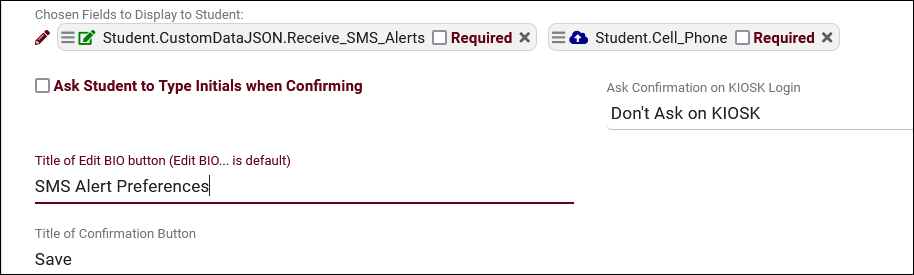
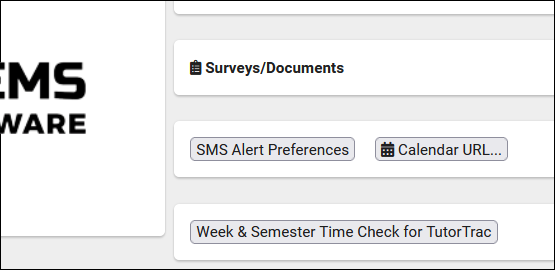
- Title of Edit BIO button
- Allows you to change the label name of the Confirm Bio button on the student dashboard.


- Title of Confirmation Button
- This determines the name of the submit button. E.g., "Save," "I agree," "Submit," etc.
- Title of Close Button
- You can optionally enter custom text for a button to close the confirm bio form without saving. If left blank, this will be a simple 'x' button.
Staff Confirm Bio Settings
The staff side of these settings starts off similarly with our activation rules.

- Confirm Staff Bio Activation
- Toggles this functionality on or off.
- Toggles this functionality on or off.
- Reset Staff Confirmations on date and Next Date Time for Reset
- Provides the option to reset confirmations on a specific date, prompting staff members to confirm their bio once again.
- Provides the option to reset confirmations on a specific date, prompting staff members to confirm their bio once again.
- Reset Staff Confirmations after days and Reset after ___ days
- Provides the option to automatically reset confirmations after a certain number of days.
- Provides the option to automatically reset confirmations after a certain number of days.
- Confirm Bio Instructions
- This message appears at the top of the Confirm Bio prompt, typically instructions for this process.
- This message appears at the top of the Confirm Bio prompt, typically instructions for this process.

- Chosen Fields to Display to Staff
- These are the editable fields within the Confirm Bio prompt. Each field can be assigned a status:
Editable - This field can be edited by staff, but if this field is imported, it will override the contents of this field.
Editable - Prevent Override - Allows editing like above, but the import process will not override the data saved here.
View Only - The staff member can view the current contents of this field within Confirm Bio, but the field cannot be modified.
- These are the editable fields within the Confirm Bio prompt. Each field can be assigned a status:
- Ask Staff to Type Initials when confirming
- Staff will be prompted to enter their initials before continuing, as a form of e-signature.
- Staff will be prompted to enter their initials before continuing, as a form of e-signature.
- Allow Edit Course List Specialties
- Provides consultants the ability to edit their linked Course List. This also requires their permission group to have the ability to edit course list records. Go to Other ➜ Other Options ➜ Groups ➜ [The group you want to have this ability] ➜ Admin / Modules ➜ Table Access ➜ Add Course Lists, then change the access level to Edit (No Listing). This will allow them to edit course lists if linked to them (i.e., from confirm bio) but will not give them the ability to browse and edit all course lists.
- Provides consultants the ability to edit their linked Course List. This also requires their permission group to have the ability to edit course list records. Go to Other ➜ Other Options ➜ Groups ➜ [The group you want to have this ability] ➜ Admin / Modules ➜ Table Access ➜ Add Course Lists, then change the access level to Edit (No Listing). This will allow them to edit course lists if linked to them (i.e., from confirm bio) but will not give them the ability to browse and edit all course lists.
- Allow Edit Reason Specialties
- Provides consultants the ability to edit their own Reason Specialties.
- Provides consultants the ability to edit their own Reason Specialties.
- Allow Edit Personal BIO Text
- Provides consultants the ability to edit their own Staff Bio. This is ties into the Show Staff BIO on Search Availability setting.
- Provides consultants the ability to edit their own Staff Bio. This is ties into the Show Staff BIO on Search Availability setting.
- Allow Upload Photo
- Provides consultants the ability to upload a photo to their staff record.
- Provides consultants the ability to upload a photo to their staff record.
- Allow Edit Special Needs / Accommodations
- Provides consultants the ability to edit their own skills / accommodations. More information.
- Provides consultants the ability to edit their own skills / accommodations. More information.
- Title of Edit BIO button
- Allows you to change the label name of the Confirm Bio button on the staff dashboard.
- Allows you to change the label name of the Confirm Bio button on the staff dashboard.
- Title of Confirmation Button
- This determines the name of the submit button. E.g., "Save," "I agree," "Submit," etc.
- This determines the name of the submit button. E.g., "Save," "I agree," "Submit," etc.

- Chosen Fields to Auto Update Staff Data
- In the event that your consultant is linked to a student account (based on the two records having the same username), you can automatically pull a few data points from their student profile into the consultant profile to save time and to ensure they're up to date based on your SIS import. Phone, Name, Email, etc. Manual changes to student accounts also use this auto update utility.
- Show Staff BIO on Search Availability
- This enables Staff Bio to be visible to students when searching for availabilities by clicking on a particular consultant's name from the availability search results.
- Layout of the Staff BIO
- If the above option is enabled, this determines what/how consultant information is displayed. By default, their Name, Photo, and Phone will appear on the left, with the written Staff Bio on the right. This grid can be changed/moved as needed. Twig tags are supported.