TracCloud: Centers: Difference between revisions
From Redrock Wiki
No edit summary |
No edit summary |
||
| Line 18: | Line 18: | ||
* '''Inactive''' | * '''Inactive''' | ||
: ''Deleting'' centers is almost never recommended, as this will remove the related records (visits, appointments, etc) from student and staff histories and reports. Instead, it's recommend to deactivate a center with this checkbox. This will hide it from view, but keeps the records available for reports or later reactivation. | |||
* '''Profile''' | * '''Profile''' | ||
: All of your centers are assigned to a [[TracCloud:_General_Profile_Options|profile]]. This field displays which profile this particular center has been assigned to. This will default to whichever profile you started creating the center from. | |||
* '''Center Color''' | * '''Center Color''' | ||
: The accent color for this center. This color will be shown in the center list and on the schedule. | |||
: [[File:6628789.png|400px]] | |||
* '''Name''' | * '''Name''' | ||
: The name of the center, which is displayed to students and staff for scheduling and visit tracking. | |||
* '''Fund''' | * '''Fund''' | ||
: This is an optional field store the fund or payment source for this center. [[TracCloud:_Location,_Hours_and_Description|Click here for more information on funds and payroll tracking.]] | |||
* '''Ignore consultant specialties for this center (ie Writing Center)''' | * '''Ignore consultant specialties for this center (ie Writing Center)''' | ||
: When searching for availabilities, only consultants who are assigned to the chosen subject will appear. I.e., when a staff or student selects MATH101, only consultants who can assist with MATH101 will be displayed. This checkbox disables that filtering, allowing consultants in this center to assist with ''any'' course, regardless of their [[TracCloud:_Course_Lists|course list]]. This is commonly used for writing centers. This only applies when searching for availabilities from the dashboard and does not have an effect when booking appointments from the staff schedule. The center course list still applies as usual. | |||
* '''Maximum active visits in this center at one time''' | * '''Maximum active visits in this center at one time''' | ||
: By setting a limit in this field, you will prevent more than that number of students from logging into the center at once. When the limit is reached, login attempts will be met with the error "Too many students are currently active in this center. Please try again later." until the total logged in students falls under the limit. | |||
* '''Utilize Students/Consultant Link for this Center (if Defined in Profile)''' | * '''Utilize Students/Consultant Link for this Center (if Defined in Profile)''' | ||
: If configured in your [[TracCloudGuideProfileGeneral|profile settings]], students can be linked with consultants/advisors based on a field in their account. When that student logs in, they will only see consultants that match their linked field. Checking this box enables this feature in this center. This is commonly used for advising centers, where students can only meet with their assigned advisor. | |||
* '''Students with Null or Blank Values in Linking field can book with anyone''' | * '''Students with Null or Blank Values in Linking field can book with anyone''' | ||
: This option expands on the above, so that if a student does not have any data in their assigned advisor (or other linking) field, they will be allowed to see all consultants in search results. Otherwise, no results will be returned from this center for that student. | |||
* '''Hide on Log / KIOSK Listing Menu''' | * '''Hide on Log / KIOSK Listing Menu''' | ||
: Checking this box will remove this center as a choice from the KIOSK and Log Listing menus, as well as from the available center choices when logging into a profile-wide kiosk. | |||
* '''Hide for Work Visits on Consultant Work Login''' | * '''Hide for Work Visits on Consultant Work Login''' | ||
: Checking this box will remove this center as a choice when staff members are logging in for [[TracCloudGuideBasicsPayroll|work visits]]. | |||
* '''Course List for this Center''' | * '''Course List for this Center''' | ||
: This setting determines which courses are assigned and available in this center. [[TracCloudGuideBasicsCourses|Click here For more information on Course Lists in general.]] With the exception of "All Courses" lists, it is typically recommended to have a different course list per center to prevent conflicts during later edits. | |||
* '''Allow/Prevent Students''' | * '''Allow/Prevent Students''' | ||
: Allow or block students on a specific [[TracCloudGuideGlobalLists|list]] from logging into or booking appointments in this center. If a list is selected in an ''allow'' field, all other students would be prevented from scheduling or logging in. | |||
* '''Active Reasons Allowed for This Center''' | * '''Active Reasons Allowed for This Center''' | ||
: The [[TracCloud:_Reasons|reasons]] assigned to this center. This controls which reasons are displayed when searching for and booking appointments, as well as the options available during kiosk logins. | |||
===Additional tab=== | ===Additional tab=== | ||
Revision as of 20:47, 17 June 2026
This tab, found in Other ➜ Other Options ➜ Profiles ➜ [Your Profile] ➜ Centers, contains all of the centers linked to this profile. A center typically represents a department or physical location on campus. Another way to think about centers is as buckets for your visits and scheduling data, allowing you to control who has access to each center's data based on permission group. This also allows for easy reporting by center, where most reports have simple checkboxes to choose which ones to pull data from.
While you can create a center for any purpose, some examples include: Academic Coaching, Accessibility Services, Adult Education, Advising, Athletics, Career, Computer Use, Engineering, Exam Proctoring, Finanical Aid, Fitness, Food Pantry, Language Lab, Library, Math Lab, Music, Nursing, Open Study, Peer Mentoring, Peer Tutoring, Professional Development, Skills Lab, Special Events, Student Wellness, Supplemental Instruction, Testing Services, TRIO Tutoring, Tutor Training, Tutoring Services, Veteran Services, and Writing Centers.

Creating a Center
The hamburger menu contains the option to create a new center. Once clicked, you will be taken to the General tab where you can start configuring your new center.


- Inactive
- Deleting centers is almost never recommended, as this will remove the related records (visits, appointments, etc) from student and staff histories and reports. Instead, it's recommend to deactivate a center with this checkbox. This will hide it from view, but keeps the records available for reports or later reactivation.
- Profile
- All of your centers are assigned to a profile. This field displays which profile this particular center has been assigned to. This will default to whichever profile you started creating the center from.
- Center Color
- The accent color for this center. This color will be shown in the center list and on the schedule.
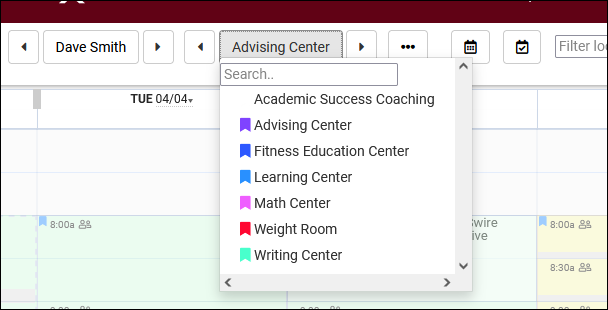

- Name
- The name of the center, which is displayed to students and staff for scheduling and visit tracking.
- Fund
- This is an optional field store the fund or payment source for this center. Click here for more information on funds and payroll tracking.
- Ignore consultant specialties for this center (ie Writing Center)
- When searching for availabilities, only consultants who are assigned to the chosen subject will appear. I.e., when a staff or student selects MATH101, only consultants who can assist with MATH101 will be displayed. This checkbox disables that filtering, allowing consultants in this center to assist with any course, regardless of their course list. This is commonly used for writing centers. This only applies when searching for availabilities from the dashboard and does not have an effect when booking appointments from the staff schedule. The center course list still applies as usual.
- Maximum active visits in this center at one time
- By setting a limit in this field, you will prevent more than that number of students from logging into the center at once. When the limit is reached, login attempts will be met with the error "Too many students are currently active in this center. Please try again later." until the total logged in students falls under the limit.
- Utilize Students/Consultant Link for this Center (if Defined in Profile)
- If configured in your profile settings, students can be linked with consultants/advisors based on a field in their account. When that student logs in, they will only see consultants that match their linked field. Checking this box enables this feature in this center. This is commonly used for advising centers, where students can only meet with their assigned advisor.
- Students with Null or Blank Values in Linking field can book with anyone
- This option expands on the above, so that if a student does not have any data in their assigned advisor (or other linking) field, they will be allowed to see all consultants in search results. Otherwise, no results will be returned from this center for that student.
- Hide on Log / KIOSK Listing Menu
- Checking this box will remove this center as a choice from the KIOSK and Log Listing menus, as well as from the available center choices when logging into a profile-wide kiosk.
- Hide for Work Visits on Consultant Work Login
- Checking this box will remove this center as a choice when staff members are logging in for work visits.
- Course List for this Center
- This setting determines which courses are assigned and available in this center. Click here For more information on Course Lists in general. With the exception of "All Courses" lists, it is typically recommended to have a different course list per center to prevent conflicts during later edits.
- Allow/Prevent Students
- Allow or block students on a specific list from logging into or booking appointments in this center. If a list is selected in an allow field, all other students would be prevented from scheduling or logging in.
- Active Reasons Allowed for This Center
- The reasons assigned to this center. This controls which reasons are displayed when searching for and booking appointments, as well as the options available during kiosk logins.
Additional tab
This tab contains information about the center that can be viewed from the search availability results screen. If preferred, a profile-wide default can be set rather than entering a unique description for every center. The center description takes priority if both are filled out.

When searching for an appointment, you can click the info icon/center name to view the additional information.

This information can contain a center description, map location, address, additional info, hours of operation, and photos.

- Description
- This text field appears in the top-right corner of the center info window.
- Picture 1 URL
- A direct link to an image of your choice, this will appear in the top-left corner of center info. If you don't have a direct link to your image available, consider using public docs.
- Map Coordinates
- This will be the location displayed in the Google Maps box, and how far zoomed in/out the default view is. Formatted as Latitude, Longitude, default zoom level.
- For the default zoom, 12 would be fairly zoomed out, giving people a highway/main road reference, 15 would be a typical street-level view, and 18 would be a zoomed in campus-level view.
- Location/Address
- This will appear above the Google Maps box, providing the written address.
- Hours of Operation
- Your center hours, displayed on the left-side of the center info box.
- Picture 2 URL
- A direct link to an image that will appear in the lower-left corner of the center info box.
- Additional Information
- An additional text field that displays at the very bottom of the center info box.
Any field left blank will simply not appear in Center Info at all.