TracCloud: Terms and Conditions
From Redrock Wiki
Terms & Conditions allows you to create a prompt that appears for students when they're logging in, booking an appointment, or enrolling in a workshop. The prompt will contain a custom message which the student will have to agree to before continuing. While terms and conditions are the typical use-case, this feature can also be used for any purpose where a student would need to agree to a statement before having full access to the system.
Creating a New Term/Condition
Navigate to Other ➜ Listings ➜ Terms and Conditions. This listing is where you can view or edit previous T&Cs. To create a new T&C, click the hamburger icon ➜ New Terms and Conditions. If your SysAdmin account doesn't have access to these options, read the group permissions portion of this article and apply those same changes to the SysAdmin group.

This will take you to the Terms and Conditions entry screen.

- Name
- This will be the title of this T&C. This will be displayed across the top of the prompt when shown to students.
- Responses
- This will display a list of students who have accepted these T&Cs and the date of acceptance.
- Text Entry Area
- This is where you can write out the text of this T&C that students will need to agree to before continuing. If you wish to add custom field inputs to be answered by the student, this can be entered as {#custom:field_name#}. See example screenshots below.
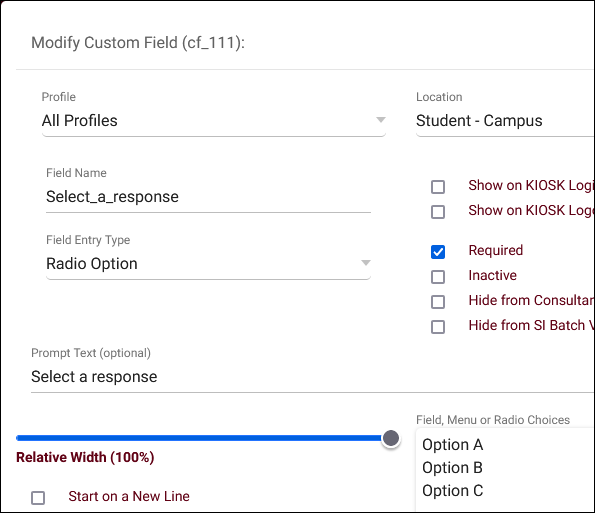
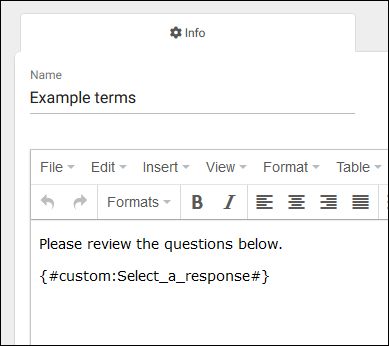
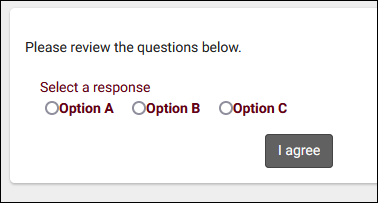


- Linked to Student List
- Optionally only display these T&Cs to students on the specified list.
- Linked to Section / Subject
- Terms and conditions can be assigned to a specific subject, section, or all courses, depending on if this T&C needs to be specific to a certain subject. If selected, an additional entry field will appear where you can choose the section/subject. This will only work with sections that students are registered for; non-enrolled courses will not trigger the T&C to appear.
- Profile / Center
- This is where you can assign this T&C to a specific profile or center.
- Valid For
- This option allows you to determine how long the T&C agreement is valid for. There are three options:
- Life – Never resets. Once Confirmed, the student will not see the T&C again unless this option is changed.
- Term – Resets after each semester. When next semester term switches over, the students will be asked again to agree to the T&C once again. If this T&C record appears on login and the student's registration has overridden dates, the end date of their registration will be used instead.
- Days - This option allows you set a custom length (e.g., 30 days, 90 days, etc).
- Displayed When
- This option determines where the student will see the T&C prompt.
- None - Inactive. This will deactivate this T&C. It will no longer be displayed to students.
- Student Main Menu - This will display as soon as the student logs into their account. Students will not be able to continue until the T&C prompt has been agreed to.
- Student Kiosk Login - This prompt will appear when a student attempts to login for a visit via a Kiosk, at which time they will be presented with the T&C.
- Student Booking Appointment - This prompt appears when a student selects an available time from the search availability widget on their dashboard. The T&C must be confirmed before they can book an appointment.
- Workshop Only - This prompt appears as an option when enrolling in workshops.
- Accept Button Label
- This allows you to customize the name of the confirm button (e.g., "I agree").
- Require Initials
- This requires the student to enter their initials before confirming, as a kind of e-signature.
- Allow Enter Notes
- This provides students the ability to enter in a note when filling out the T&C.
- Notes Instructions
- This is additional instructional text that will appear just above the notes field above.
Group Settings
If you need to allow another set of staff members in your TracCloud instance to access or modify Terms and Conditions, you will need to apply a change to their permission group. The Terms and Conditions option will need to be added to Table Access as seen below. This can either be set to View and Edit for full access, or View Only if you don't want these users making any changes.
Other ➜ Other Options ➜ Groups ➜ [The group you want to edit] ➜ Admin / Modules ➜ Table Access.

Example Configuration
The screenshot below shows an example of how Terms and Conditions can be configured and how it displays to students.

Here's how that prompt looks to a student when logging into their account.

After the student agrees, the record of this agreement will appear in their timeline as seen below.

Allowing Students to View Accepted Terms and Conditions
In order for students to be able to view Terms and Conditions that they've previously accepted, a system preference needs to be enabled. Go to Other ➜ Other Options ➜ Preferences ➜ System Preferences ➜ General Appointment Settings ➜ Check Allow students to view accepted Terms and Conditions on dashboard ➜ Save. Once enabled, students will see this button on their main menu next to the calendar URL. Clicking it will open a list of T&Cs they've accepted, where they can see their response and the terms themselves by clicking on the arrow button.

