TracCloud: ACTP Tutor Training Tracker: Difference between revisions
From Redrock Wiki
No edit summary |
No edit summary |
||
| Line 10: | Line 10: | ||
</big></b></div> | </big></b></div> | ||
Description, | Description, | ||
<hr> | <hr> | ||
| Line 19: | Line 19: | ||
Stage 1 allows <b>Coordinators</b> to prepare the cohort curriculum and create the trainers and tutors associated with this cohort. The curriculum consists of Groups and Topics. During this stage, <b>Trainers</b> can view the curriculum but cannot make changes. | Stage 1 allows <b>Coordinators</b> to prepare the cohort curriculum and create the trainers and tutors associated with this cohort. The curriculum consists of Groups and Topics. During this stage, <b>Trainers</b> can view the curriculum but cannot make changes. | ||
<hr> | |||
<b>Coordinator's View</b> | <b><big>Coordinator's View</b></big> | ||
[[File:9528818.png|600px]]<br><br> | [[File:9528818.png|600px]]<br><br> | ||
From the coordinator's dashboard. | From the coordinator's dashboard, there are several steps that can be taken to prepare the curriculum for data collection. | ||
* <b>Cohort</b> | |||
::The most recent non-archived/inactive term will be selected here by default.<br><br> | |||
* <b>Stage</b> | |||
::This determines what stage this form is in. Stage 2 begins when the coordinator selects stage 2 in this menu.<br><br> | |||
* <b>Curriculum</b> | |||
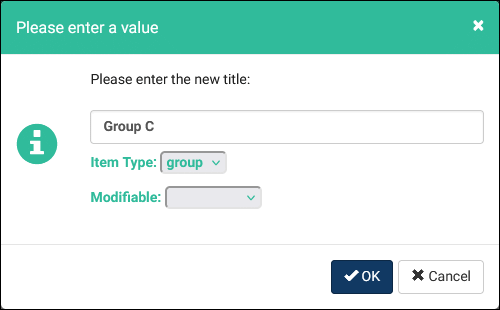
::New groups or topics can be created by clicking the {{#fas:circle-plus#}} button. This will open a prompt where you can enter the name of the item, the type (Group or Topic), and whether or not it's modifiable. If the item is modifiable, the trainer can click on it to rename the item. | |||
::[[File:1627783.png|400px]]<br><br> | |||
</b> | * <b>Trainers / Tutors</b> | ||
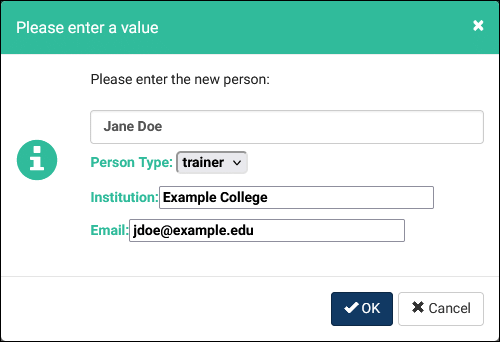
::The list of trainers & tutors can be modified using the buttons in the top-right corner of the view. You can choose to only view one of the two user types, or optionally display each person's email address or institution. New trainers or tutors can be created by clicking the {{#fas:circle-plus#}} button. This form allows the coordinator to enter their name, type (trainer or tutor), institution, and email address. Upon saving, this will create a [[TracCloud:_Staff_and_Consultants|staff account]] for this person. | |||
::[[File:9316409.png|400px]]<br><br> | |||
[[File: | * <b>Additional Options</b> | ||
::By clicking the {{#fas:gear}} button, a few additional utilities will be available. | |||
::: <b>Add New Cohort</b> allows the coordinator to manually create a new cohort/term to track certification progress for. | |||
::: <b>Copy From Cohort</b> allows the coordinator to copy the curriculum groups/topics from an existing cohort/term to the currently selected cohort. (<span style="color:red">todo: verify this works</span> | |||
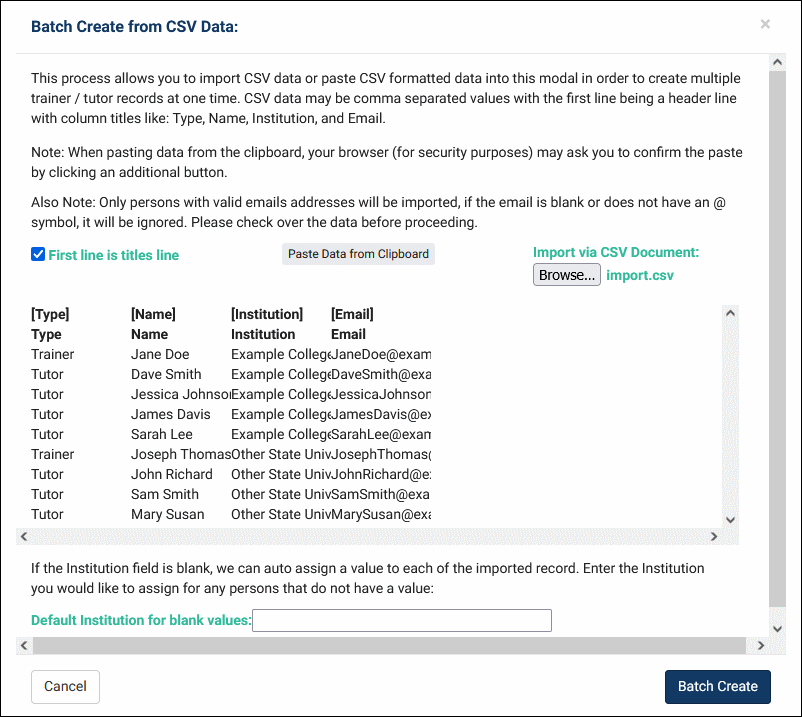
::: <b>Batch Create Tutors</b> provides a utility to create many trainer and tutor accounts at once. This requires for columns of data from either a CSV file or uploaded from your clipboard: <b>Type</b> (Trainer or Tutor), <b>Name</b> (First Last), <b>Institution</b>, and <b>Email</b>. If your import data doesn't contain institution, you can enter a <b>Default Institution for blank values</b> prior to batch creating the records. | |||
:::[[File:2325181.png|600px]] | |||
:::<b>Get CSV Tutor Data</b> will instantly export the trainer and tutor data to a CSV file in your browser. | |||
:::<b>Print Tutors</b> will print the list of trainers and tutors.<br><br> | |||
<hr> | |||
<b><big>Trainer's View</b></big> | |||
[[File:6752429.png|600px]]<br><br> | |||
From the trainer's dashboard, they can review what has been entered by the coordinator as well as upload new tutors, but no other changes can be made. | |||
</div> | </div> | ||
<hr> | <hr> | ||
<!-------------------------------------- | <!-------------------------------------- Stage 2 --------------------------------------> | ||
<div style="float: left; margin-top: 0em; margin-bottom: 1em"><big><b> | <div style="float: left; margin-top: 0em; margin-bottom: 1em"><big><b>Stage 2</b> | Data Collection</big></div><div class="mw-collapsible mw-collapsed"> | ||
<br><br> | <br><br> | ||
After the coordinator finishes creating the curriculum and trainer/tutors, they can be begin the Data Collection stage. This allows the trainer to begin tracking tutor progress towards their certification. Trainers will upload the Observations for their Tutors and Artifacts (1 per Group). | |||
<hr> | |||
<b><big>Coordinator's View</b></big> | |||
[[File:9617424.png|600px]]<br><br> | |||
Coordinators gain new columns of data in the <b>Trainers / Tutors</b> list in this stage for progress reviews, but the curriculum can no longer be modified in this stage. | |||
<hr> | |||
<b><big>Trainer's View</b></big> | |||
[[File:5066448.png|600px]]<br><br> | |||
Once stage 2 begins, the trainer can be marking topics as completed for each of the listed tutors. Observations can be uploaded for tutors using the document icon at the top of each column, and artifacts for each group can be uploaded using the document icons along the left side of the screen next to the topic names. For any document location, multiple files can be uploaded. | |||
[[File:2743493.png|600px]]<br><br> | |||
</div> | </div> | ||
<hr> | <hr> | ||
<!-------------------------------------- | <!-------------------------------------- Stage 3 --------------------------------------> | ||
<div style="float: left; margin-top: 0em; margin-bottom: 1em"><big><b> | <div style="float: left; margin-top: 0em; margin-bottom: 1em"><big><b>Stage 3</b> | </big></div><div class="mw-collapsible mw-collapsed"> | ||
<br><br> | <br><br> | ||
| Line 52: | Line 93: | ||
</div> | </div> | ||
<hr> | <hr> | ||
<!-------------------------------------- | <!-------------------------------------- Stage 4 --------------------------------------> | ||
<div style="float: left; margin-top: 0em; margin-bottom: 1em"><big><b> | <div style="float: left; margin-top: 0em; margin-bottom: 1em"><big><b>Stage 4</b> | </big></div><div class="mw-collapsible mw-collapsed"> | ||
<br><br> | <br><br> | ||
</div> | |||
<hr> | |||
<!-------------------------------------- Permission Groups --------------------------------------> | |||
<div style="float: left; margin-top: 0em; margin-bottom: 1em"><big><b>Permission Groups</b> | </big></div><div class="mw-collapsible mw-collapsed"> | |||
<br><br> | |||
todo: Assigning access to custom widgets. | |||
</div> | </div> | ||
Revision as of 17:49, 8 May 2025
This page is still in progress! Come back later to learn more.
Additional Features
Title
Description,
Stage 1 allows Coordinators to prepare the cohort curriculum and create the trainers and tutors associated with this cohort. The curriculum consists of Groups and Topics. During this stage, Trainers can view the curriculum but cannot make changes.
Coordinator's View

From the coordinator's dashboard, there are several steps that can be taken to prepare the curriculum for data collection.
- Cohort
- The most recent non-archived/inactive term will be selected here by default.
- The most recent non-archived/inactive term will be selected here by default.
- Stage
- This determines what stage this form is in. Stage 2 begins when the coordinator selects stage 2 in this menu.
- This determines what stage this form is in. Stage 2 begins when the coordinator selects stage 2 in this menu.
- Curriculum
- New groups or topics can be created by clicking the button. This will open a prompt where you can enter the name of the item, the type (Group or Topic), and whether or not it's modifiable. If the item is modifiable, the trainer can click on it to rename the item.

- Trainers / Tutors
- The list of trainers & tutors can be modified using the buttons in the top-right corner of the view. You can choose to only view one of the two user types, or optionally display each person's email address or institution. New trainers or tutors can be created by clicking the button. This form allows the coordinator to enter their name, type (trainer or tutor), institution, and email address. Upon saving, this will create a staff account for this person.

- Additional Options
- By clicking the button, a few additional utilities will be available.
- Add New Cohort allows the coordinator to manually create a new cohort/term to track certification progress for.
- Copy From Cohort allows the coordinator to copy the curriculum groups/topics from an existing cohort/term to the currently selected cohort. (todo: verify this works
- Batch Create Tutors provides a utility to create many trainer and tutor accounts at once. This requires for columns of data from either a CSV file or uploaded from your clipboard: Type (Trainer or Tutor), Name (First Last), Institution, and Email. If your import data doesn't contain institution, you can enter a Default Institution for blank values prior to batch creating the records.
- Get CSV Tutor Data will instantly export the trainer and tutor data to a CSV file in your browser.
- Print Tutors will print the list of trainers and tutors.
- By clicking the button, a few additional utilities will be available.

Trainer's View

From the trainer's dashboard, they can review what has been entered by the coordinator as well as upload new tutors, but no other changes can be made.
After the coordinator finishes creating the curriculum and trainer/tutors, they can be begin the Data Collection stage. This allows the trainer to begin tracking tutor progress towards their certification. Trainers will upload the Observations for their Tutors and Artifacts (1 per Group).
Coordinator's View

Coordinators gain new columns of data in the Trainers / Tutors list in this stage for progress reviews, but the curriculum can no longer be modified in this stage.
Trainer's View

Once stage 2 begins, the trainer can be marking topics as completed for each of the listed tutors. Observations can be uploaded for tutors using the document icon at the top of each column, and artifacts for each group can be uploaded using the document icons along the left side of the screen next to the topic names. For any document location, multiple files can be uploaded.

todo: Assigning access to custom widgets.