TracCloud: Custom Widgets: Difference between revisions
From Redrock Wiki
No edit summary |
No edit summary |
||
| Line 27: | Line 27: | ||
<iframe src="https://traccloud.go-redrock.com/example/trac/ajax.php?proc=drawCustomWidget&widgetNo=1"> | <iframe src="https://traccloud.go-redrock.com/example/trac/ajax.php?proc=drawCustomWidget&widgetNo=1"> | ||
</iframe> | </iframe> | ||
</syntaxhighlight>< | </syntaxhighlight><bR> | ||
* <b>Widget Content</b> | * <b>Widget Content</b> | ||
| Line 33: | Line 33: | ||
<big>Group Permissions</big> | <big>Group Permissions</big> | ||
In order to view | |||
In order to view custom widgets, you must provide that group access to it. Go to <i>Other > Other Options > Groups > [The group you want to modify] > Admin / Modules > Custom Widgets / Field Locations</i> and add the custom widget you want to share with them. | |||
[[File:8533911.png|500px]] | |||
</div> | </div> | ||
<!--[[Category:TracCloud Manual]]--> | <!--[[Category:TracCloud Manual]]--> | ||
Revision as of 23:33, 1 May 2025
This page is still in progress! Come back later to learn more.
Additional Features
Custom Widgets
Description.

- Custom Widget Width
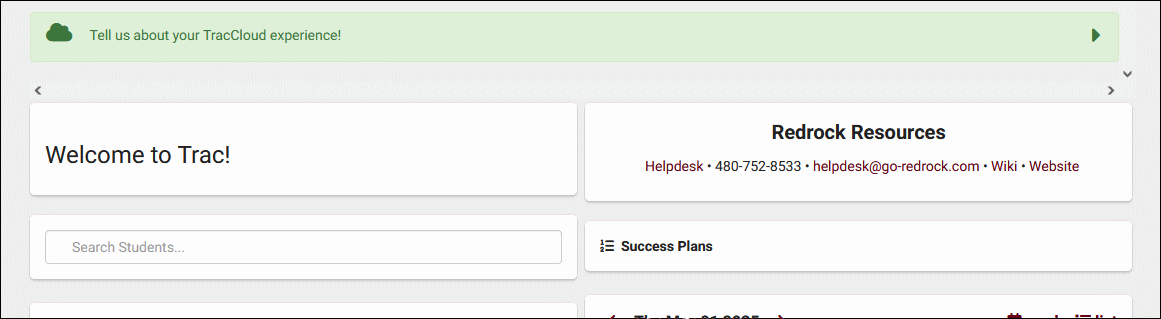
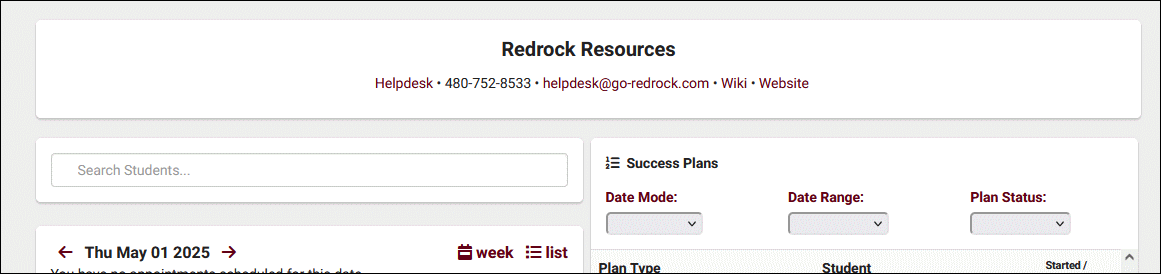
- Choose whether the widget is half or full width on the dashboard. If set to full width, it's recommended to also set your welcome message to full width to match.
- Half width
- Full width


- Target
- Choose which user types can view this custom widget.
- If "Anonymous Web" is selected, it will be possible to embed the contents of this widget in an iframe outside of the Trac System. See example below.
<iframe src="https://traccloud.go-redrock.com/example/trac/ajax.php?proc=drawCustomWidget&widgetNo=1">
</iframe>
- Widget Content
- Enter the contents of your custom widget message here. You can optionally edit the HTML directly by clicking on Tools > Source Code.
- Enter the contents of your custom widget message here. You can optionally edit the HTML directly by clicking on Tools > Source Code.
Group Permissions
In order to view custom widgets, you must provide that group access to it. Go to Other > Other Options > Groups > [The group you want to modify] > Admin / Modules > Custom Widgets / Field Locations and add the custom widget you want to share with them.
