TracCloud: Custom Widgets: Difference between revisions
From Redrock Wiki
Created page with "{{WIP}} {{TracCloudGuideTabs}} <div class="tcWidgetPage"> <div class="category"> {{TracCloudModulesTOC}} </div> <div style='text-align: center;'> <big><b> ==Custom Widgets== </big></b></div> Description.<br><br> 850px<br><br> <syntaxhighlight lang="html"> <iframe src="https://traccloud.go-redrock.com/example/trac/ajax.php?proc=drawCustomWidget&widgetNo=1"> </iframe> </syntaxhighlight> </div> <!--Category:TracCloud Manual-->" |
No edit summary |
||
| (14 intermediate revisions by the same user not shown) | |||
| Line 1: | Line 1: | ||
{{ | {{NoTier}} | ||
<div class="categoryDynamic"> | |||
{{TracCloudGuideTabs}} | {{TracCloudGuideTabs}} | ||
{{TracCloudModulesTOC}} | {{TracCloudModulesTOC}} | ||
</div> | </div> | ||
<div | <div class="pageTitle">Custom Widgets</div> | ||
Custom widgets can be used to add additional messaging to the TracCloud dashboard for various user types. Additionally, these widgets can be made accessible anonymously for the purpose of being embedded in other websites as an iframe. | |||
[[File:8753305.png|850px]]<br><br> | [[File:8753305.png|850px]]<br><br> | ||
* <b>Custom Widget Width</b> | |||
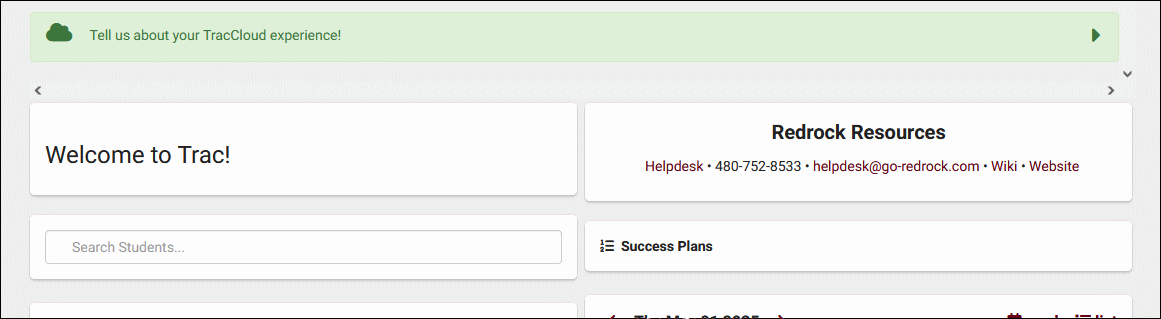
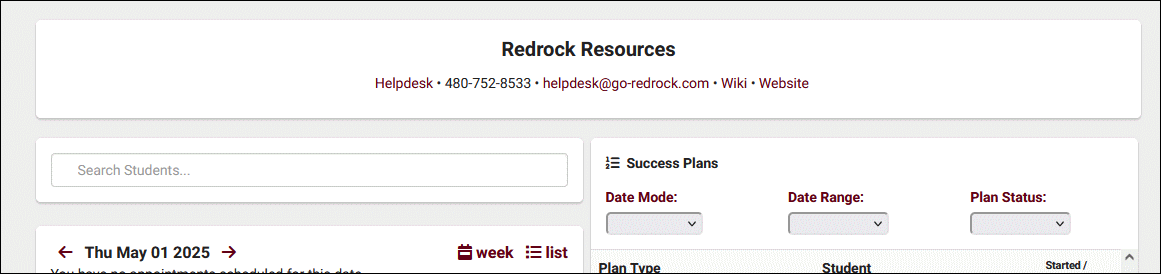
::Choose whether the widget is half or full width on the dashboard. If set to full width, it's recommended to also set your [[TracCloud:_Welcome_Messages|welcome message]] to full width to match. | |||
::<i>Half width</i> | |||
::[[File:2496284.png|700px]] | |||
::<i>Full width</i> | |||
::[[File:5003336.png|700px]]<br><br> | |||
<syntaxhighlight lang="html"> | * <b>Target</b> | ||
::Choose which user types can view this custom widget. | |||
::If "Anonymous Web" is selected, it will be possible to embed the contents of this widget in an iframe outside of TracCloud. See example below. | |||
::<syntaxhighlight lang="html"> | |||
<iframe src="https://traccloud.go-redrock.com/example/trac/ajax.php?proc=drawCustomWidget&widgetNo=1"> | <iframe src="https://traccloud.go-redrock.com/example/trac/ajax.php?proc=drawCustomWidget&widgetNo=1"> | ||
</iframe> | </iframe> | ||
</syntaxhighlight> | </syntaxhighlight><bR> | ||
* <b>Widget Content</b> | |||
::Enter the contents of your custom widget message here. You can optionally edit the HTML directly by clicking on Tools ➜ Source Code.<br><br> | |||
===Group Permissions=== | |||
::In order to view custom widgets, you must provide that group access to it (with the exception of Student and Anonymous Web). Go to Other ➜ Other Options ➜ Groups ➜ [The group you want to modify] ➜ Admin / Modules ➜ Custom Widgets / Field Locations, then add the custom widget you want to share with them. | |||
::[[File:8533911.png|500px]] | |||
[[Category:TracCloud Manual]] | |||
Latest revision as of 18:01, 17 June 2026
Additional Features
Custom Widgets
Custom widgets can be used to add additional messaging to the TracCloud dashboard for various user types. Additionally, these widgets can be made accessible anonymously for the purpose of being embedded in other websites as an iframe.

- Custom Widget Width
- Choose whether the widget is half or full width on the dashboard. If set to full width, it's recommended to also set your welcome message to full width to match.
- Half width
- Full width


- Target
- Choose which user types can view this custom widget.
- If "Anonymous Web" is selected, it will be possible to embed the contents of this widget in an iframe outside of TracCloud. See example below.
<iframe src="https://traccloud.go-redrock.com/example/trac/ajax.php?proc=drawCustomWidget&widgetNo=1">
</iframe>
- Widget Content
- Enter the contents of your custom widget message here. You can optionally edit the HTML directly by clicking on Tools ➜ Source Code.
- Enter the contents of your custom widget message here. You can optionally edit the HTML directly by clicking on Tools ➜ Source Code.
Group Permissions
- In order to view custom widgets, you must provide that group access to it (with the exception of Student and Anonymous Web). Go to Other ➜ Other Options ➜ Groups ➜ [The group you want to modify] ➜ Admin / Modules ➜ Custom Widgets / Field Locations, then add the custom widget you want to share with them.
