TracCloud: Special Needs, Skills, and Accommodations: Difference between revisions
From Redrock Wiki
No edit summary |
No edit summary |
||
| (7 intermediate revisions by the same user not shown) | |||
| Line 1: | Line 1: | ||
{{TracCloudGuideTabs}} | {{TracCloudGuideTabs}} | ||
<div class="tcWidgetPage"> | <div class="tcWidgetPage"> | ||
<div class=" | <div class="categoryDynamic"> | ||
{{TracCloudGuideGlobalTOC}} | {{TracCloudGuideGlobalTOC}} | ||
</div> | </div> | ||
< | <div class="pageTitle">Special Needs, Skills, and Accommodations</div> | ||
Accommodations are linked to [[TracCloud:_Staff_and_Consultants|consultants]] or [[TracCloud:_Schedule_Management|availabilities]], which are used to filter search availability results. As an example, | Accommodations are linked to [[TracCloud:_Staff_and_Consultants|consultants]] or [[TracCloud:_Schedule_Management|availabilities]], which are used to filter search availability results. As an example, say a student wants to book an appointment but requires either a consultant familiar with ASL or an interpreter to be present. You can setup an ASL accommodation option, then assign either the availability itself or the consultant's profile to that accommodation so that the student performing the search will only see relevant availabilities in their results. This feature can be used for ASL, spoken languages, disability accommodations, extra time, etc. | ||
The preferences for this | The preferences for this feature can be found in Other ➜ Other Options ➜ Preferences ➜ Special Needs / Skills / Accommodations. The name of this menu will change depending on the chosen title. | ||
[[File:2593817.png|800px]]<br><br> | [[File:2593817.png|800px]]<br><br> | ||
* <b>Title</b> | * <b>Title</b> | ||
::The Title determines the field name, including how it appears in your preference listing. This doesn't | ::The Title determines the field name, including how it appears in your preference listing. This doesn't affect the functionality of this feature, but can help in making its purpose more clear for users. For example, you could call it "Accommodations" if it's being used for accessibility accommodations, or "Preferred Language" if it's being used for language preference.<br><br> | ||
* <b>Activation</b> | * <b>Activation</b> | ||
| Line 36: | Line 36: | ||
::This allows you to link students from a specific [[TracCloudGuideGlobalLists|list]] to a particular accommodation, should be used with <b>Load Skills from Student</b> detailed below.<br><br> | ::This allows you to link students from a specific [[TracCloudGuideGlobalLists|list]] to a particular accommodation, should be used with <b>Load Skills from Student</b> detailed below.<br><br> | ||
Additional options must also be configured in the search availability widgets themselves. Go to | Additional options must also be configured in the search availability widgets themselves. Go to Other ➜ Other Options ➜ Preferences ➜ Search Availability Options ➜ Search availability Widget (choose the applicable widget). You will find the following relevant options, for details on the rest of these preferences, [[TracCloudGuideGlobalSearchAvail|click here.]] | ||
[[File:5578762.png|800px]]<br><br> | [[File:5578762.png|800px]]<br><br> | ||
| Line 50: | Line 50: | ||
::If checked, users can specify which skills/accommodations they want to search for. If unchecked, all available special skills will be chosen (as determined by <b>Linked Special Skills</b>).<br><br> | ::If checked, users can specify which skills/accommodations they want to search for. If unchecked, all available special skills will be chosen (as determined by <b>Linked Special Skills</b>).<br><br> | ||
* <b>Load Skills from Student</b> | * <b>Load Skills from Student / Other</b> | ||
::Automatically select student skills/accommodations based on <b>Linked special needs to student lists</b> | ::Automatically select student skills/accommodations based on <b>Linked special needs to student lists</b>. Alternatively, the skills and accommodations can be loaded based on a recent [[TracCloud:_SAGE|SAGE referral]] for this student. If based on referral, you will need to select the related referral type in <b>Load Special Skills from which Referral</b> below.<b></b> | ||
</onlyinclude> | </onlyinclude> | ||
[[Category:TracCloud]] | [[Category:TracCloud Manual]] | ||
</div> | </div> | ||
Latest revision as of 22:51, 12 June 2026
Global Preferences
Accommodations are linked to consultants or availabilities, which are used to filter search availability results. As an example, say a student wants to book an appointment but requires either a consultant familiar with ASL or an interpreter to be present. You can setup an ASL accommodation option, then assign either the availability itself or the consultant's profile to that accommodation so that the student performing the search will only see relevant availabilities in their results. This feature can be used for ASL, spoken languages, disability accommodations, extra time, etc.
The preferences for this feature can be found in Other ➜ Other Options ➜ Preferences ➜ Special Needs / Skills / Accommodations. The name of this menu will change depending on the chosen title.

- Title
- The Title determines the field name, including how it appears in your preference listing. This doesn't affect the functionality of this feature, but can help in making its purpose more clear for users. For example, you could call it "Accommodations" if it's being used for accessibility accommodations, or "Preferred Language" if it's being used for language preference.
- The Title determines the field name, including how it appears in your preference listing. This doesn't affect the functionality of this feature, but can help in making its purpose more clear for users. For example, you could call it "Accommodations" if it's being used for accessibility accommodations, or "Preferred Language" if it's being used for language preference.
- Activation
- Accommodations can be linked to consultants or availabilities, depending on how you would like to utilize this utility. "Off" disables this functionality entirely.
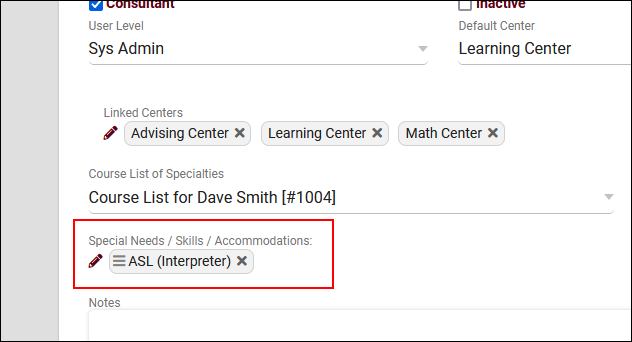
- Linked to Consultant means that only consultants who are able to assist with the chosen accommodation search will appear in the results. Accommodations can be assigned in the consultant’s profile.
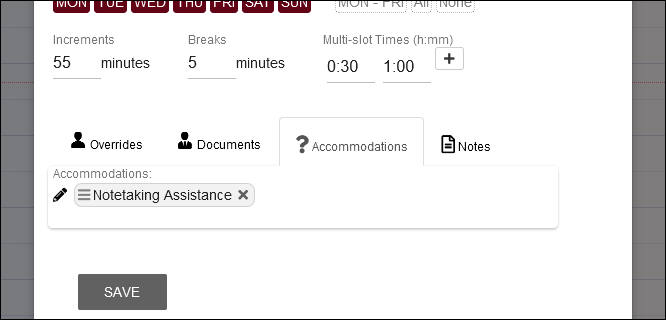
- Linked to Availability means that only availabilities that are assigned to the chosen accommodation during the appointment search will appear in the results, regardless of consultant.


- Activate for search availability on Main Menu
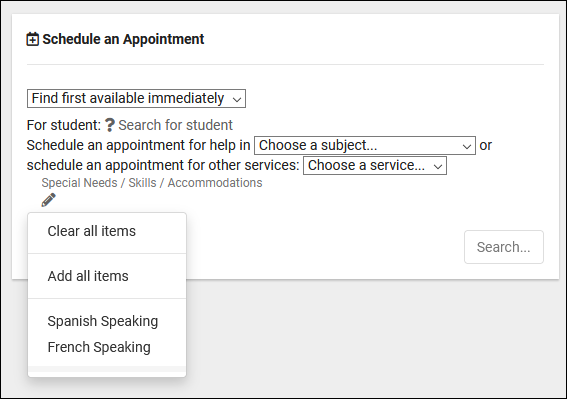
- If checked, the accommodations field can appear with in the search availability widget on the main menu. This will allow students or staff to specify an accommodation during the availability search process, filtering the available options. Otherwise, the accommodation will need to be selected by a staff member in the appointment entry window.

- Excluded when not chosen?
- If checked, availabilities or consultants that are assigned to accommodations will not appear in search results unless one of their linked accommodations is chosen during the search. This effectively makes accommodation-friendly availabilities only available to those who are specifically requesting them.
- If checked, availabilities or consultants that are assigned to accommodations will not appear in search results unless one of their linked accommodations is chosen during the search. This effectively makes accommodation-friendly availabilities only available to those who are specifically requesting them.
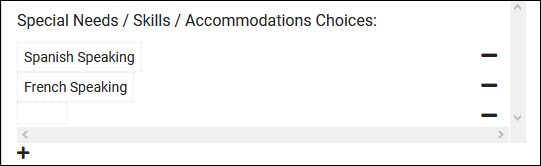
- Special Needs / Skills / Accommodations Choices:
- This is where you will add your accommodation choices. Anything from preferred language, to disability assistance, to specific athletic requirements. The choices here are entirely up to you.

- Linked special needs to student lists.
- This allows you to link students from a specific list to a particular accommodation, should be used with Load Skills from Student detailed below.
- This allows you to link students from a specific list to a particular accommodation, should be used with Load Skills from Student detailed below.
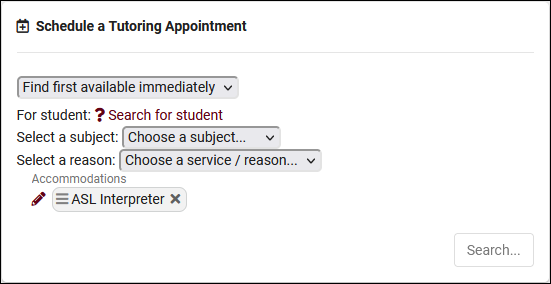
Additional options must also be configured in the search availability widgets themselves. Go to Other ➜ Other Options ➜ Preferences ➜ Search Availability Options ➜ Search availability Widget (choose the applicable widget). You will find the following relevant options, for details on the rest of these preferences, click here.

- Allow Special Skills
- If enabled, students/staff will see the skills and accommodations search field when searching for availabilities. This should be enabled if using this functionality.

- Linked Special Skills
- This allows you to restrict which skills/accommodations are available in this widget. Default is blank (all).
- This allows you to restrict which skills/accommodations are available in this widget. Default is blank (all).
- Allow user to adjust chosen special skills
- If checked, users can specify which skills/accommodations they want to search for. If unchecked, all available special skills will be chosen (as determined by Linked Special Skills).
- If checked, users can specify which skills/accommodations they want to search for. If unchecked, all available special skills will be chosen (as determined by Linked Special Skills).
- Load Skills from Student / Other
- Automatically select student skills/accommodations based on Linked special needs to student lists. Alternatively, the skills and accommodations can be loaded based on a recent SAGE referral for this student. If based on referral, you will need to select the related referral type in Load Special Skills from which Referral below.