TracCloud: Case Management: Difference between revisions
From Redrock Wiki
Created page with "{{WIP}} {{TracCloudGuideTabs}} <div class="tcWidgetPage"> {{NoTier}} <div class="categoryDynamic"> {{TracCloudModulesTOC}} </div> <div class="pageTitle">Case Management</div> Description Diagram <hr> ==<b>Case Management Configuration</b>== Description <hr> <!--------------------------------------- Categories ---------------------------------------> <div class='collapsible'>Categories</div><div class="mw-collapsible mw-collapsed"> <br><br> Every case type must be..." |
No edit summary |
||
| Line 10: | Line 10: | ||
Description | Description | ||
[[File:856170.png|800px]] | |||
<hr> | <hr> | ||
==<b>Case Management Configuration</b>== | ==<b>Case Management Configuration</b>== | ||
Learn how to create case types, activity report types, configure automated email notifications, and more. | |||
<hr> | <hr> | ||
| Line 25: | Line 24: | ||
Every case type must be linked to a category. When creating a case, the available types will be grouped by category to allow you to easily locate the case type you're trying to submit. | Every case type must be linked to a category. When creating a case, the available types will be grouped by category to allow you to easily locate the case type you're trying to submit. | ||
<i>Other > Modules > Case Management > Categories</i> | <i>Other > Modules > Case Management > Categories</i><br> | ||
[[File:955101.png|700px]]<br><br> | [[File:955101.png|700px]]<br><br> | ||
| Line 44: | Line 43: | ||
Case Types represent the various types of incidents or issues that may need to be reported. For example, you may have an incident type for maintenance requests, another for policy violations, and another for safety issues. To create a new case type, go to the hamburger {{#fas:bars}} menu > New Case Type. | Case Types represent the various types of incidents or issues that may need to be reported. For example, you may have an incident type for maintenance requests, another for policy violations, and another for safety issues. To create a new case type, go to the hamburger {{#fas:bars}} menu > New Case Type. | ||
<i>Other > Modules > Case Management > Types</i> | <i>Other > Modules > Case Management > Types</i><br> | ||
[[File:430722.png|700px]] | [[File:430722.png|700px]] | ||
| Line 90: | Line 89: | ||
<br><br> | <br><br> | ||
Activity Reports allow you to append additional information and actions to cases, as well as specify the parties involved with a particular case. For example, you may have a report for data gathering at the start of a case, potentially multiple for different stages of the case as progress is made, and another for the resolution of the case. This isn't a requirement by any means, you can structure these activity reports to best fit your needs. | Activity Reports allow you to append additional information and actions to cases, as well as specify the parties involved with a particular case. For example, you may have a report for data gathering at the start of a case, potentially multiple for different stages of the case as progress is made, and another for the resolution of the case. This isn't a requirement by any means, you can structure these activity reports to best fit your needs. Click <b>Add Report Type</b> to begin. | ||
[[File:971052.png|600px]]<br><br> | [[File:971052.png|600px]]<br><br> | ||
These are the available activity report settings. | |||
[[File:577333.png|600px]]<br><br> | |||
* <b>Report Type Name</b> | * <b>Report Type Name</b> | ||
| Line 118: | Line 117: | ||
::Pictured above, todo | ::Pictured above, todo | ||
</div> | |||
<hr> | |||
<!--------------------------------------- Notification Preferences ---------------------------------------> | |||
<div class='collapsible'>Notification Preferences</div><div class="mw-collapsible mw-collapsed"> | |||
<br><br> | |||
[[File:971685.png|600px]]<br><br> | |||
</div> | </div> | ||
| Line 132: | Line 136: | ||
When a case is created (details further into this article), it will be stored in the Case Reports Listing. | When a case is created (details further into this article), it will be stored in the Case Reports Listing. | ||
<i>Other > Modules > Case Management > Cases</i> | <i>Other > Modules > Case Management > Cases</i><br> | ||
[[File:320784.png|700px]]<br><br> | [[File:320784.png|700px]]<br><br> | ||
Revision as of 17:50, 20 May 2026
This page is still in progress! Come back later to learn more.
Additional Features
Description

Case Management Configuration
Learn how to create case types, activity report types, configure automated email notifications, and more.
Every case type must be linked to a category. When creating a case, the available types will be grouped by category to allow you to easily locate the case type you're trying to submit.
Other > Modules > Case Management > Categories

To create a new case, click the hamburger menu and select "New Case Category." Enter the name of the category and describe its purpose. The next section of this article will explain how case types can be linked to these categories.

The above example would display like this during case creation. Clicking the button would then show the available case types within this category.

Case Types represent the various types of incidents or issues that may need to be reported. For example, you may have an incident type for maintenance requests, another for policy violations, and another for safety issues. To create a new case type, go to the hamburger menu > New Case Type.
Other > Modules > Case Management > Types

This tab contains general settings for the case type, including its name, description, subtypes, and who is allowed to submit this type of case.

- Inactive
- If a case type is no longer being used, it can be deactivated. If your case type has cases, it should always be deactivated instead of deleted.
- Allow all students/Staff/Instructors to Open/Report
- Choose which user types are allowed to create cases of this type.
- Category
- Select the category (as configured above) that this type should be a part of.
- Name
- This is the name of the case type, which will also be the name of the button when creating cases.
- Button Title
- todo
- Description / Instructions
- This text appears beside the button above when beginning to create a case of this type as well as on the case creation screen.
- Issue Name
- Choose your preferred language for the type of form this is. For example, 'Case,' 'Incident,' or 'Report.'
- Auto-Choose if it's the only type in the category
- If this case type is the only case type in its category, it will be automatically chosen when clicking the category during case creation.
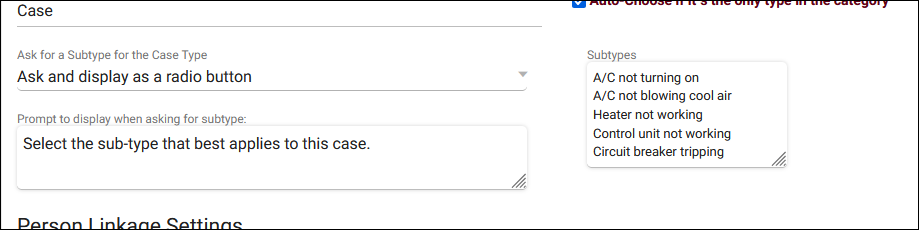
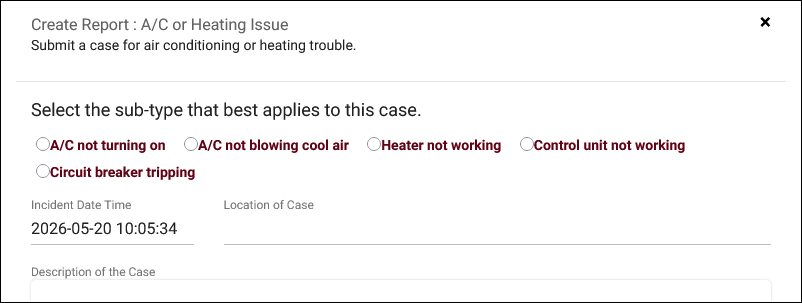
- Ask for a Subtype for the Case Type
- If enabled, an additional "Sub-type" field will be added to the case. Your list can be provided as a menu field (drop-down list), radio choices, or a list (scrollable list).


Activity Reports allow you to append additional information and actions to cases, as well as specify the parties involved with a particular case. For example, you may have a report for data gathering at the start of a case, potentially multiple for different stages of the case as progress is made, and another for the resolution of the case. This isn't a requirement by any means, you can structure these activity reports to best fit your needs. Click Add Report Type to begin.

These are the available activity report settings.

- Report Type Name
- This will be the name of the activity report. Students, Staff, and/or Faculty will select this in order to begin the process of adding the activity.
- Report Description
- todo
- Ask for Severity
- Choose how users can report the severity of this activity. None hides this field, Severity Only provides a drop-down menu of options including Low, Moderate, High and Critical, and Urgency, Impact, and Severity (pictured below) includes all three of those listed fields, with Urgency and Impact automatically setting Severity. Severity can still be overridden manually if preferred.


- Ask for Report Status
- This adds a drop-down menu of statuses to the activity report. If enabled, you can list the statuses on separate rows beside the checkbox. This can later be used in Notification Preferences to automatically notify individuals if a status is chosen or has remained for an extended period of time.
- Ask for Persons Involved and Witnesses
- These add fields to the activity report that allow you to choose who was involved with, affected by, or witnessed the issue regarding this case.
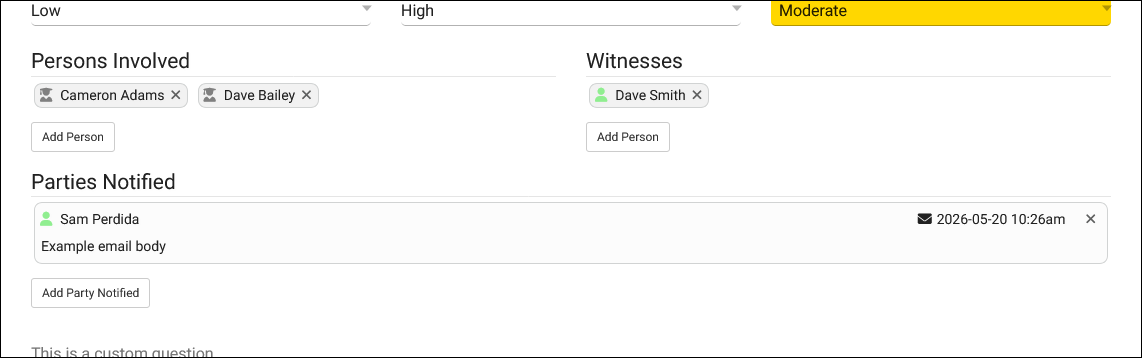

- Ask for Parties Notified
- Pictured above, todo

When a case is created (details further into this article), it will be stored in the Case Reports Listing.
Other > Modules > Case Management > Cases
File:320784.png

Description
Description
Creating and Managing Cases
Description
For information on purchasing the Case Management Module, reach out to [email protected]
For Case Management functionality questions, reach out to [email protected]
See Also: