|
|
Attendance by Hour
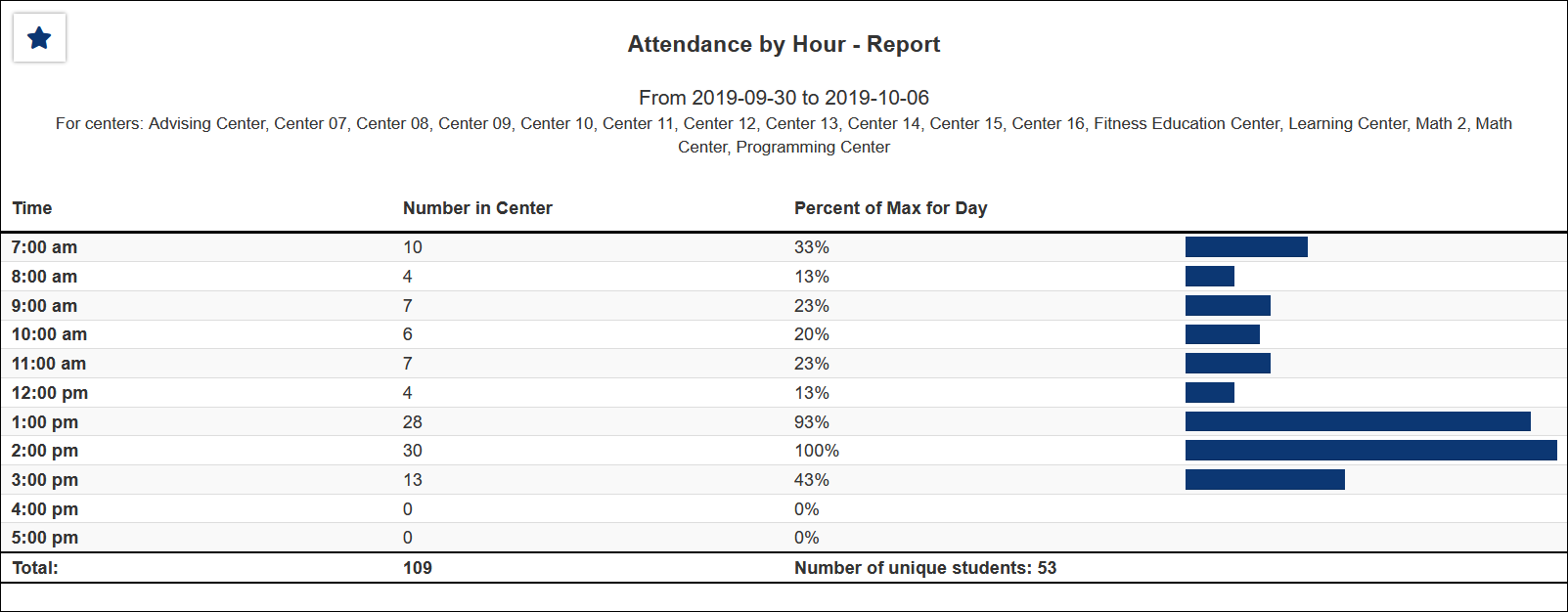
This report lists the number of visits that took place per specified time increment in a given date range, 1-hour by default. The attendance is plotted by number, and in a bar graph. The hours of the day are listed vertically on the left, and then columns to the right depict the number of students in the center(s) within a given block of time.
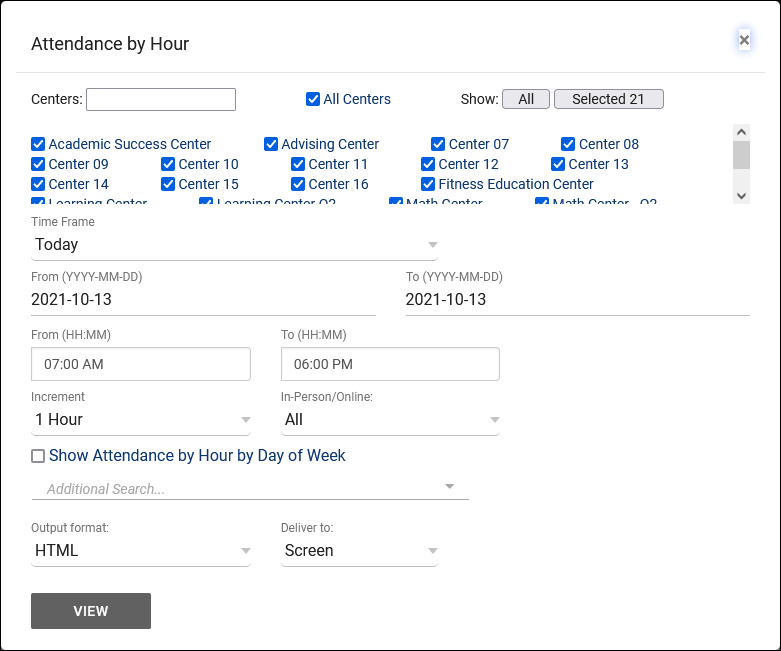
- Filter report data by center. You can select all centers or only a specific few to narrow down your results. At least one center must be selected. Inactive centers are hidden from this list by default, but can be included by checking "Show Inactive."
- The date range for the data in this report. Beyond entering a date range manually, you can also choose a preset date range (Today, This Month, This Semester, etc) from the dropdown list above.
- Select your preferred time increment. I.e., separate results in increments of 1 hour, 30 minutes, or 15 minutes.
- Filter the data in this report to only include records based on meeting type (In-Person, Online, Asynchronous (where applicable), and Phone). Defaults to All.
- Show Attendance by Hour by Day of Week
- This will include an additional graph displaying how many visits took place per day of week in addition to the hour-by-hour breakdown.
- Filter your results by a selected field.
Use * as a wildcard (Subject: MAT*)
| as "or" (Major: Mathematics|Biology)
# as "Not" (Status: #Inactive)
&& as "And" (Major: #Mathematics&&#Biology)
blankornull as a keyword to find records where the field is blank (Reason: blankornull)
Multiple fields can be added to further narrow down your results.
- Use HTML to view report data in your browser, or export this report to a CSV file (available for most reports). Some reports offer additional CSV options depending on if you want to include totals and/or data grouping in your export.
- Display this report immediately in your browser ("Screen"), or send the report to a specified email address ("Email"). Multiple email addresses can be specified, use ; to separate them ([email protected];[email protected]).
HTML
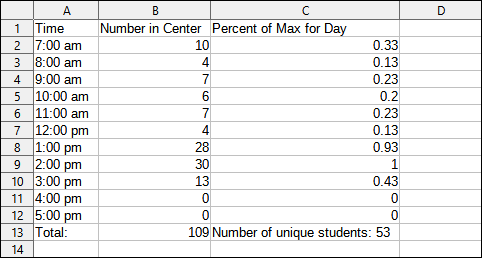
CSV
|


