|
|
Students Visits Center Grid
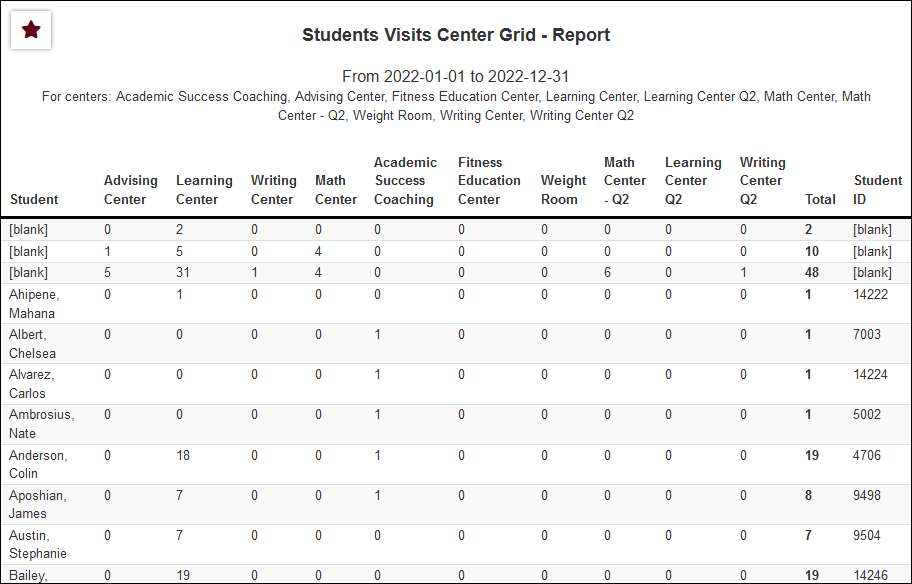
This report displays a list of your students and their total visits in each center for the date range you've entered.
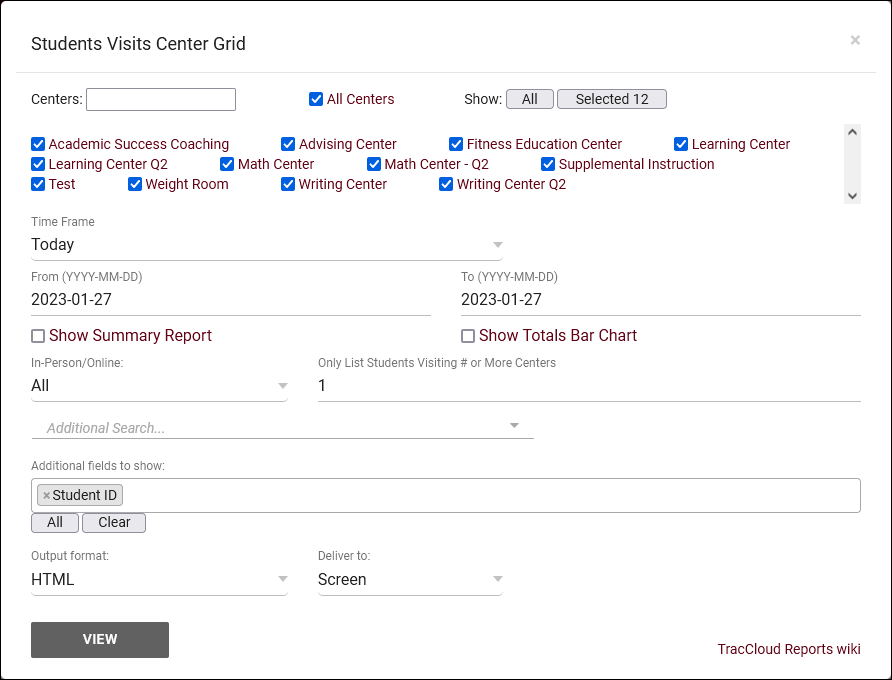
- Filter report data by center. You can select all centers or only a specific few to narrow down your results. At least one center must be selected. Inactive centers are hidden from this list by default, but can be included by checking "Show Inactive."
- The date range for the data in this report. Beyond entering a date range manually, you can also choose a preset date range (Today, This Month, This Semester, etc) from the dropdown list above.
- Only show data totals, excluding details of individual records.
- Adds a visual bar chart of totals to your report data.
- Filter the data in this report to only include records based on meeting type (In-Person, Online, Asynchronous (where applicable), and Phone). Defaults to All.
- Only List Students Visiting # or More Centers
- If this report is being run on multiple centers at once, you can use this option to only list students who visited X number of unique centers or more.
- Filter your results by a selected field.
Use * as a wildcard (Subject: MAT*)
| as "or" (Major: Mathematics|Biology)
# as "Not" (Status: #Inactive)
&& as "And" (Major: #Mathematics&&#Biology)
blankornull as a keyword to find records where the field is blank (Reason: blankornull)
Multiple fields can be added to further narrow down your results.
- Additional fields to show
- This can be used to add additional data fields to the report results. For example, you could use this to add a student's email address in a visit report.
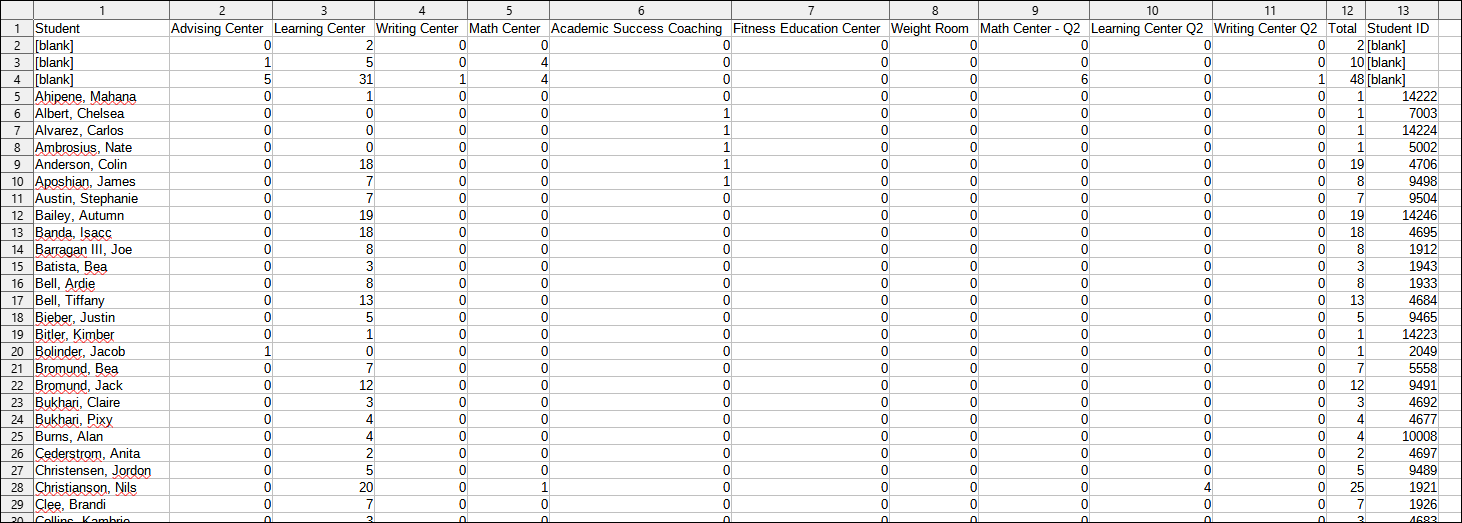
- Use HTML to view report data in your browser, or export this report to a CSV file (available for most reports). Some reports offer additional CSV options depending on if you want to include totals and/or data grouping in your export.
- Display this report immediately in your browser ("Screen"), or send the report to a specified email address ("Email"). Multiple email addresses can be specified, use ; to separate them ([email protected];[email protected]).
HTML
CSV
|


