TracCloud: Single Sign-On: Difference between revisions
From Redrock Wiki
No edit summary |
No edit summary |
||
| (One intermediate revision by the same user not shown) | |||
| Line 97: | Line 97: | ||
:* <b>Install your Metadata in the Primary Metadata field</b> | :* <b>Install your Metadata in the Primary Metadata field</b> | ||
:::[[File:2807471.png|500px]] | :::[[File:2807471.png|500px]] | ||
:::After submitting, your Entity ID field will be populated automatically. | :::After submitting, your Entity ID field will be populated automatically. | ||
:::In the event that duel tenant authentication is required (e.g., one metadata file for staff, another for students), you will simply need to add the additional metadata links/files to the secondary/tertiary fields as needed. Users would then navigate the relevant URL in order to login, shown below. Replace with your campus URL as needed. | |||
:::Primary metadata would be used if accessing the system at: | |||
:::https://traccloud.go-redrock.com/demo/trac/index.php?saml_mt=1 | |||
:::Secondary metadata would be used if accessing the system at: | |||
:::https://traccloud.go-redrock.com/demo/trac/index.php?saml_mt=2 | |||
:::Tertiary metadata would be used if accessing the system at: | |||
:::https://traccloud.go-redrock.com/demo/trac/index.php?saml_mt=3 | |||
<big>3. Retrieve your attributes</big> | <big>3. Retrieve your attributes</big> | ||
| Line 146: | Line 156: | ||
:Enable the toggle option in the top-right corner of your CAS window to enable CAS authentication for future logins. | :Enable the toggle option in the top-right corner of your CAS window to enable CAS authentication for future logins. | ||
:[[File:J54yh545m56j5j.png|800px]] | :[[File:J54yh545m56j5j.png|800px]] | ||
</div> | |||
<HR> | |||
<div class='collapsible'>LDAP Configuration</div><div class="mw-collapsible mw-collapsed"><br><br> | |||
Other ➜ Other Options ➜ Preferences ➜ Login & Security Settings ➜ LDAP. | |||
[[File:407981.png|800px]] | |||
<br><br> | |||
* '''Server Address''' | |||
: The address of your LDAP server. | |||
* '''Port''' | |||
: Typically 389 for non-secure LDAP, or 636 for secure LDAPS. | |||
* '''Timeout''' | |||
: Typically set to 30. | |||
* '''Uses Service Account''' and '''Name/Password''' | |||
: If this is a double-bind configuration where a service account needs to perform account look-ups, check this box and enter the credentials for the account. | |||
* '''Prepend/Append to Username for Matching''' | |||
: When someone enters their username to login, that username will be used for the account lookup (as opposed to SAML where additional attributes could be passed in the background). If accounts are stored with a prefix/suffix that will not be entered by the user, these fields can be used. For example, if "dsmith" is logging in, but their account is stored as "campus\dsmith", you would put "campus\" in the prepend field. | |||
* '''Authentication order''' | |||
: Choose the order accounts are authenticated in. | |||
* '''Student/Staff/Faculty field containing unique ID''' | |||
: Choose the field to match the username to, typically UserName. | |||
* '''LDAP field containing unique ID''' | |||
: The LDAP attribute, typically sAMAccountName. | |||
* '''LDAP Account Search Options''' | |||
: These are the fields where you will specify the base DNs to search in. For example, one base DN may contain students, while another may contain staff/faculty. Choose which accounts to check for in each DN, then enter the base DN into the text field below. You can perform up to three searches. | |||
* '''Search filter''' | |||
: Common values are (objectClass=user), (memberOf=example), or (cn=NOTAUSER) | |||
</div> | </div> | ||
<HR> | <HR> | ||
| Line 155: | Line 203: | ||
* <b>Log Off Redirect URL</b> | * <b>Log Off Redirect URL</b> | ||
: This is the URL that users will be taken to when logging out of TracCloud, typically used to redirect users to a page that ends their single sign-on session. | |||
* <b>Custom "No Access" Page URL</b> | * <b>Custom "No Access" Page URL</b> | ||
: By default, if a user attempts to access a page that they don't have access to, a generic "Access Denied" page will display from TracCloud. If you would prefer to override this with a different page, enter that URL here. | |||
* <b>Block SSO users from kiosk</b> | * <b>Block SSO users from kiosk</b> | ||
: If enabled, anyone who logs in via SSO will not be allowed to open student-facing kiosks. This should only be enabled if your single sign-on service doesn't support single logout, otherwise if a user opens a kiosk, their campus account will still be logged in. | |||
* <b>Prevent Automatic Redirection on Index Page</b> | * <b>Prevent Automatic Redirection on Index Page</b> | ||
: With the exception of LDAP, enabling any SSO will cause your regular TracCloud link to redirect through your single sign-on login page. If this box is checked, that will be prevented. This is typically not recommended. | |||
* <b>Activation Session Expiration</b> | * <b>Activation Session Expiration</b> | ||
: Automatically log users out after a period of inactivity. By default, logins are valid for the duration of the browser session. | |||
</div> | </div> | ||
Latest revision as of 22:00, 8 October 2026
TracCloud supports SAML, CAS, and LDAP for user authentication. Information on each of these options is available below. We can be reached at [email protected]
With Redrock Software Assistance
SAML
- To setup SAML or Shibboleth authentication, the following steps will need to be completed. At least one of the attributes being sent must match the contents of the username field in TracCloud, typically the first part of the email address. We can also use ID number, full email address, or other unique identifiers, but handle/username is preferred. Single logout (SLO) must be enabled for security purposes. Only SP Initiated sign-ins are supported, IDP initiated sign-ins are not supported at this time.
- Relay State URL should be left blank.
- 1. Install our Metadata
- 2. Send us your Metadata
- Either a URL or an XML file.
- 3. Send us a test account
- This makes implementing SAML on your system significantly faster, but isn't required.
CAS
- To setup CAS authentication:
- 1. Add Redrock as an authorized service
- Here is our URL: https://sso.trac.cloud/cas_return.php
- 1. Add Redrock as an authorized service
- 2. Send us your CAS settings
- CAS Login URL
- CAS Validate URL
- CAS Logout URL
- 2. Send us your CAS settings
LDAP
- To setup LDAP authentication:
- 1. Send us your LDAP settings
- Server Address
- Port Number
- Service account name (if applicable)
- Service account password (if applicable)
- Base DN
- 1. Send us your LDAP settings
- Multiple base DN searches can be performed if needed.
OIDC
- OIDC support is currently in beta. Documentation on this option will be added later.
Without Redrock Software Assistance
If you're comfortable applying changes here and already have the information above, you can put these settings in place with any SysAdmin account. If you're having any trouble with these settings, feel free to reach out to us at [email protected] or by submitting a helpdesk ticket. LDAP currently requires additional configuration not available to non-Redrock accounts, reach out to us directly if you plan on using LDAP.
Other ➜ Other Options ➜ Preferences ➜ Login & Security Settings ➜ Local Account Settings.

While it is recommended to use single sign-on instead, local accounts are still available if needed. This menu contains a few options for setting password strength requirements, auto lockouts after failed logins, and authentication order.
Additionally, you can choose if students or staff are allowed to reset their own password on the local account login screen. If allowed, you can set custom text in the reset message box (although it is recommended to leave this blank). An example custom message can be found below.
Need to reset your password? <a id="forgotStaffPWBtn" role="button" class="btn btn-default" href="javascript:sendStaffResetCode();">Click here.</a>
Other ➜ Other Options ➜ Preferences ➜ Login & Security Settings ➜ SAML.

1. Install our Metadata
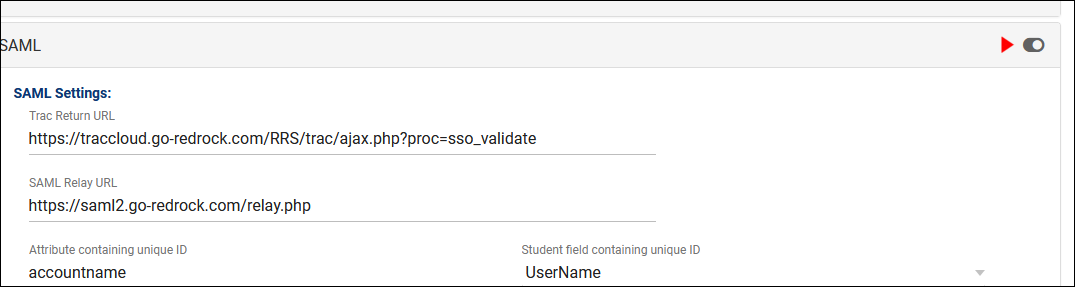
2. Fill out SAML settings
- Trac Return URL
- "https://traccloud.go-redrock.com/campuscode/trac/ajax.php?proc=sso_validate"
- Replace 'campus code' with your campus code, as seen in your URL. Otherwise static. Must be lowercase.
- If using a custom URL, use that in place of traccloud.go-redrock.com/campuscode
- SAML Relay URL
- "https://saml2.go-redrock.com/relay.php"
- This is static and never changes.
- Authentication Order
- Your staff may have more than one account type in TracCloud. You can use the "Authentication Order" preference to determine which account type authenticates first.
- Install your Metadata in the Primary Metadata field
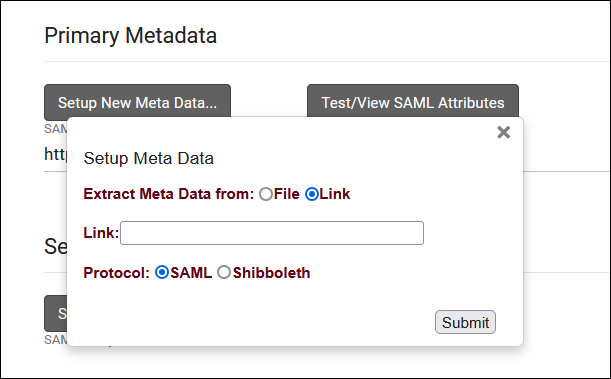
- After submitting, your Entity ID field will be populated automatically.
- In the event that duel tenant authentication is required (e.g., one metadata file for staff, another for students), you will simply need to add the additional metadata links/files to the secondary/tertiary fields as needed. Users would then navigate the relevant URL in order to login, shown below. Replace with your campus URL as needed.

- Primary metadata would be used if accessing the system at:
- https://traccloud.go-redrock.com/demo/trac/index.php?saml_mt=1
- Secondary metadata would be used if accessing the system at:
- https://traccloud.go-redrock.com/demo/trac/index.php?saml_mt=2
- Tertiary metadata would be used if accessing the system at:
- https://traccloud.go-redrock.com/demo/trac/index.php?saml_mt=3
3. Retrieve your attributes
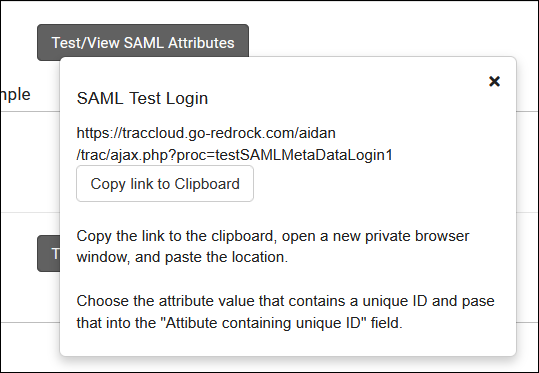
- Navigate to the provided URL in a Private/Incognito browser and login, you will be provided with a list of attributes and their value for the account that you used. Find the attribute that works for your system (e.g., first part of email address) and copy the name of that attribute into the "Attribute containing unique ID" field in TracCloud. This will need to correspond to the Username fields of accounts in the system.

4. Enable SAML
- Enable the toggle option in the top-right corner of your SAML window to enable SAML authentication for future logins.

Other ➜ Other Options ➜ Preferences ➜ Login & Security Settings ➜ CAS.

1. Add Redrock as an authorized service
- Here is our URL: https://sso.trac.cloud/cas_return.php
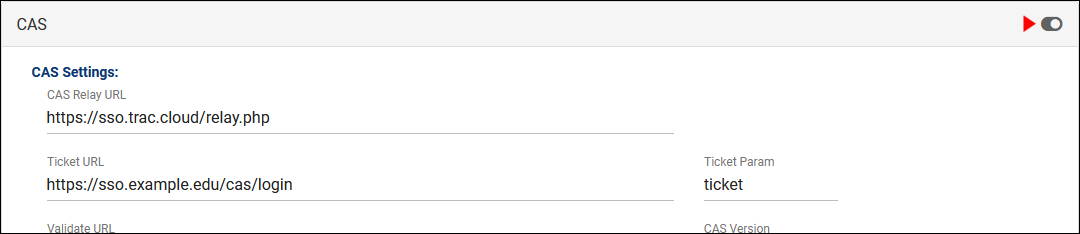
2. Fill out CAS settings
- CAS Relay URL
- "https://sso.trac.cloud/relay.php"
- This value is static and should not be changed.
- Ticket URL
- Place your CAS Login URL here.
- Ticket Param
- Typically "ticket"
- Validate URL
- Place your CAS Validate URL here.
- CAS Version
- Typically "2.0" for an XML response. Use 1.0 for a plain text response.
- User Name Attribute
- Typically "cas:user"
- Trac Return URL
- Place your CAS Logout URL here.
- Deauth when visiting KIOSK
- Kiosks are typically student-facing. If this is checked, it ends the SSO session to prevent a user from navigating to other campus services or even logging back into TracCloud.
3. Enable CAS
- Enable the toggle option in the top-right corner of your CAS window to enable CAS authentication for future logins.

Other ➜ Other Options ➜ Preferences ➜ Login & Security Settings ➜ LDAP.

- Server Address
- The address of your LDAP server.
- Port
- Typically 389 for non-secure LDAP, or 636 for secure LDAPS.
- Timeout
- Typically set to 30.
- Uses Service Account and Name/Password
- If this is a double-bind configuration where a service account needs to perform account look-ups, check this box and enter the credentials for the account.
- Prepend/Append to Username for Matching
- When someone enters their username to login, that username will be used for the account lookup (as opposed to SAML where additional attributes could be passed in the background). If accounts are stored with a prefix/suffix that will not be entered by the user, these fields can be used. For example, if "dsmith" is logging in, but their account is stored as "campus\dsmith", you would put "campus\" in the prepend field.
- Authentication order
- Choose the order accounts are authenticated in.
- Student/Staff/Faculty field containing unique ID
- Choose the field to match the username to, typically UserName.
- LDAP field containing unique ID
- The LDAP attribute, typically sAMAccountName.
- LDAP Account Search Options
- These are the fields where you will specify the base DNs to search in. For example, one base DN may contain students, while another may contain staff/faculty. Choose which accounts to check for in each DN, then enter the base DN into the text field below. You can perform up to three searches.
- Search filter
- Common values are (objectClass=user), (memberOf=example), or (cn=NOTAUSER)
After setting up the SSO protocol, there are a few optional settings to configure, detailed below.

- Log Off Redirect URL
- This is the URL that users will be taken to when logging out of TracCloud, typically used to redirect users to a page that ends their single sign-on session.
- Custom "No Access" Page URL
- By default, if a user attempts to access a page that they don't have access to, a generic "Access Denied" page will display from TracCloud. If you would prefer to override this with a different page, enter that URL here.
- Block SSO users from kiosk
- If enabled, anyone who logs in via SSO will not be allowed to open student-facing kiosks. This should only be enabled if your single sign-on service doesn't support single logout, otherwise if a user opens a kiosk, their campus account will still be logged in.
- Prevent Automatic Redirection on Index Page
- With the exception of LDAP, enabling any SSO will cause your regular TracCloud link to redirect through your single sign-on login page. If this box is checked, that will be prevented. This is typically not recommended.
- Activation Session Expiration
- Automatically log users out after a period of inactivity. By default, logins are valid for the duration of the browser session.