TracCloud: Single Sign-On: Difference between revisions
From Redrock Wiki
No edit summary |
No edit summary |
||
| (4 intermediate revisions by the same user not shown) | |||
| Line 4: | Line 4: | ||
{{TracCloudTechTOC}} | {{TracCloudTechTOC}} | ||
</div> | </div> | ||
< | <div class="pageTitle">TracCloud Single Sign-on Configuration</div> | ||
TracCloud supports SAML, CAS, and LDAP for user authentication. Information on each of these options is available below. | TracCloud supports SAML, CAS, and LDAP for user authentication. Information on each of these options is available below. | ||
| Line 13: | Line 13: | ||
<div class="line"></div> | <div class="line"></div> | ||
==SAML== | ==SAML== | ||
To setup SAML authentication, the following steps will need to be completed. <span style="color:red">At least one of the attributes being sent must match the contents of the username field in your Trac System, typically the first part of the email address. We can also use ID number, full email address, or other unique identifiers, but handle/username is preferred.</span> Single logout (SLO) must be enabled for security purposes. | To setup SAML or Shibboleth authentication, the following steps will need to be completed. <span style="color:red">At least one of the attributes being sent must match the contents of the username field in your Trac System, typically the first part of the email address. We can also use ID number, full email address, or other unique identifiers, but handle/username is preferred.</span> Single logout (SLO) must be enabled for security purposes. Only SP Initiated sign-ins are supported, IDP initiated sign-ins are not supported at this time. | ||
<big>1. Install our Metadata</big> | <big>1. Install our Metadata</big> | ||
| Line 54: | Line 54: | ||
Multiple base DN searches can be performed if needed. | Multiple base DN searches can be performed if needed. | ||
<hr> | |||
==OIDC== | |||
OIDC support is currently in beta. Documentation on this option will be added later. | |||
<hr> | <hr> | ||
'''Without Redrock Software's Assistance''' | '''Without Redrock Software's Assistance''' | ||
| Line 146: | Line 150: | ||
* <b>Block SSO users from kiosk</b> | * <b>Block SSO users from kiosk</b> | ||
::If enabled, anyone who logs in via SSO will not be allowed to open student-facing kiosks. This should only be enabled if your single sign-on service doesn't support single logout, otherwise if a user opens a kiosk, their campus account will still be logged in. | ::If enabled, anyone who logs in via SSO will not be allowed to open student-facing kiosks. This should only be enabled if your single sign-on service doesn't support single logout, otherwise if a user opens a kiosk, their campus account will still be logged in.<br><br> | ||
* <b>Prevent Automatic Redirection on Index Page</b> | |||
::With the exception of LDAP, enabling any SSO will cause your regular TracCloud link to redirect through your single sign-on login page. If this box is checked, that will be prevented. This is typically not recommended.<br><br> | |||
* <b>Activation Session Expiration</b> | |||
::Automatically log users out after a period of inactivity. By default, logins are valid for the duration of the browser session. | |||
</div> | </div> | ||
Latest revision as of 20:23, 5 December 2025
TracCloud Technical Documentation
TracCloud supports SAML, CAS, and LDAP for user authentication. Information on each of these options is available below.
We can be reached at helpdesk@go-redrock.com
With Redrock Software's Assistance
SAML
To setup SAML or Shibboleth authentication, the following steps will need to be completed. At least one of the attributes being sent must match the contents of the username field in your Trac System, typically the first part of the email address. We can also use ID number, full email address, or other unique identifiers, but handle/username is preferred. Single logout (SLO) must be enabled for security purposes. Only SP Initiated sign-ins are supported, IDP initiated sign-ins are not supported at this time.
1. Install our Metadata
2. Send us your Metadata
- Either a URL or an XML file.
3. Send us a test account
- This makes implementing SAML on your system significantly faster, but isn't required.
CAS
To setup CAS authentication:
1. Add Redrock as an authorized service
- Here is our URL: https://sso.trac.cloud/cas_return.php
2. Send us your CAS settings
- CAS Login URL
- CAS Validate URL
- CAS Logout URL
LDAP
To setup LDAP authentication:
1. Send us your LDAP settings
- Server Address
- Port Number
- Service account name (if applicable)
- Service account password (if applicable)
- Base DN
Multiple base DN searches can be performed if needed.
OIDC
OIDC support is currently in beta. Documentation on this option will be added later.
Without Redrock Software's Assistance
If you're comfortable applying changes here and already have the information above, you can put these settings in place with any SysAdmin account. If you're having any trouble with these settings, feel free to reach out to us at helpdesk@go-redrock.com or by submitting a helpdesk ticket. LDAP currently requires additional configuration not available to non-Redrock accounts, reach out to us directly if you plan on using LDAP.
Other > Other Options > Preferences > Login & Security Settings > SAML

1. Install our Metadata
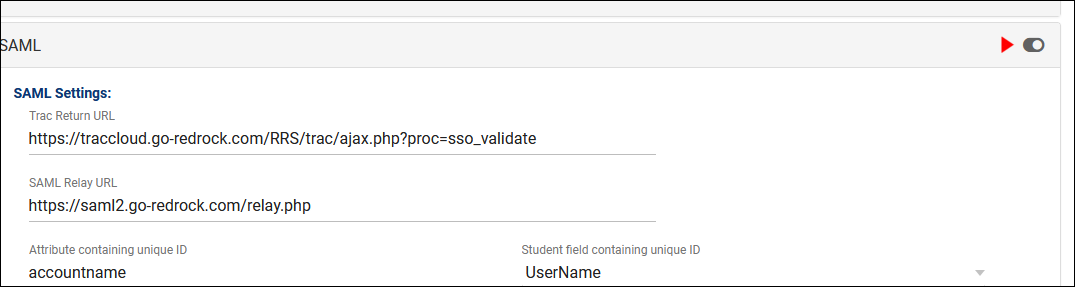
2. Fill out SAML settings
- Trac Return URL
- "https://traccloud.go-redrock.com/campuscode/trac/ajax.php?proc=sso_validate"
- Replace 'campus code' with your campus code, as seen in your URL. Otherwise static. Must be lowercase.
- If using a custom URL, use that in place of traccloud.go-redrock.com/campuscode
- SAML Relay URL
- "https://saml2.go-redrock.com/relay.php"
- This is static and never changes.
- Authentication Order
- Your staff may have more than one account type in the Trac System. You can use the "Authentication Order" preference to determine which account type authenticates first.
- Install your Metadata in the Primary Metadata field
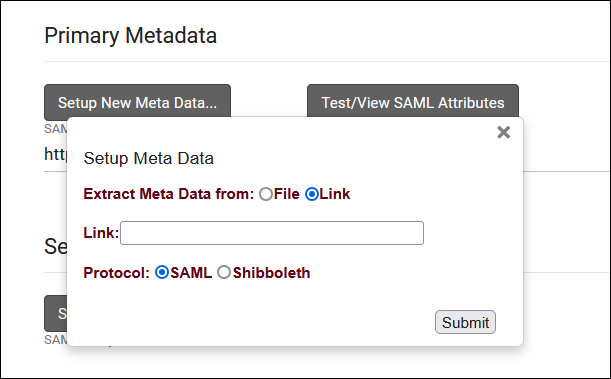
- After submitting, your Entity ID field will be populated automatically. If you require a duel-tenant configuration, reach out to us at helpdesk@go-redrock.com for assistance.

3. Retrieve your attributes
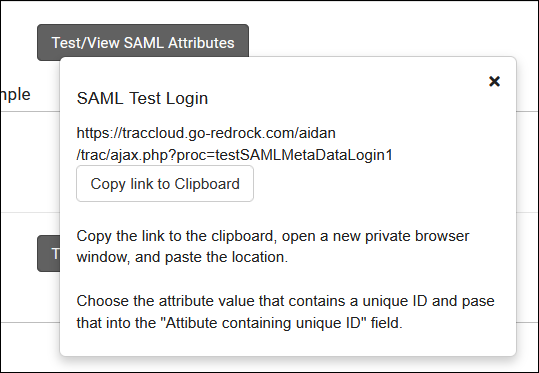
- Navigate to the provided URL in a Private/Incognito browser and login, you will be provided with a list of attributes and their value for the account that you used. Find the attribute that works for your system (e.g., first part of email address) and copy the name of that attribute into the "Attribute containing unique ID" field in TracCloud. This will need to correspond to the Username fields of accounts in the system.

4. Enable SAML
- Enable the toggle option in the top-right corner of your SAML window to enable SAML authentication for future logins.

Other > Other Options > Preferences > Login & Security Settings > CAS

1. Add Redrock as an authorized service
- Here is our URL: https://sso.trac.cloud/cas_return.php
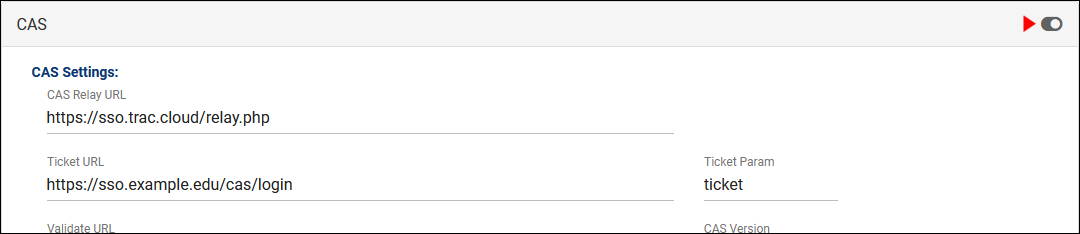
2. Fill out CAS settings
- CAS Relay URL
- "https://sso.trac.cloud/relay.php"
- This value is static and should not be changed.
- Ticket URL
- Place your CAS Login URL here.
- Ticket Param
- Typically "ticket"
- Validate URL
- Place your CAS Validate URL here.
- CAS Version
- Typically "2.0" for an XML response. Use 1.0 for a plain text response.
- User Name Attribute
- Typically "cas:user"
- Trac Return URL
- Place your CAS Logout URL here.
- Deauth when visiting KIOSK
- Kiosks are typically student-facing. If this is checked, it ends the SSO session to prevent a user from navigating to other campus services or even logging back into TracCloud.
3. Enable CAS
- Enable the toggle option in the top-right corner of your CAS window to enable CAS authentication for future logins.

After setting up the SSO protocol, there are a few optional settings to configure, detailed below.

- Log Off Redirect URL
- This is the URL that users will be taken to when logging out of the Trac System, typically used to redirect users to a page that ends their single sign-on session.
- This is the URL that users will be taken to when logging out of the Trac System, typically used to redirect users to a page that ends their single sign-on session.
- Custom "No Access" Page URL
- By default, if a user attempts to access a page that they don't have access to, a generic "Access Denied" page will display from TracCloud. If you would prefer to override this with a different page, enter that URL here.
- By default, if a user attempts to access a page that they don't have access to, a generic "Access Denied" page will display from TracCloud. If you would prefer to override this with a different page, enter that URL here.
- Block SSO users from kiosk
- If enabled, anyone who logs in via SSO will not be allowed to open student-facing kiosks. This should only be enabled if your single sign-on service doesn't support single logout, otherwise if a user opens a kiosk, their campus account will still be logged in.
- If enabled, anyone who logs in via SSO will not be allowed to open student-facing kiosks. This should only be enabled if your single sign-on service doesn't support single logout, otherwise if a user opens a kiosk, their campus account will still be logged in.
- Prevent Automatic Redirection on Index Page
- With the exception of LDAP, enabling any SSO will cause your regular TracCloud link to redirect through your single sign-on login page. If this box is checked, that will be prevented. This is typically not recommended.
- With the exception of LDAP, enabling any SSO will cause your regular TracCloud link to redirect through your single sign-on login page. If this box is checked, that will be prevented. This is typically not recommended.
- Activation Session Expiration
- Automatically log users out after a period of inactivity. By default, logins are valid for the duration of the browser session.