|
|
Consultant Specialties
This report will display all specialties that are assigned to your consultants, for both reasons and sections.
File:2167061.png
- Filter report data by center. You can select all centers or only a specific few to narrow down your results. At least one center must be selected. Inactive centers are hidden from this list by default, but can be included by checking "Show Inactive."
- Only show records for the selected term.
- Only show sections that have already been Assigned to a consultant, or view Sections that are still Unassigned. Defaults to 'All'.
- Show Only Active Sections
- Only include active sections in this report.
- Ignore Center Course Lists for Subjects
- Ignore the selected centers and show all specialties regardless of center for subject.
- Ignore Center Staff Link for Reasons
- Ignore the selected centers and show all specialties regardless of center for reason.
- Include email address in results.
- Include phone number in results.
- Ignore Section for Subjects
- Only view specialties by subject, rather than subject + section.
- Group records by the selected field. Some reports allow you to add secondary and tertiary groupings as well.
- Only show results for the specific Reason.
- Only show results for the specific Subject, Course, or Section.
- Filter your results by a selected field.
Use * as a wildcard (Subject: MAT*)
| as "or" (Major: Mathematics|Biology)
# as "Not" (Status: #Inactive)
&& as "And" (Major: #Mathematics&&#Biology)
blankornull as a keyword to find records where the field is blank (Reason: blankornull)
Multiple fields can be added to further narrow down your results.
- Use HTML to view report data in your browser, or export this report to a CSV file (available for most reports). Some reports offer additional CSV options depending on if you want to include totals and/or data grouping in your export.
- Display this report immediately in your browser ("Screen"), or send the report to a specified email address ("Email"). Multiple email addresses can be specified, use ; to separate them ([email protected];[email protected]).
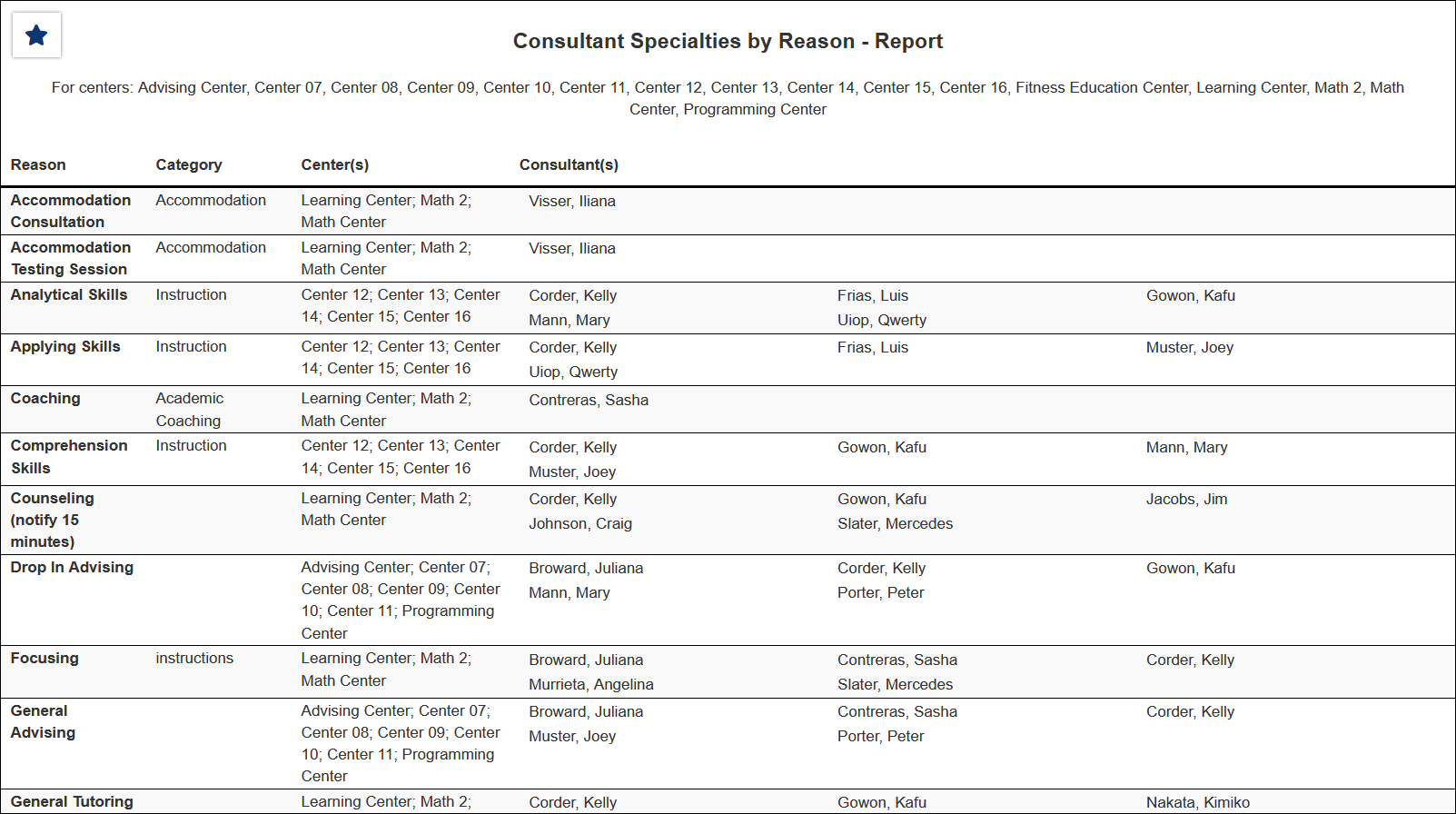
HTML
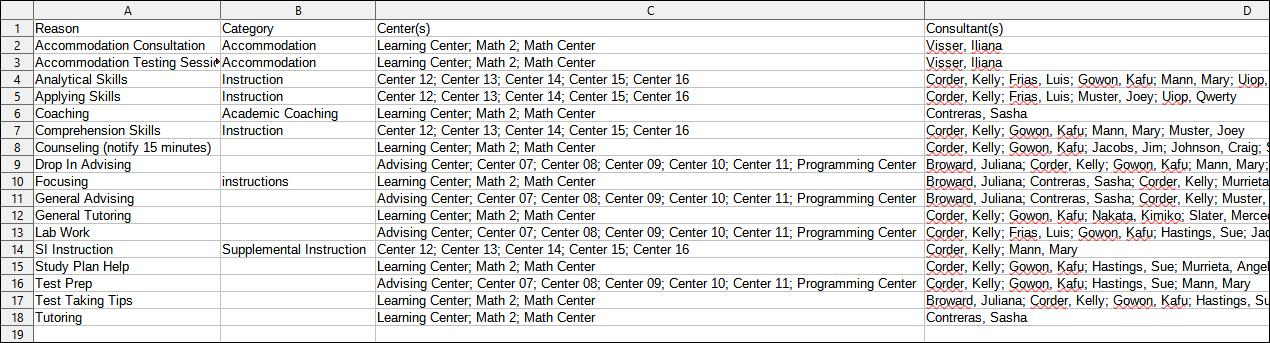
CSV
|


