|
|
| Line 1: |
Line 1: |
| <div class='tcAnnouncement blue'> | | <div class='tcAnnouncement blue'> |
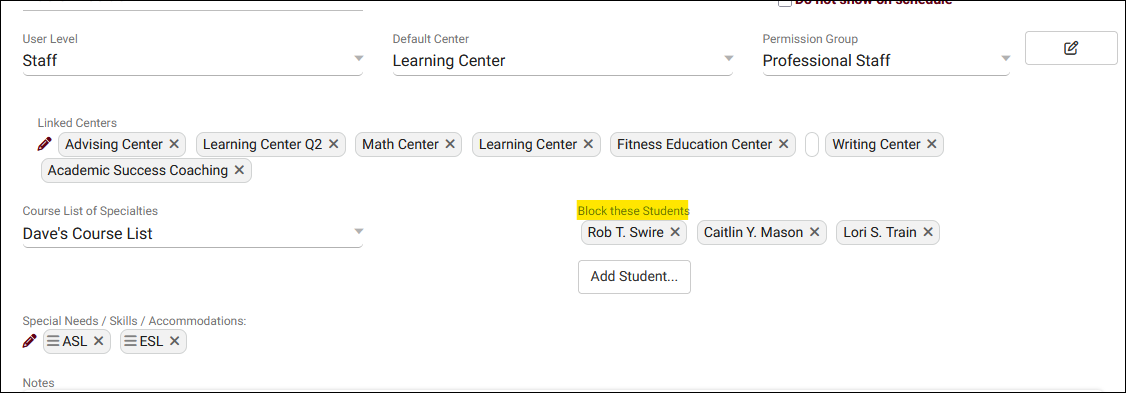
| {{#fas:calendar}} <span style='color:red'>Important:</span> This article has been archived. There is now an easier and improved method to accomplish this without max appointment rules. Within [[TracCloud:_Staff_and_Consultants|consultant]] records, you can now block students under the 'General' tab. | | {{#fas:calendar}} This article has been removed. There is now an easier and improved method to accomplish this without max appointment rules. Within [[TracCloud:_Staff_and_Consultants|consultant]] records, you can now block students under the 'General' tab. |
|
| |
|
| [[File:453868.png|800px]] | | [[File:453868.png|800px]] |
| </div>
| |
|
| |
| {{TracCloudGuideTabs}}
| |
| <div class="tcWidgetPage">
| |
| <div class="pageTitle">Preventing Specific Students from Booking with Specific Consultants</div>
| |
|
| |
| TracCloud allows you to create [[TracCloudGuideProfilePrefsSchedule|max appointment rules]] to prevent excessive appointments, you can block [[TracCloudGuideGlobalLists|lists]] of students from booking in particular [[TracCloudGuideProfileCenters|centers]] or [[TracCloudGuideProfilePrefsSchedule|profiles]], or even [[TracCloud:_Terms|deactivate accounts entirely]] based on lists. However, in some cases you may only want to block an individual student from booking with an individual consultant, which is possible with a specific max appointment rule detailed below.
| |
|
| |
| Go to <i>Other > Other Options > Profiles > [Your Profile] > Prefs > Scheduling > Max Appointment Rules and Blocks</i> Click the <b>+</b> button to create a new rule.
| |
|
| |
| * "Allow a maximum of" should be set to 0 appointments.
| |
|
| |
| * Add a search clause for "Consultant" and enter the consultant's name formatted as "Last, First".
| |
|
| |
| * Choose "Student ID is one of" and enter the numeric ID number(s) of the student who should be prevented from booking with the consultant above.
| |
|
| |
| * You can optionally enter a custom message to be displayed in the "Fail message to student" field to be shown instead of the automatically generated description. Staff will still see the automatic description when booking on behalf of students.<br><br>
| |
|
| |
| [[File:2477053.png|600px]]<br><br>
| |
|
| |
| Save your rule, and you're all set. If the student attempts to book with that consultant, they will be blocked.
| |
|
| |
| [[File:4899130.png|600px]]
| |
|
| |
| <hr>
| |
| <i>See Also</i>
| |
|
| |
| * [[TracCloudGuideProfilePrefsSchedule|Scheduling Prefs and Max Appointment Rules]]
| |
|
| |
| * [[TracCloudGuideGlobalLists|Student Lists]]
| |
|
| |
| * [[TracCloudGuideBasicsSchedule|Schedule Management]]
| |
|
| |
| </div> | | </div> |
This article has been removed. There is now an easier and improved method to accomplish this without max appointment rules. Within consultant records, you can now block students under the 'General' tab.